

Setup Errors & Solutions
Overview
Setting up a WhatsApp Business Account using the Chakra Chat Embedded Signup (ES) flow. However, users do face errors during the process and need assistance to fix them immediately.
WhatsApp API Setup: Common Errors and Their Resolution
Error 1: Phone isn't eligible
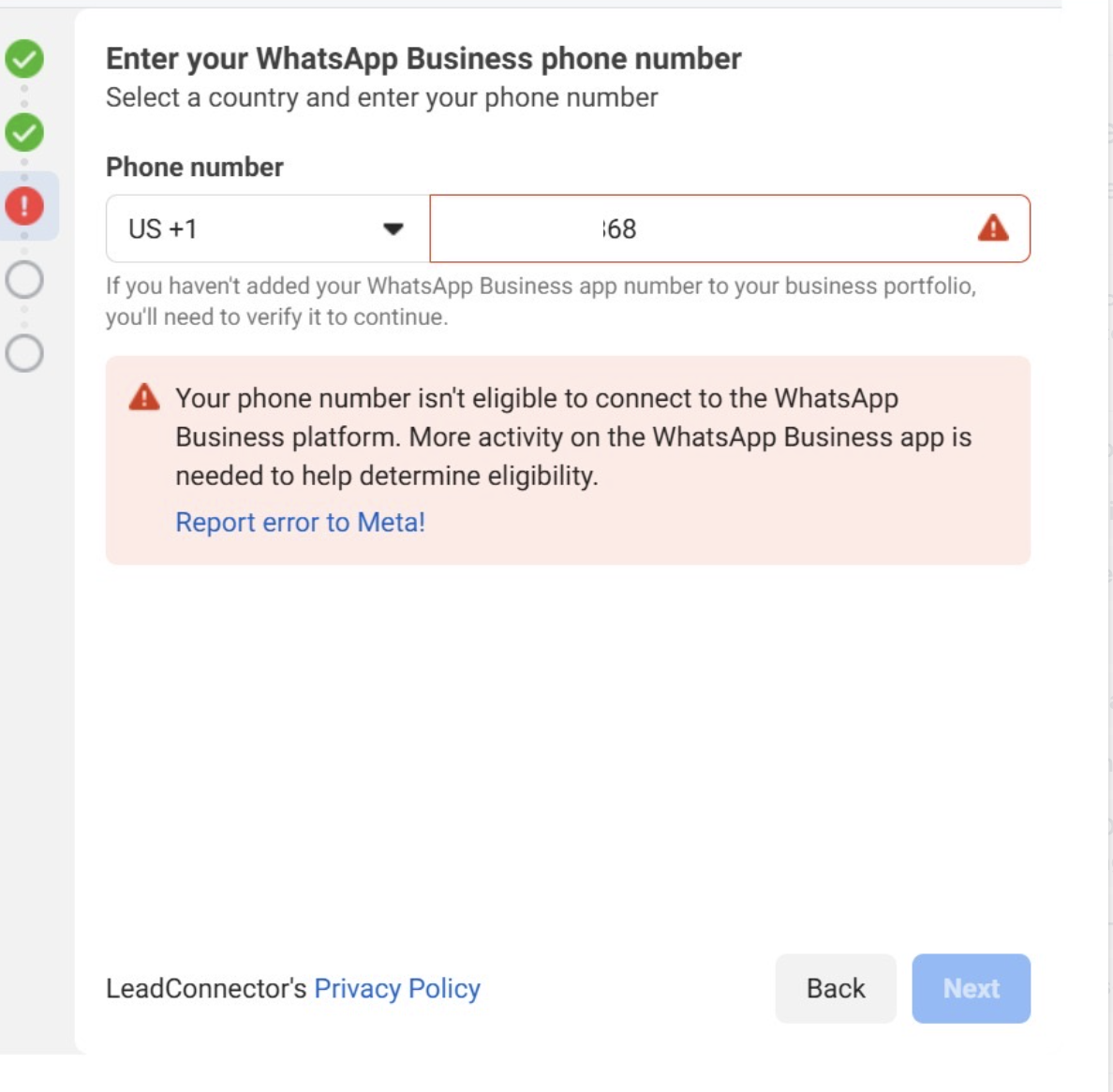
- Error message: Your phone number isn't eligible to connect to the WhatsApp Business Platform. More activity on the WhatsApp Business App is needed to help determine eligibility.
- Cause: Meta requires the phone number to have been actively used on the WhatsApp Business App for at least 7 days to establish credibility. New or recently registered numbers may not meet eligibility criteria.
- Solution: Actively use the WhatsApp Business App for at least 4-7 days to establish messaging history and credibility. Engage in regular communication with customers to demonstrate consistent usage. Do the Following Actions:
- Send messages to new numbers (7-10 numbers)
- Reply to incoming messages from new numbers
- Save numbers as contacts.
Error 2: Phone registered to existing WhatsApp
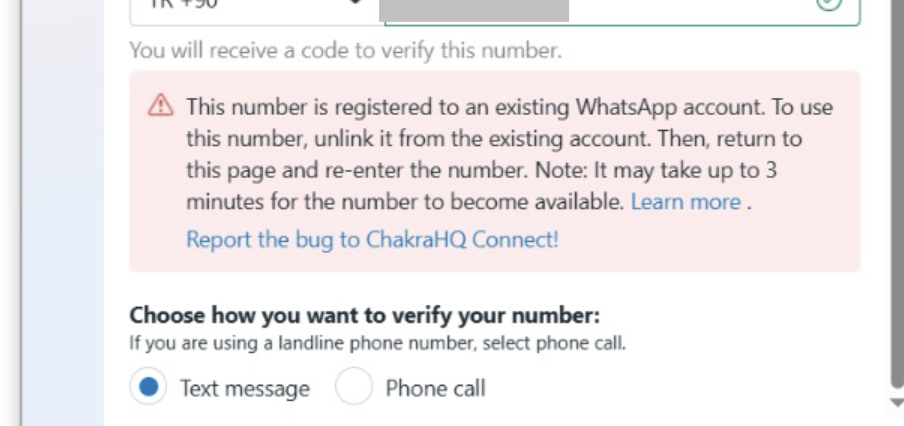
- Error message: This number is registered to an existing WhatsApp account. To use this number, disconnect it from the existing account. Then, return to this page and re-enter the number.
- Cause: Meta restricts the immediate reuse of a phone number previously registered with a WABA account. A cooldown period of 1–2 months is required to re-establish the number’s eligibility in the WhatsApp Business App.
- Resolution: If the phone number was previously used for a WABA, delete the WABA account via the provider’s platform or from the WhatsApp Manager. Download the WhatsApp Business App, sign up with the same number, and use it actively for 1–2 months to build credibility.
Error 3: Facebook API is not initialized
- Error message: Facebook API is not initialized
- Cause: This is a temporary issue during the launch of the embedded signup flow
- Resolution: Do a hard refresh, Windows (Ctrl + F5) or macOS (Shift + Command + R) and try clicking on Continue with Facebook
Error 4: Portfolio Limit reached
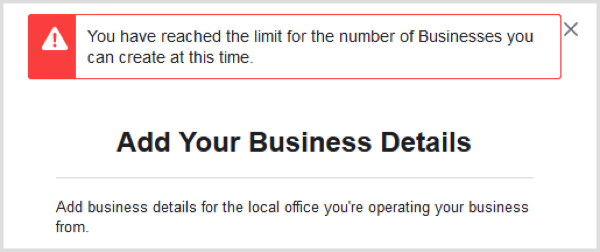
- Error Message: You have reached the limit for the number of Businesses you can create at this time.
- Cause: There is a limit to the number of Business Accounts that you can create.
- Solution: Please use an existing Business Account.
Error 5: Maximum Allowed Phone Linked
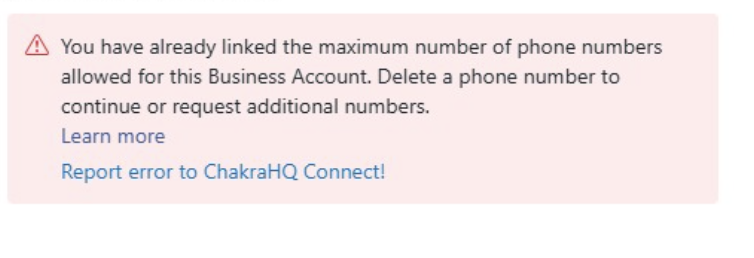
- Error Message: You have already linked the maximum number of phone numbers allowed for this Business Account. Delete a phone number to continue or request additional numbers.
- Cause: The default cap is of 2, and this scale upto 20 numbers over time. Adding number more than the meta authorized cap or the maximum limit can lead to this error.
- Solution: Delete an existing number and then add a new number OR use an existing number OR wait for your limit cap to be increase if below 20
Error 6: Display Name Rejected
- Error Message: This WhatsApp Business account can't use Current Display Name as its display name because it violates WhatsApp's Display Name Guidelines. Review the guidelines and submit a new name.
- Cause: The submitted business display name violates WhatsApp's guidelines ( doesn’t match the business, contains emojis, is too generic.
- Solution: Review WhatsApp’s Display Name Guidelines and adjust the name to match the registered business name or website. Enter a new display name and submit again.
Error 7: Error While Pairing Cloud API
- Error Message: :
Error While Pairing Cloud APIduring WhatsApp Coexistence Setup in the Emebedded Signup (ES) flow. - Cause: The most likely cause is that your WhatsApp Business number was restricted recently by Meta.(Offical Error documentation awaited from meta).
- Solution: It is suggested to wait for the restriction on your WhatsApp business number to be removed and then try the WhatsApp Coexistence setup in Chakra again.
Error 8: Business Sharing with Partner
Error message : The business is already sharing this WhatsApp Business account with a partner. Switching partners is not supported in this flow. Disconnect the current partner in the WhatsApp Business app, then return here to connect a new partner.
Cause: This case occurs if you have previously connected your WhatsApp Business Number with a BSP and now attempting to migrate the same number to Chakra Chat. Due to the credit line associated with previous Coexistence BSP still linked to the number, the registration fails.
Solution 1: Reset your WhatsApp Business App account. Use guide - https://chakrahq.com/help/learning-centre/whatsapp-business/reset-whatsapp-business-app
Solution 2: Convert to WhatsApp personal app account, convert it back to WhatsApp Business
- Save anything you need first. Export or back up recent customer conversations from the old provider before disconnecting, since chat history won't carry over automatically.
- Remove the number from Coexistence. Open the WhatsApp Business App and disconnect the business account from its current API partner.
- Switch to the WhatsApp Personal App. Log the number back in there — this step effectively clears the old business/API linkage.
- Re-add it as a business account. Reconnect the number within the WhatsApp Business App as normal.
- Restart onboarding in Chakra. Go through the Coexistence setup flow again from your Chakra account. Because the number is starting fresh, it'll generate a new WABA ID that isn't tied to the old credit line.
Error 9: Fixing the "WABA Already Has a Payment Method" Error During Coexistence Setup
Exact Error:
In short: the number's billing history is anchored to its old WABA, and Chakra can't inherit it.
When you'll run into this
This shows up specifically if your number was already onboarded to Coexistence through a different platform before you tried connecting it to Chakra. A handful of common cases:
- You previously ran Coexistence through another BSP and are now migrating to Chakra.
- A teammate or agency set this number up elsewhere in the past, possibly without your knowledge.
- The number was part of a Coexistence trial or pilot on a different tool.
How to resolve it?
Since the credit line can't be transferred directly, the fix is to reset the WABA so a fresh one gets created — then Chakra can attach to it cleanly. Here's the sequence:
Solution 1: Reset your WhatsApp Business App account. Use guide - https://chakrahq.com/help/learning-centre/whatsapp-business/reset-whatsapp-business-app
Solution 2: Convert to WhatsApp personal app account, convert it back to WhatsApp Business
- Save anything you need first. Export or back up recent customer conversations from the old provider before disconnecting, since chat history won't carry over automatically.
- Remove the number from Coexistence. Open the WhatsApp Business App and disconnect the business account from its current API partner.
- Switch to the WhatsApp Personal App. Log the number back in there — this step effectively clears the old business/API linkage.
- Re-add it as a business account. Reconnect the number within the WhatsApp Business App as normal.
- Restart onboarding in Chakra. Go through the Coexistence setup flow again from your Chakra account. Because the number is starting fresh, it'll generate a new WABA ID that isn't tied to the old credit line.
Once this is done, the connection to Chakra should complete without the payment-method error.
Worth knowing!
- This limitation applies to every platform offering Coexistence — it's a Meta-level rule, not something specific to how Chakra is built.
- Expect a short gap in message visibility while you disconnect and reconnect; this is normal and resolves once the new WABA finishes syncing with Chakra.
Where to Meta documentation for this error?
Meta documents this credit-line behavior in their partner-switching guidance, which covers what happens to existing lines of credit when a business moves between solution providers: Meta — Switching Partners and Line of Credit
Error 10: This phone number is not eligible to register or migrate.
Exact Error Message:
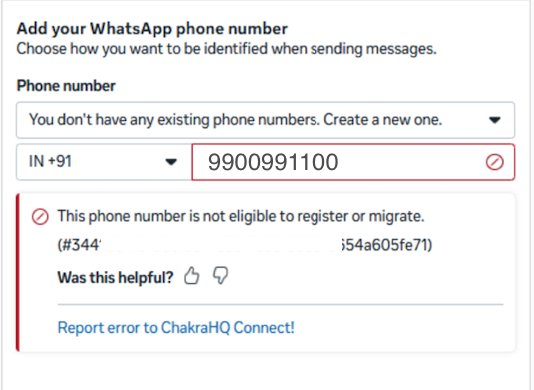
Cause:
- Number tied to another BSP/WABA with a lock still active
- WABA is currently restricted
- Number was previously restricted /banned
The #1 is the most common reason after Meta started the phone number first embedded signup
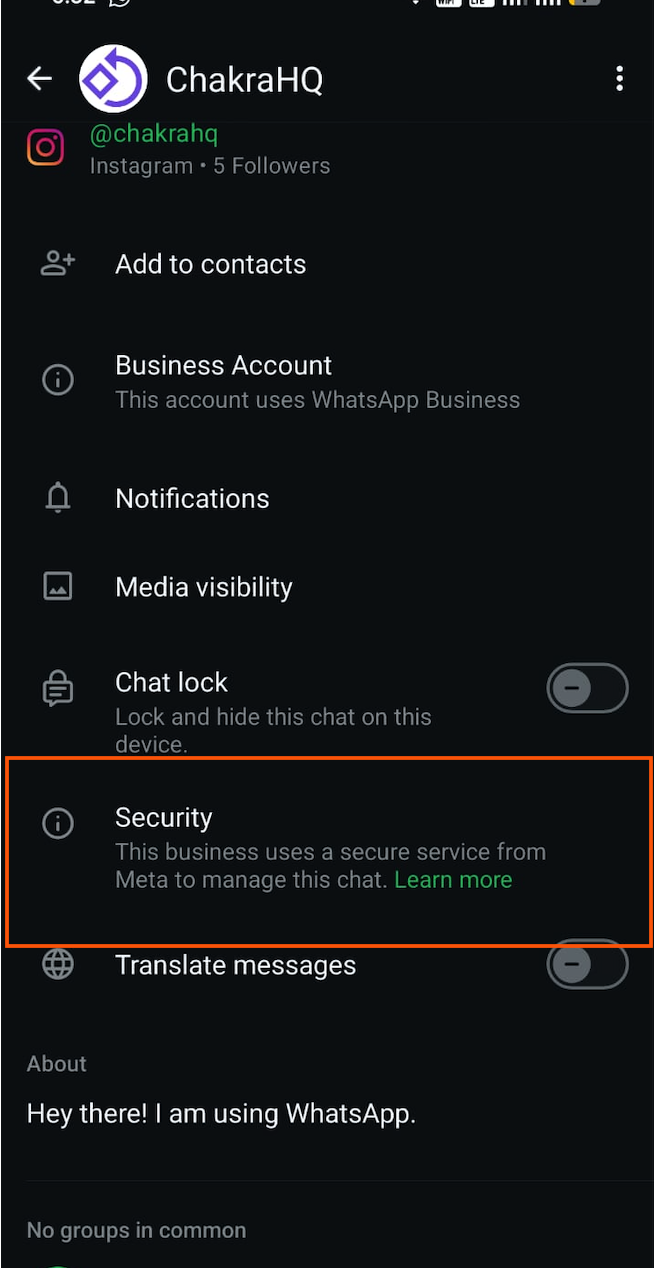
Troubleshoot #1
- Use you personal WhatsApp to go to the profile of the number you are trying to connect
- In the WhatsApp profile check if you
Error 11: Ineligible in Dropdown
In the new embedded signup (ES), existing number connected appear as INELIGIBLE
Error message
INELIGIBLE against existing number in the dropdown
Possible Reasons
- Number already onboarded with another BSP/partner: The number is already attached to a WABA that's live under a different Business Solution Provider (BSP). Meta detects it but won't let a *new* partner (ChakraHQ, in this case) add it again through fresh signup — it has to go through a number migration/partner-switch flow instead, not this dropdown.
- Insufficient WhatsApp Business App activity (Coexistence numbers):If the number is currently active on the WhatsApp Business App, Coexistence eligibility requires it to have had meaningful activity there for at least 7 days. Newer or low-activity numbers get marked ineligible until that threshold is met.
- Logged-in user lacks admin access to that specific WABA/number: The customer's Facebook account may not have full admin rights over the Business Portfolio or WABA that number belongs to — Meta lists numbers it can see, but restricts selection if the logged-in user lacks the right role/permission on that asset.
Error 11: Your phone number is already linked to automatic events
This error (Error Code #3441061: ) means an automation in the WhatsApp Business App (auto labels or auto-created lists) is still on; turn it off on the phone and retry Embedded Signup.
What the customer sees: Embedded Signup stops with a message that the phone number is already linked to automatic events and asks them to disable automatic lists.
Why it happens: The WhatsApp Business App can sort chats automatically into labels and lists (for example, new customers or orders). Meta blocks the Coexistence link while these app-side automations are active on the number. See WhatsApp's help article About automated events and the matching Meta developer forum thread.
Method 1: Turn off auto labels (recommended)
- Open the WhatsApp Business App on the primary phone.
- Go to Settings > Business tools > Labels.
- Find the toggle or menu option for Auto labels and turn it off.
- Return to Embedded Signup and retry the connection.
Method 2: Turn off auto-created lists
Use this if Method 1 did not clear the error, or if the Labels screen has no auto labels option.
- In the WhatsApp Business App, open Tools (or Settings > Business tools).
- Select Lists (on some versions, For you > Auto-create lists).
- Select Auto-created lists and switch it to Turn off.
- Return to Embedded Signup and retry the connection.
If the error persists
- Turning off greeting or welcome messages does not fix this error; focus on labels and lists.
- If the auto labels or lists option is missing, update the WhatsApp Business App, fully close and reopen it, then check again. Menu names vary by app version and platform.
- After changing the setting, wait a few minutes before retrying so the change syncs to Meta.
Still stuck? Contact support
If both methods fail, send support these details so the case can be escalated to Meta without back-and-forth via a ticket in Chakra.
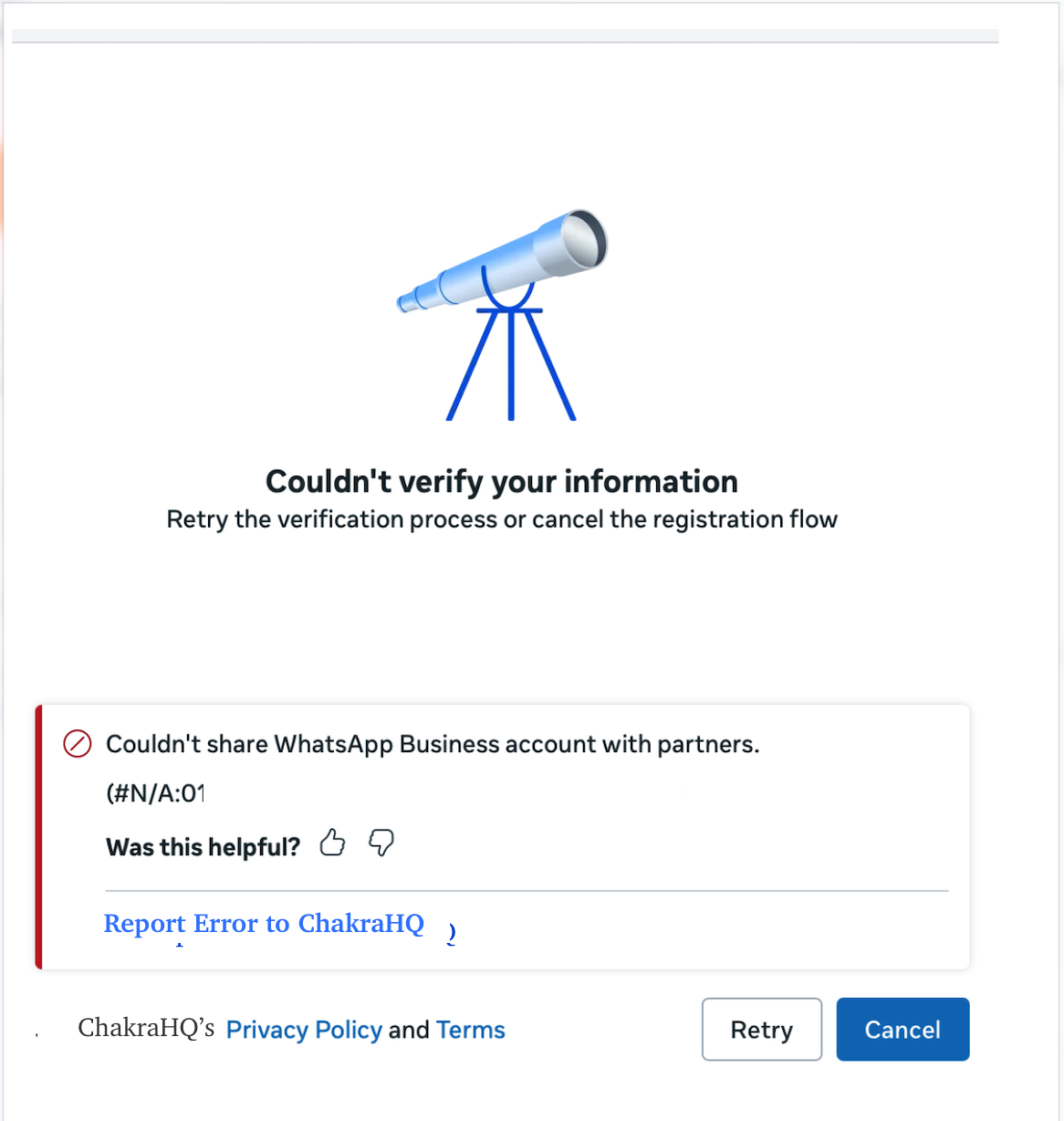
Error 12: Couldn't verify your information - Couldn't share WhatsApp Business account with partners.
This error occurs when Meta’s Embedded Signup flow fails to share or link the newly created/selected WhatsApp Business Account (WABA) with the solution provider's Meta Business Manager.
Error Appearance
- Error Message:
Couldn't share WhatsApp Business account with partners. - Error Code:
(#N/A:019fd492-0o51-6219-9n01-dp83f7dbif9)(or similar dynamic trace ID)
Common Causes
- Transient API Sync Delay: Temporary communication lag or race condition between Meta's authorization gateway and partner app servers.
- Insufficient Admin Permissions: The Meta user completing setup lacks Full Control / Admin access in their Meta Business Manager.
- Account Quality / Restriction: The business account has pending business verification issues, payment hold status, or policy violations restricting asset sharing.
- Browser Extension / Cookie Blocks: Third-party extensions, pop-up blockers, or strict privacy settings interrupting the OAuth handshake during Embedded Signup.
Resolution Steps
- Retry in Incognito Mode
- Open a fresh Incognito or Private browsing window.
- Disable browser extensions (especially ad blockers or privacy plugins).
- Relaunch the onboarding flow.
- Verify Business Manager Role
- Go to Meta Business Settings > Users > People.
- Confirm the email address performing setup is granted Full Control / Business Admin access.
- Check Account Quality
- Open Meta Business Suite > Account Quality.
- Resolve any outstanding policy flags, missing payment methods, or identity verification requests.
- Manual Partner Assignment (Fallback)
- In Meta Business Settings, navigate to Accounts > WhatsApp Business Accounts.
- Select the WABA > Partners > Assign Partners.
- Add the Solution Provider Business ID and enable Full Control.
Error 13: Phone Number Linked to Facebook Page
Root Cause
This error (Meta Error Code 2655082) occurs during Embedded Signup / Coexistence registration when the phone number is directly attached as a quick action/contact button to a Facebook Page or Instagram Profile across your Meta Business Accounts.
Meta strictly restricts numbers from onboarding to the WhatsApp Business Platform / API if they are actively linked as a direct messaging CTA on a Facebook Page.
Error Appearance
- Error Message:
The phone number is already linked to a Facebook Page. To continue, unlink your account from the Facebook Page or enter another number. - Error Code:
2655082
Common Causes
- Direct Page Integration: The phone number was added under the Page’s Linked Accounts setting in Meta Business Suite.
- WhatsApp Action Button: The Facebook Page features a "Send WhatsApp Message" CTA button powered by this phone number.
- Instagram Cross-Linking: The same number is synced to an Instagram Professional account tied to the Meta Business Page.
Resolution Steps
- Unlink WhatsApp from Facebook Page
- Log intoMeta Business Suite as a Page Admin.
- Navigate to Settings > Accounts > Linked Accounts (or WhatsApp).
- Click Disconnect to disassociate the phone number from the Facebook Page.
- Remove WhatsApp Action Button
- Navigate to your Facebook Page.
- Click Edit Action Button (or the three dots
...). - Remove the Send WhatsApp Message CTA or temporarily change it to another option (e.g., Contact Us).
- Check Instagram Integration (If applicable)
- Open Instagram > Edit Profile > Contact Options.
- Remove the WhatsApp number if it is listed as a contact action.
- Relaunch Signup
- Wait 5 minutes for Meta sync permissions to propagate.
- Clear browser cache or use an Incognito tab to retry Embedded Signup.
Error 14: “Request code failed: Our servers are temporarily unavailable”
Where you’ll see it: During WhatsApp Embedded Signup, at the phone verification step, after you ask for a verification code.
Error message:
Request code failed: Our servers are temporarily unavailable. Please wait 1 hour before trying again.
What this means
WhatsApp (Meta) has temporarily paused verification code requests for this phone number. This is a temporary limit on Meta’s side. It does not mean your number is banned or that something is wrong with your account.
Common causes
- The code was requested several times in a short period.
- Earlier attempts failed or timed out, and the retries triggered a limit.
- A temporary Meta service delay.
- A network or VPN issue that interferes with the SMS or call.
How to fix it
1. Wait at least 1 hour. Don’t request another code during this time. Repeated requests can extend the wait. If you made many attempts earlier, wait 12-24 hours.
2. Check your phone number. Make sure that:
- It is a mobile or landline number that can receive an SMS or voice call.
- It is not a VoIP, toll-free, or premium-rate number.
- It is not currently active on WhatsApp Messenger, the WhatsApp Business app, or another WhatsApp Business Account. If it is, remove or disconnect it first and turn off two-step verification.
3. Prepare for the retry.
- Use a stable internet connection and turn off any VPN.
- Try a different browser or an incognito window.
- If the number uses an IVR or auto-attendant, turn it off temporarily so the verification call can get through.
4. Request the code once.
- Choose SMS or Voice call. If one method failed before, try the other.
- Wait a few minutes for the code to arrive.
- Enter it carefully. Too many wrong attempts can cause a longer block.
Quick tips
- Don’t click “Resend code” repeatedly.
- Keep the phone nearby and switched on during verification.
- Finish signup in one session once the code arrives.
Error 15: Status: “Pending” in Meta Business Manager
Where you’ll see it: In Meta Business Manager, under WhatsApp Accounts → Phone Numbers, next to your number.
Message shown: Pending: Please register this phone number using the registration API or contact your partner to register the phone number.
What this means: Your phone number has been added to your WhatsApp Business Account, but it hasn’t been registered on the WhatsApp Business Platform yet. Until registration is complete, the number can’t send or receive messages. This is a setup step that still needs to be finished, and it doesn’t mean anything is wrong with your account.
Common causes
- The signup flow was closed or interrupted before the final step.
- The verification code (OTP) step failed or wasn’t completed.
- The verification expired. A verified number must be connected within 14 days, or it has to be verified again.
- The number is still linked to another WhatsApp account, provider, or app.
- Two-step verification (a PIN) from an earlier setup is still active on the number.
How to fix it
1. Re-run the signup.
If the setup was interrupted, start the connection process again from your provider’s platform and finish every step, including the verification code.
2. Check the number is free to use.
Make sure the number isn’t active on WhatsApp Messenger or another WhatsApp API platform. If it is, remove or disconnect it and turn off two-step verification and migrate. Wait a few minutes before retrying.