

3. Connect WhatsApp Number
This guide outlines all the steps of connecting a Number to WhatsApp Business API in Chakra Chat
Overview
Connect or Migrate your WhatsApp Number to register for the WhatsApp Business API using the Chakra Solution.
Type of WhatsApp Connection
- Connecting a NEW Phone Number to WhatsApp API
- Connecting an Existing WhatsApp Business app Number (WhatsApp Coexistence)
- Migrating an Existing WhatsApp Business API Number
- Migrate an Existing WhatsApp Coexistence Number
Connect NEW Number to WhatsApp
Prerequisites
- A Phone Number (Not linked to WhatsApp Messenger/WhatsApp Business app/WhatsApp API)
- Facebook Business Manager access
Steps to Connect a New Number
Video Guide for NEW Number Setup
Go to 👉 Chakra Chat Dashboard
1. Connect WhatsApp Number
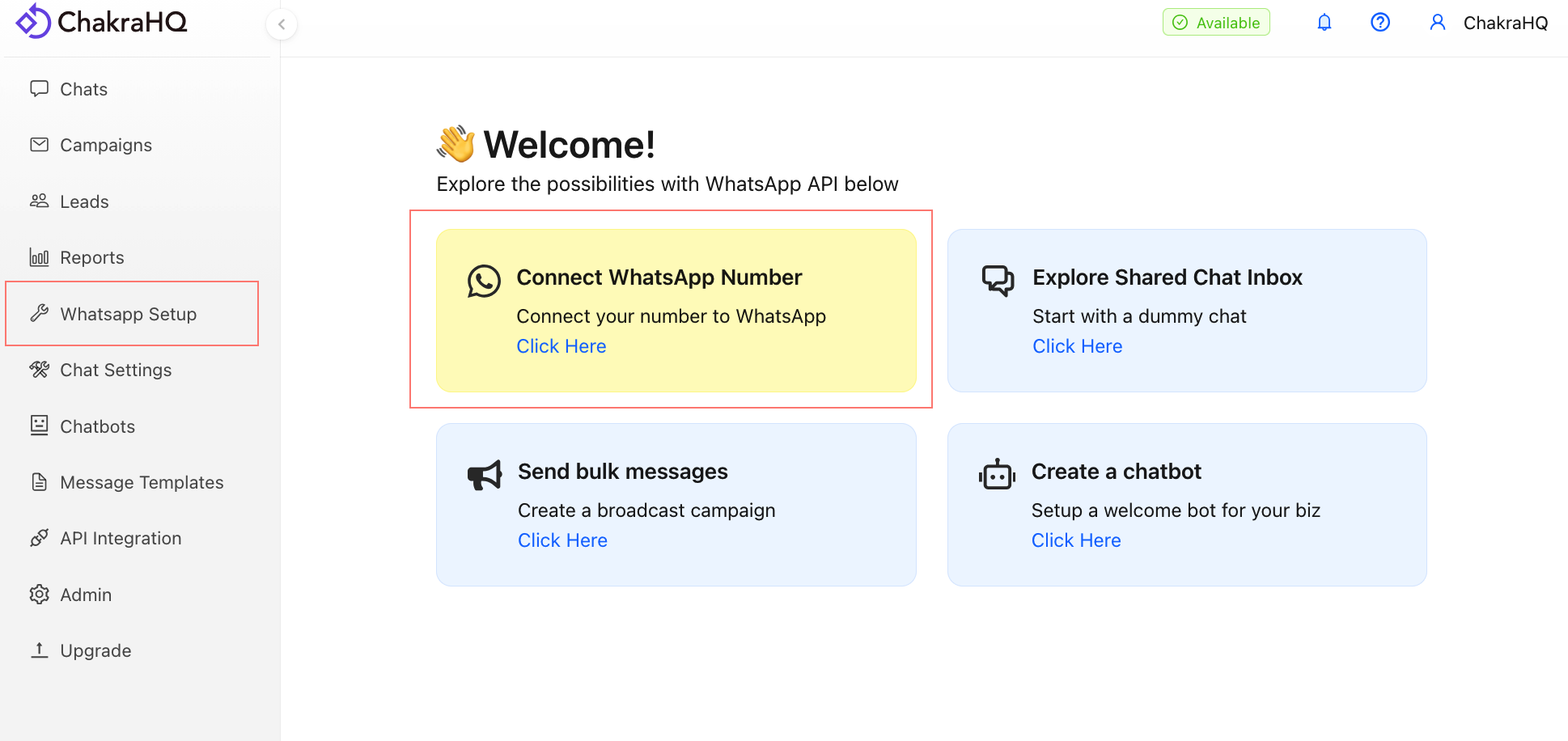
Go to Quick Start or navigate to **WhatsApp Setup*, click on Connect with Facebook. This opens the Embedded Signup (ES) widget.
2. Grant Permissions
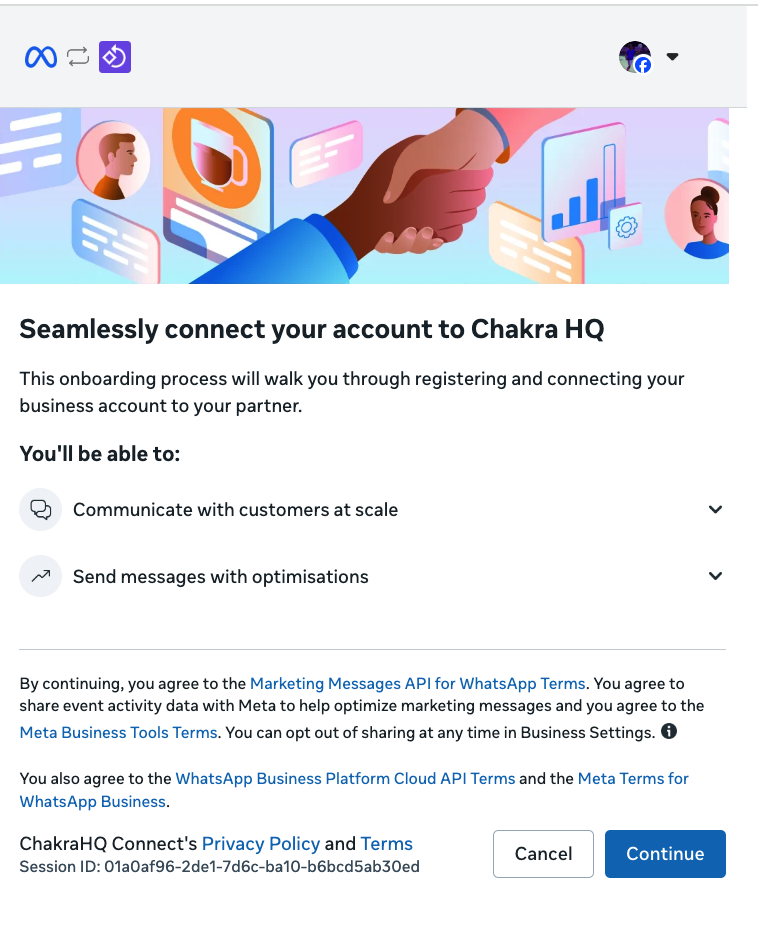
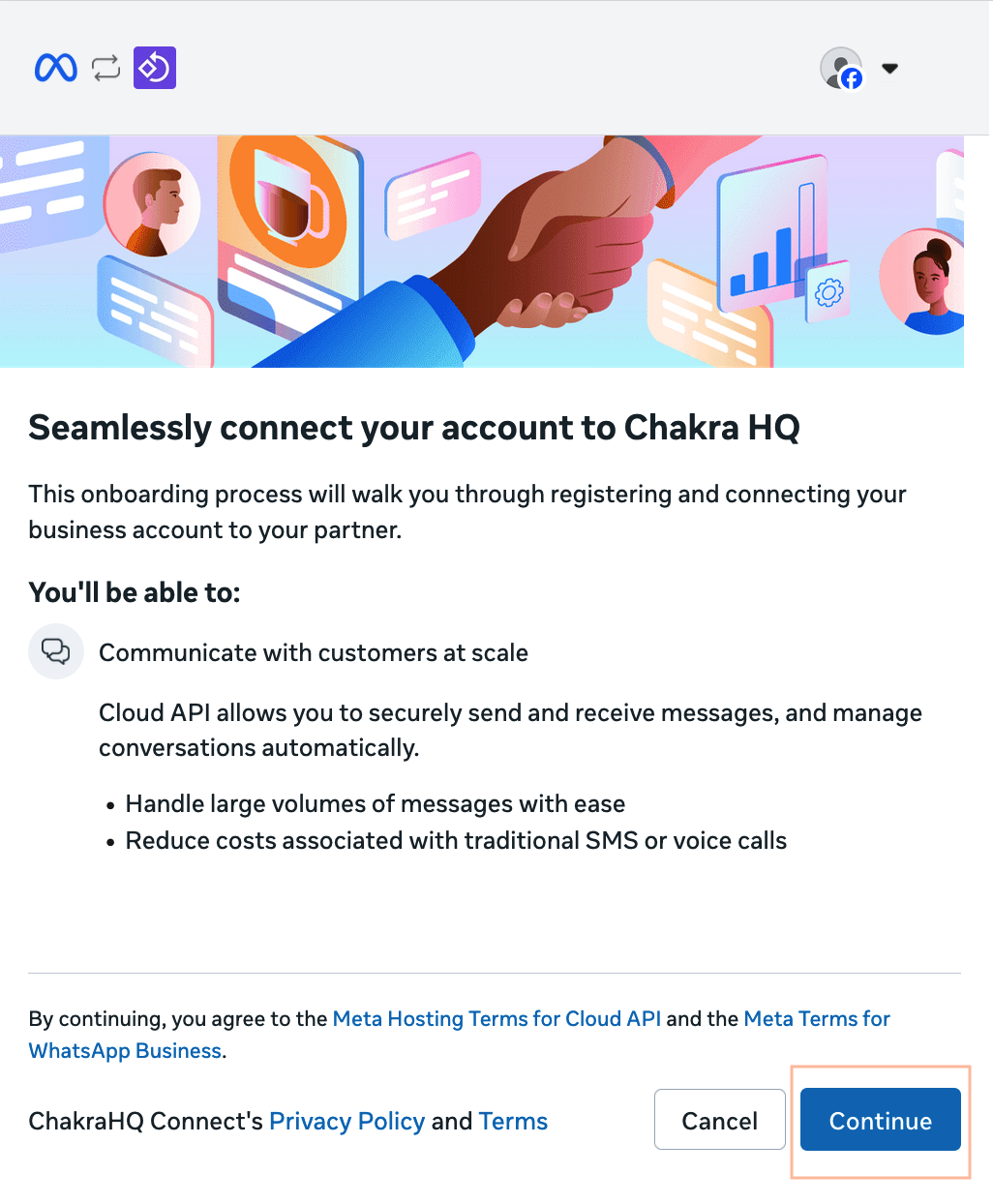
In the Embedded Signup flow, click Get Started to share permissions with ChakraHQ.
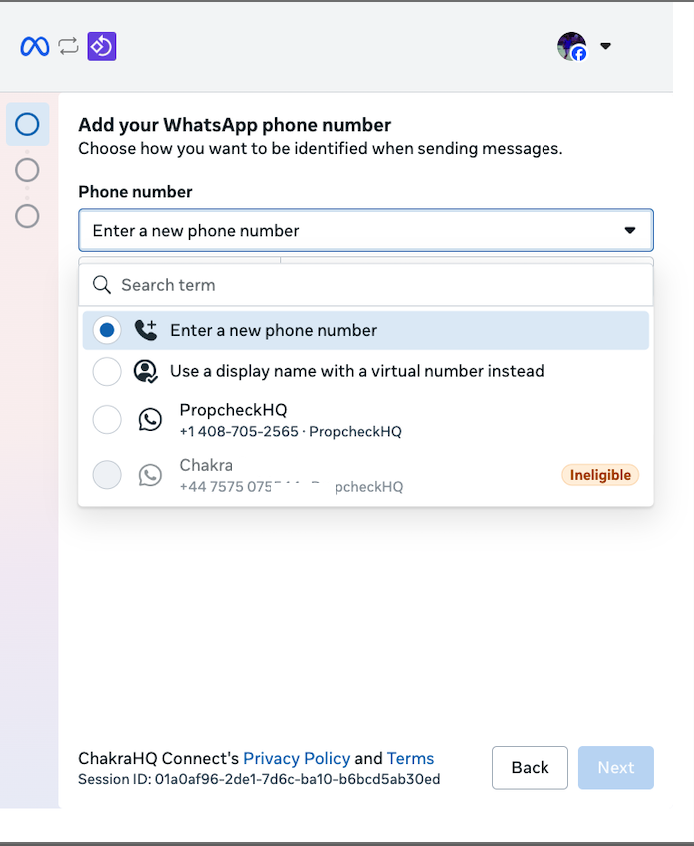
3. Add your Phone Number
- For a new number choose option 1 "Enter a new phone number"
- To use the Free WhatsApp 555 number use option 2 "Use a display name with a virtual number instead"
- To connect previously connected numbers select the number as appropriate. Refer option 3 (image below)
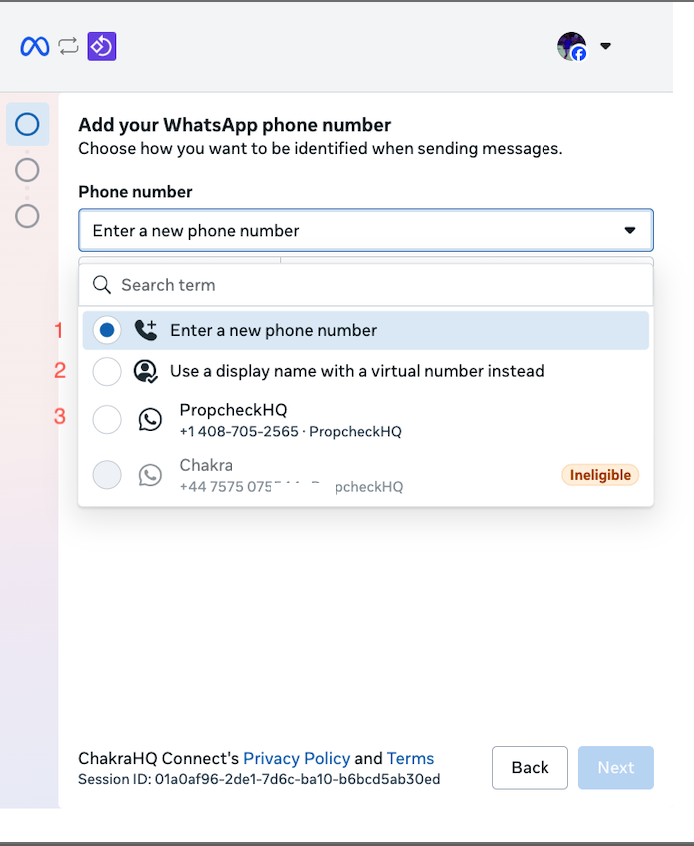
Note: If your Number reflects Ineligible tag in the dropdown, this implies that the existing connection with the WABA cannot be used to re-connect. In such cases, use the "📞 Enter a new phone number" option to add the number that you wish to connect. Using this option with connect the number with a new WABA id.
4. Select Business Assets
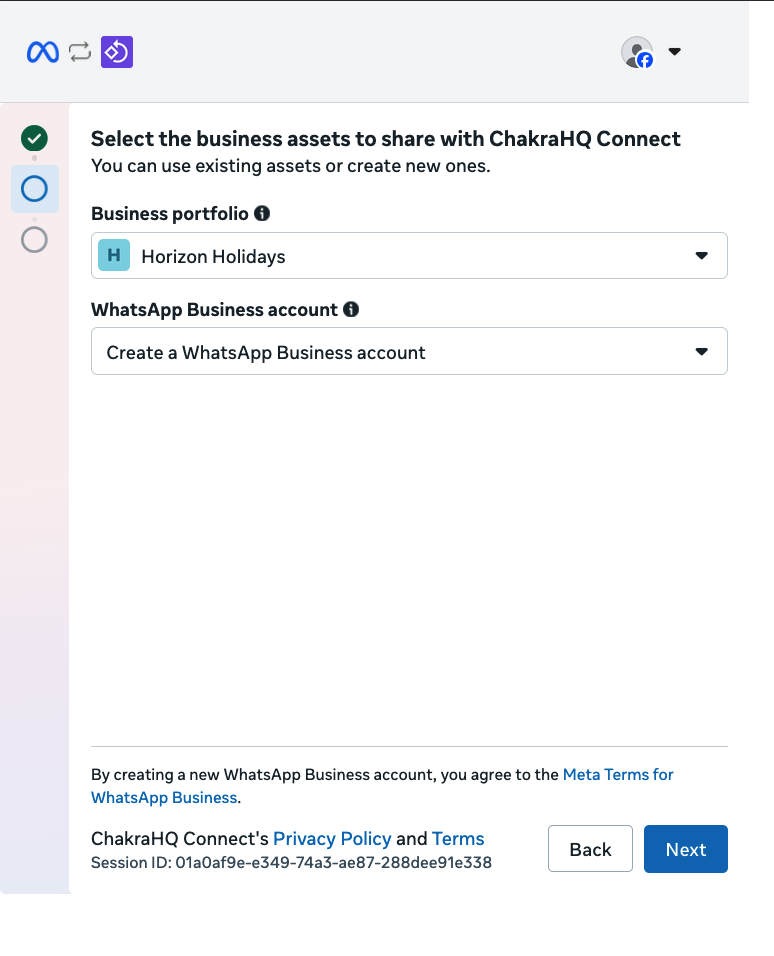
- Create OR Select a Business Portfolio
- Create OR Select an existing WABA
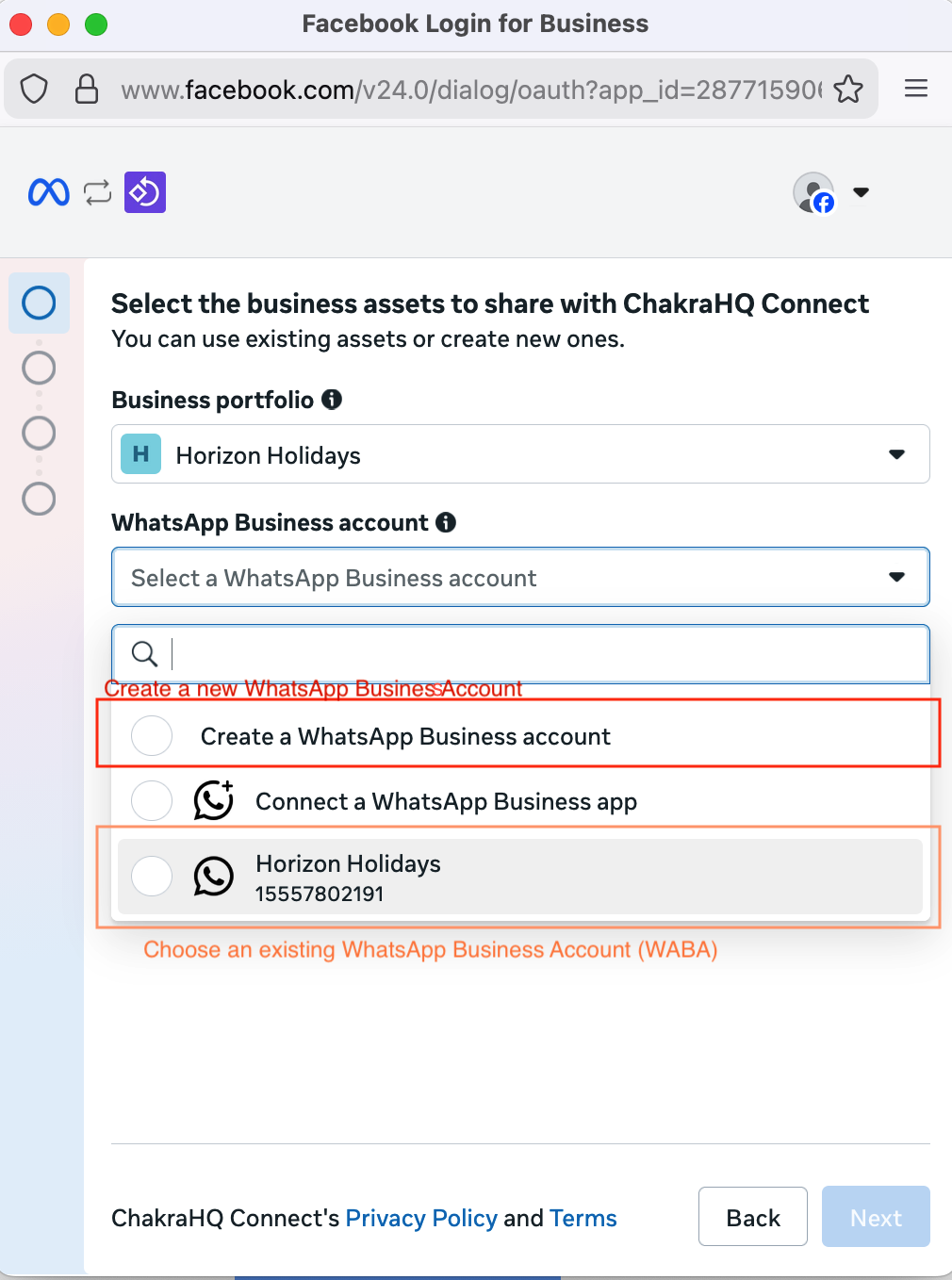
4.a Create a New WhatsApp Business Account
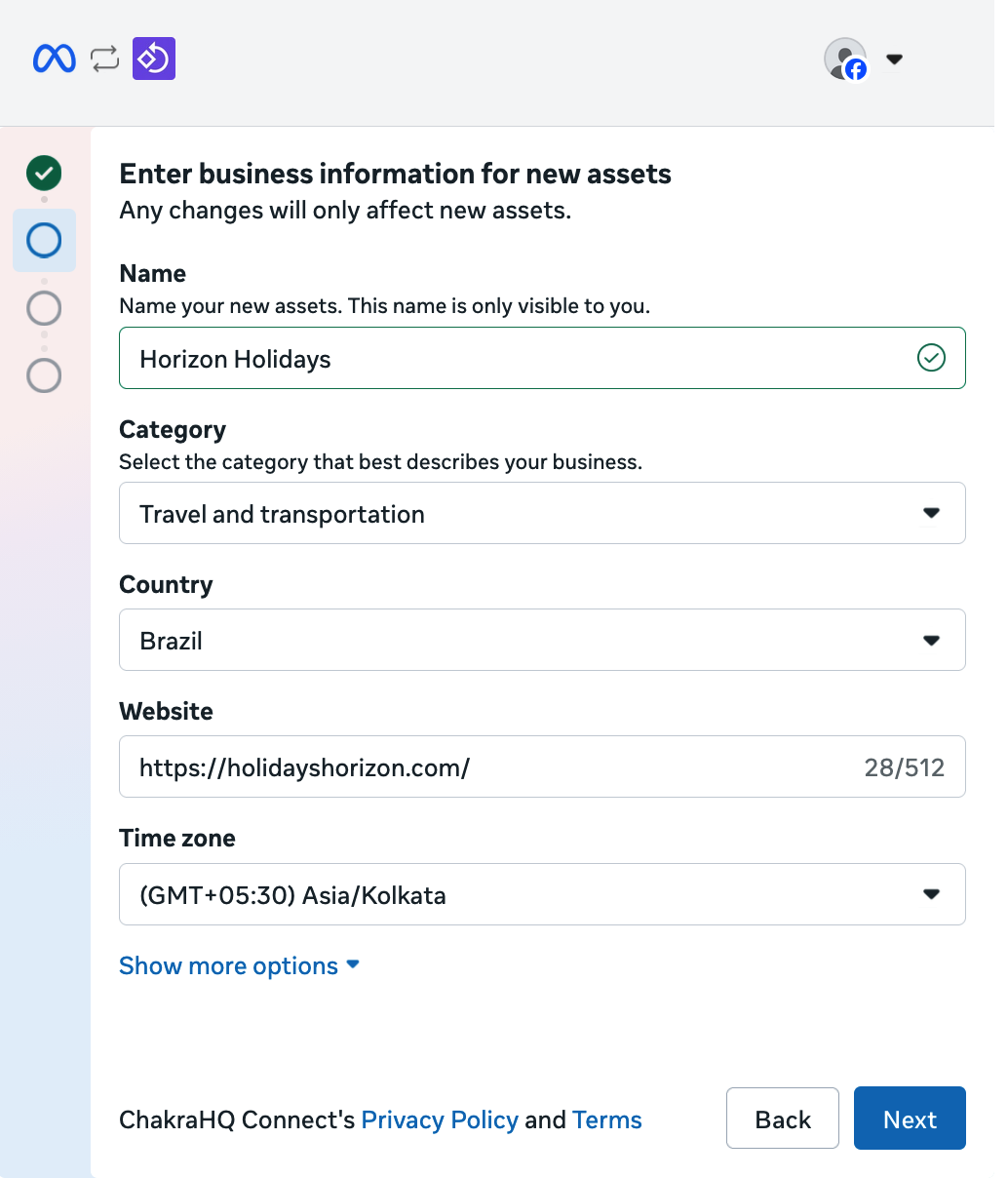
Add the following details:
- Name
- Category
- Country
- Website
- TimeZone
Choose OPTION 1 to Create a WhatsApp Business account OR OPTION 3 (Choose an Existing WhatsApp Business Account)
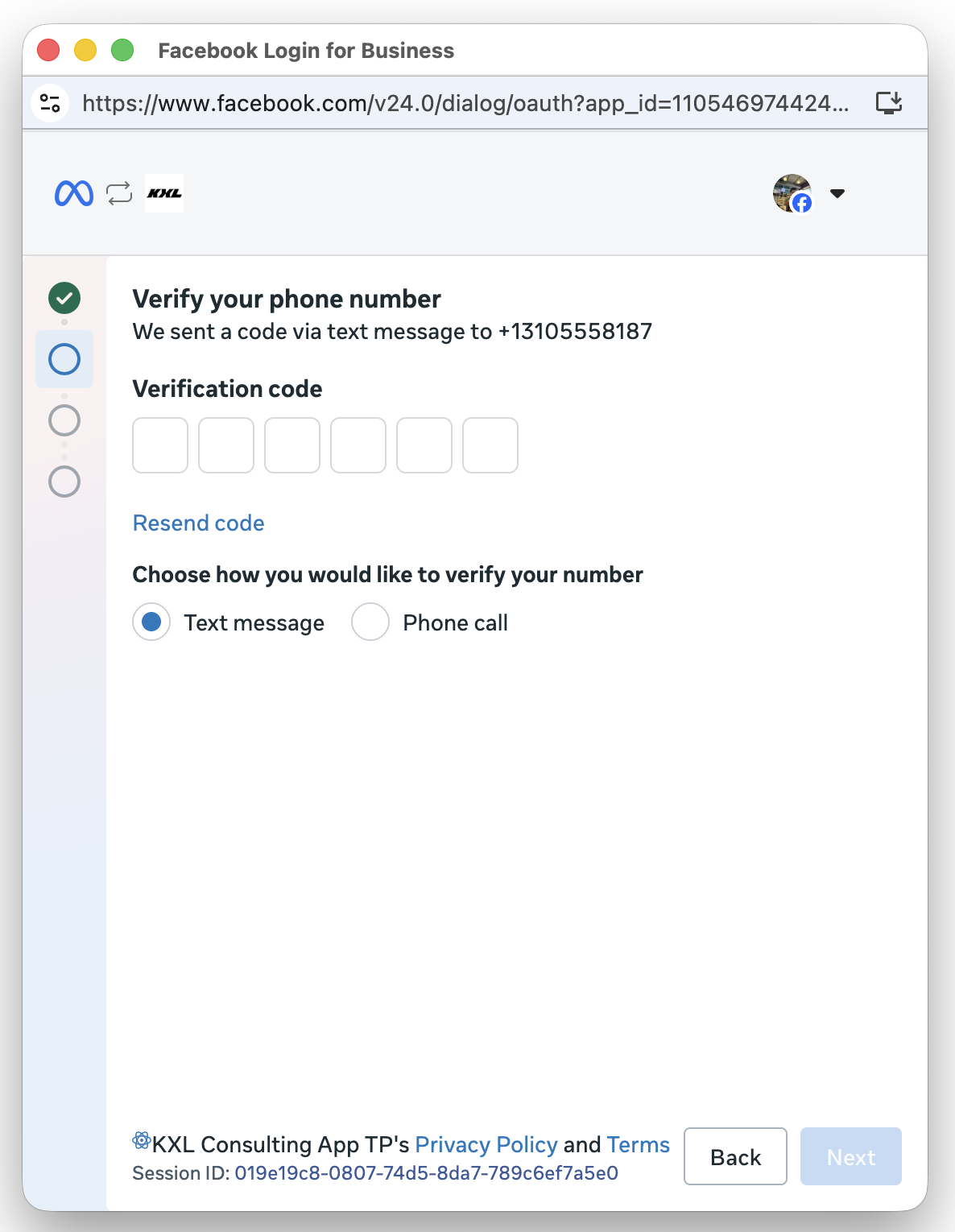
5. Verify Phone Number
Confirm the number using the Call or Text verification option.
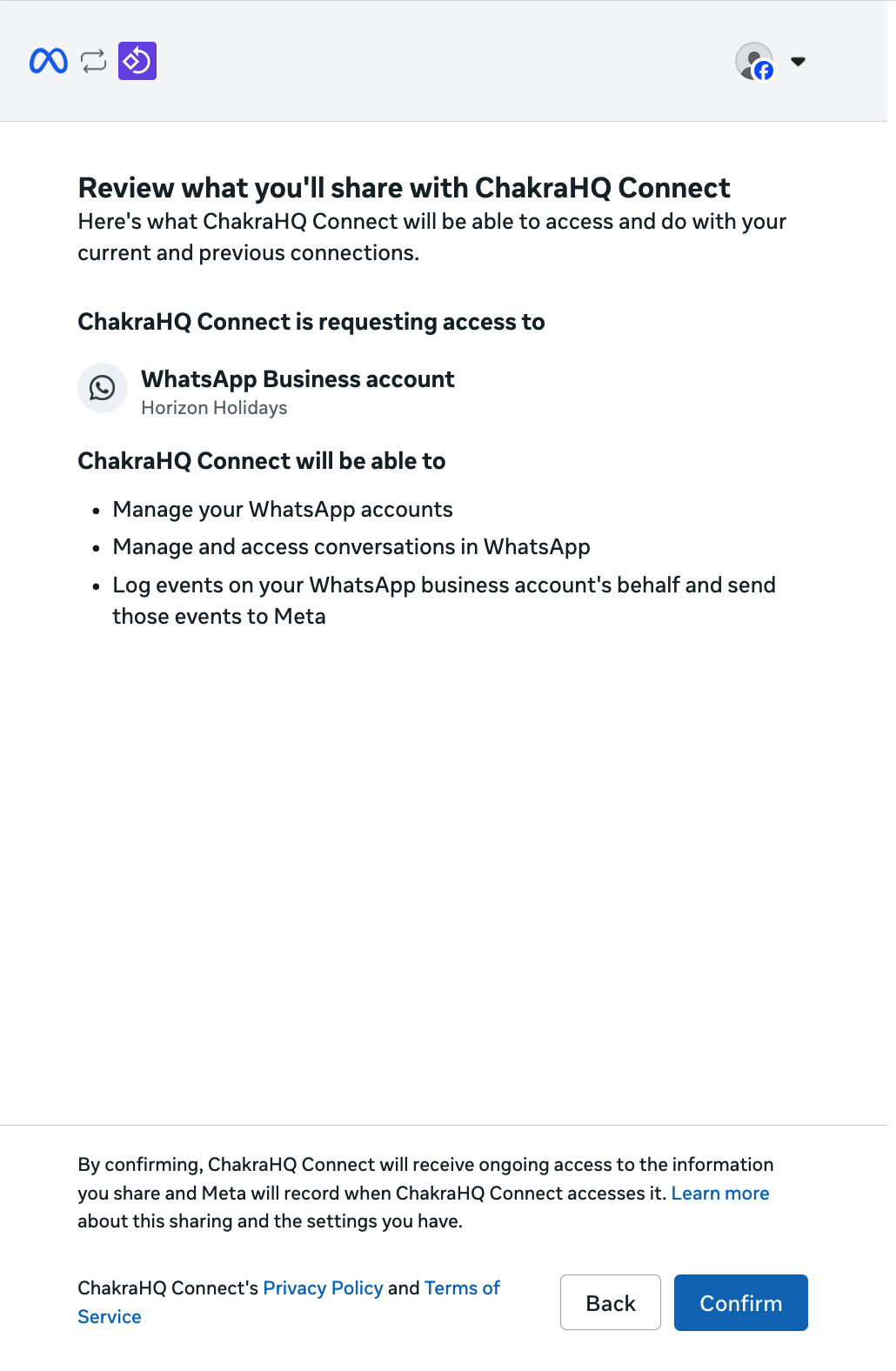
6. Permissions Review Screen
Check the access request details in the Embedded Signup flow.
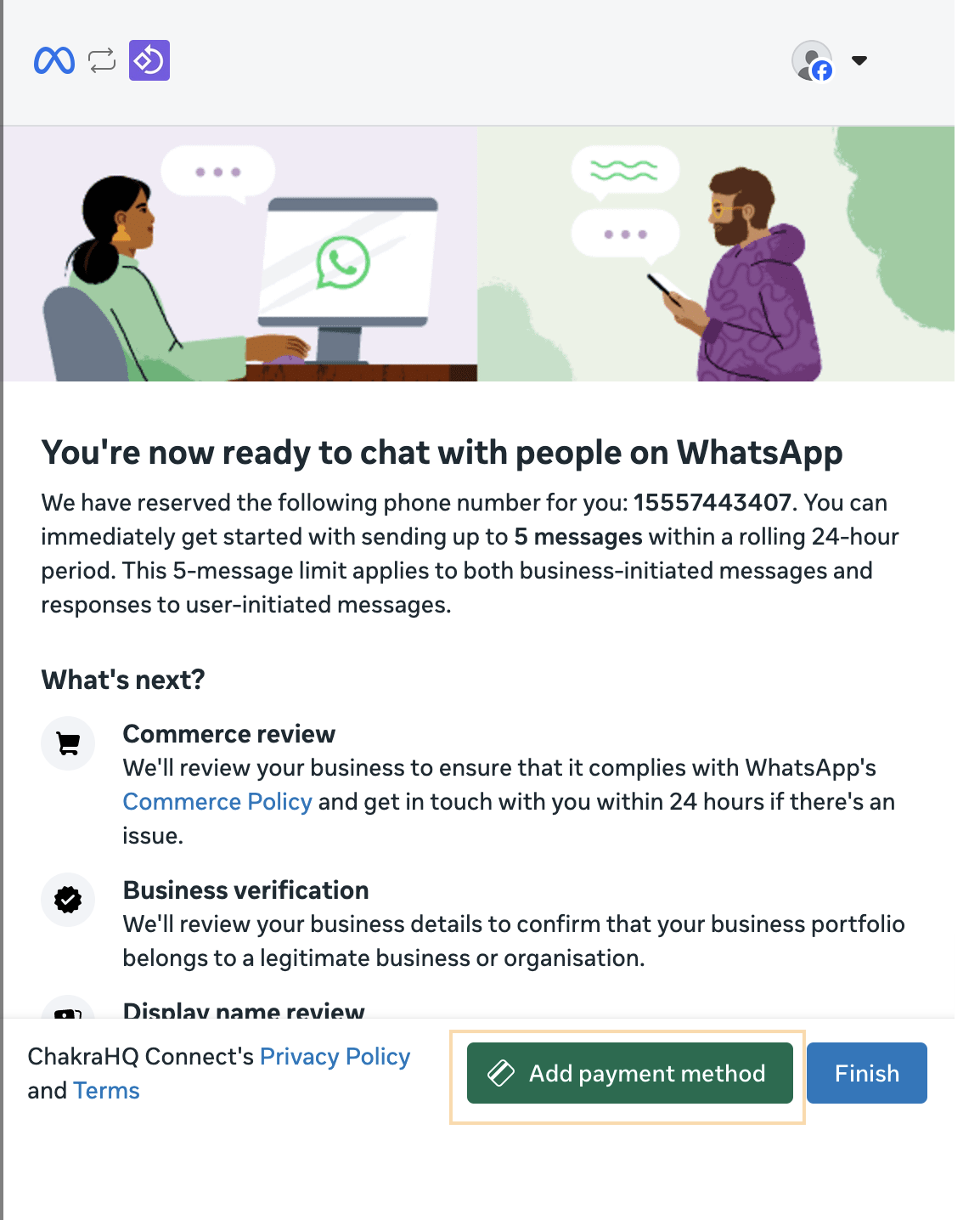
9. Setup COMPLETE
Your WhatsApp Business account is now connected. Return to the Chakra Dashboard to Verify the Connection.
10. Verify Connection
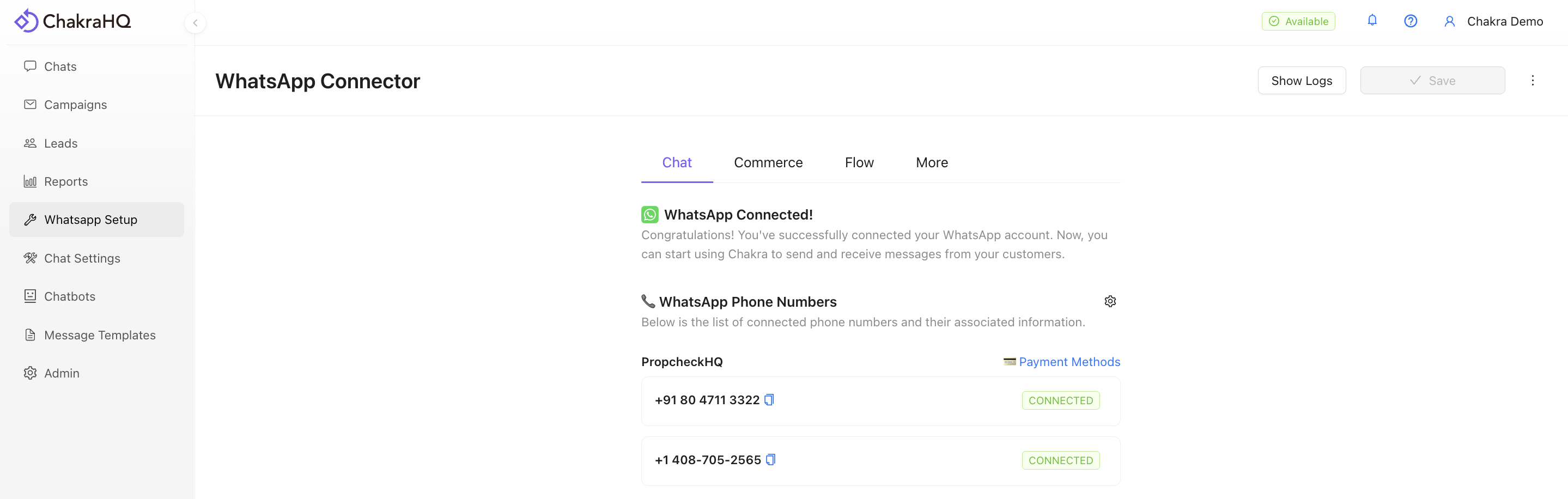
Return to the WhatsApp Setup section in the left-side navigation in Chakra Chat, where your connected WhatsApp number will be displayed.
>>>Connect WhatsApp Coexistence
⚠️ Please Note Meta currently doesn't support display names for Coexistence except for Meta verified WhatsApp Business app accounts.
Prerequisites
- A WhatsApp Business number
- An Active WhatsApp Business app
- Facebook Business Manager access
Video Guide for COEXISTENCE Number Setup
Step to Connect an existing WhatsApp Business app number
The authentication, authorization, and phone number addition screens are the same as the default flow. The flow diverges once the business customer submits a WhatsApp Business app phone number.
1. Connect WhatsApp Number
Go to Quick Start or navigate to **WhatsApp Setup*, click on Connect with Facebook. This opens the Embedded Signup (ES) widget.
2. Grant Permissions
In the Embedded Signup flow, click Get Started to share permissions with ChakraHQ.
3. Add Phone Number
- For Coexistence setup, add the WhatsApp Business app number using the
Enter a new phone numberoption 1. - Meta system auto detects the number as WhatsApp Business number and starts a relevant Coexistence setup flow
4. Business Profile Screen
This screen displays the WhatsApp Business app account details associated with the phone number the business customer entered: the profile picture, name, phone number, category, and website the business has set in the WhatsApp Business app. The business customer reviews these details and confirms this is the account they want to onboard.
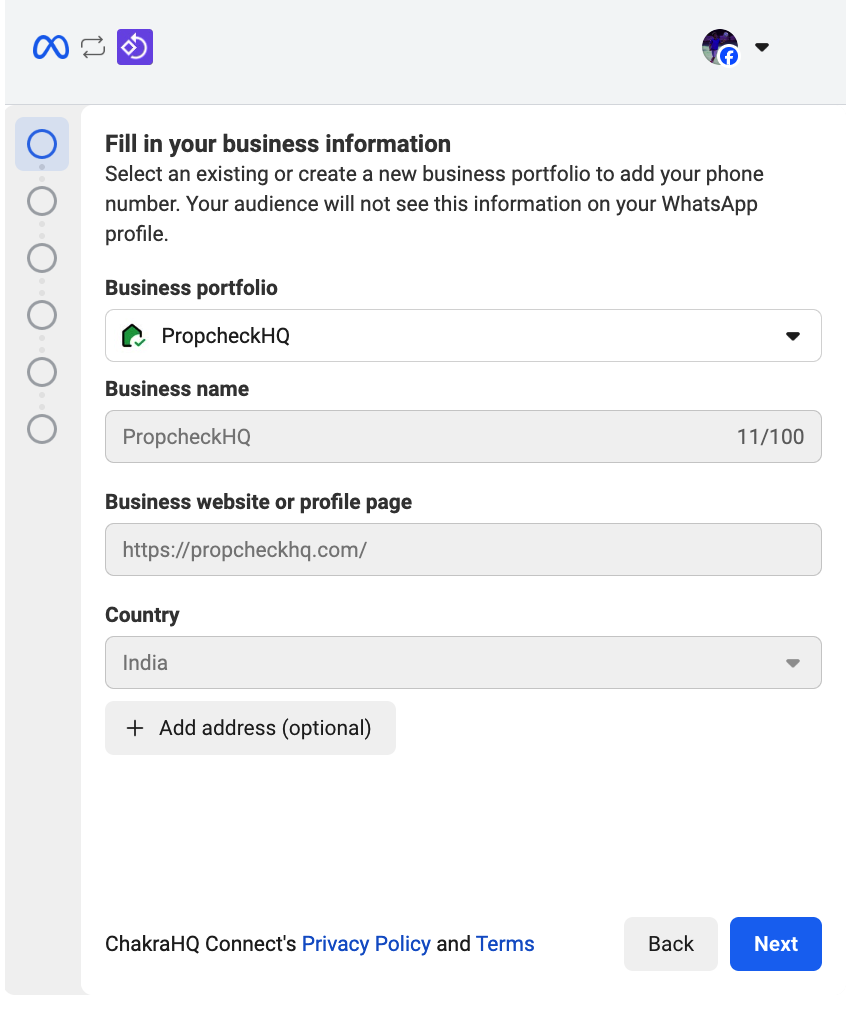
5. Business portfolio selection screen
This screen allows the business customer to select an existing Meta business portfolio to associated with the Coexistence onboarding, or create a new one.
6. Business creation screen
This screen allows the business customer to create a new business portfolio by entering business information: name, email address, country, and website.
7. QR code verification screen
This screen displays a QR code that the business customer scans from inside the WhatsApp Business app on their phone. Meta also delivers a WhatsApp message containing a link to the QR code to the same number. Once the business customer scans the QR code, the flow advances automatically.
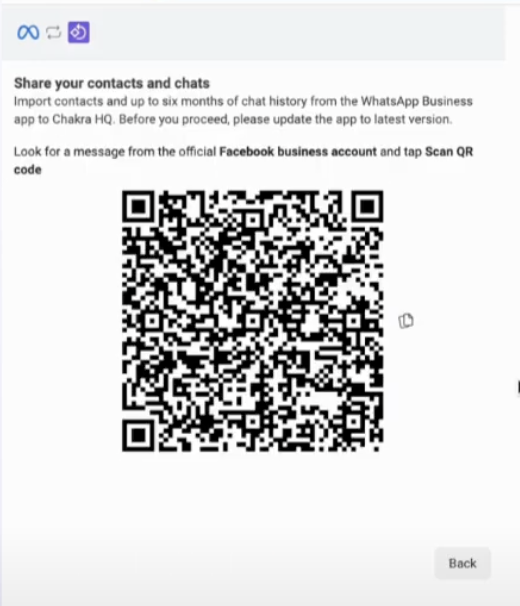
Open your WhatsApp Business App now
8. Open WhatsApp Message from Facebook
Open your WhatsApp Business app, where you would've received a message from Facebook. Click on Scan QR Code to proceed.
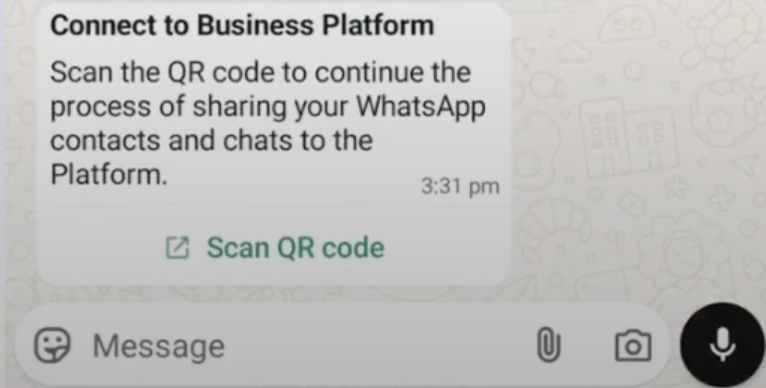
9. Connect to Business Platform
Click on Connect to the Business Platform
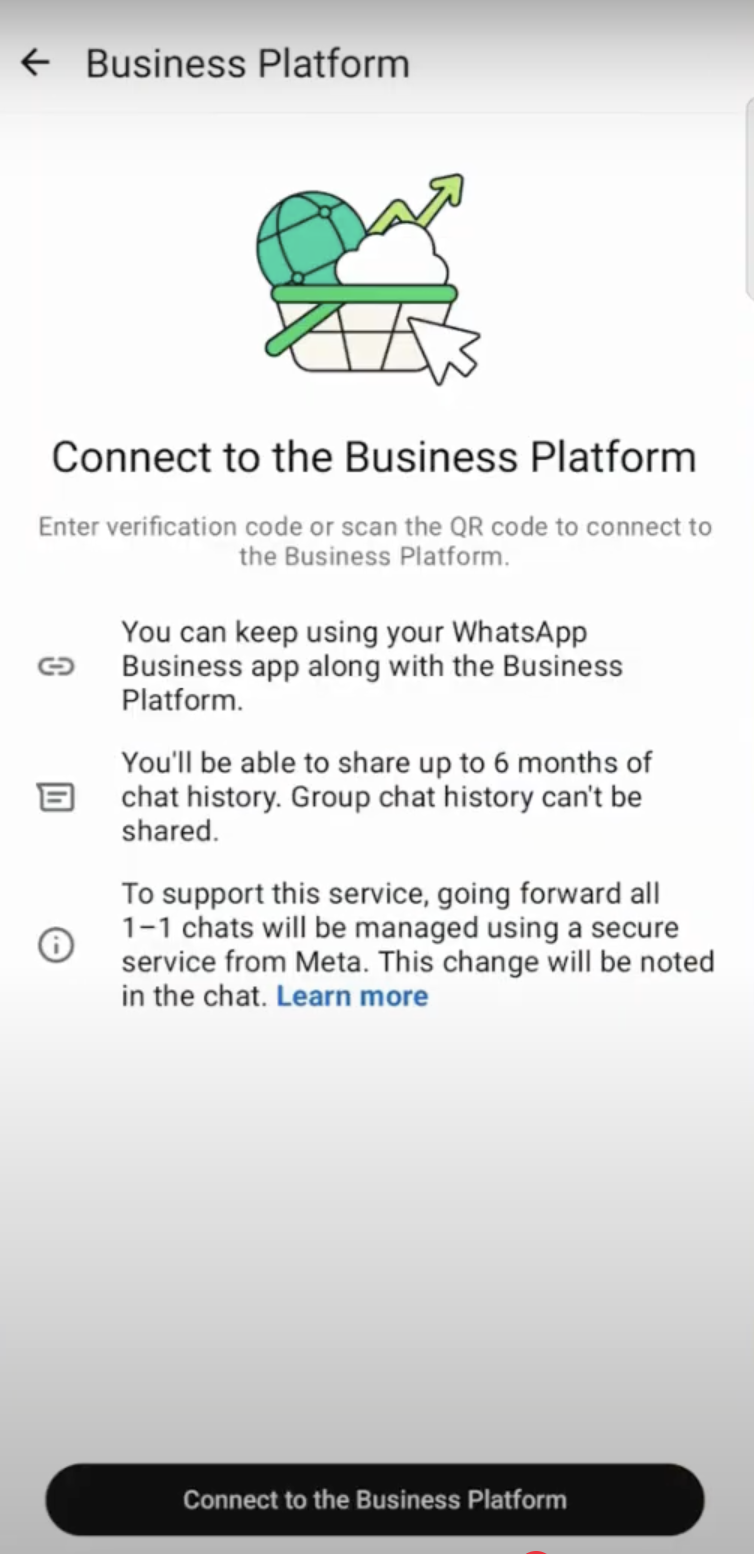
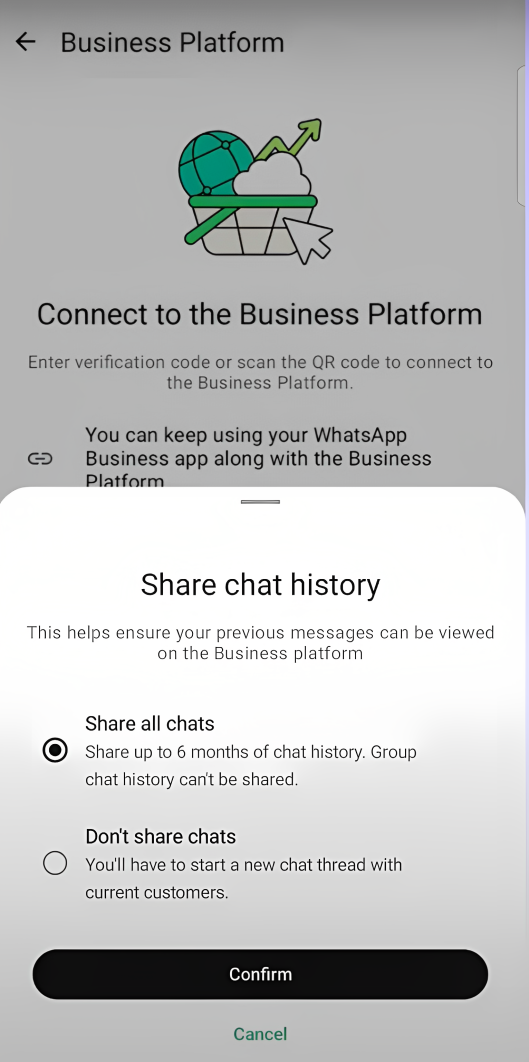
10. Share Chat History
Choose any of the below options and then click on Connect
- Share All Chats: To Share all chats of last 6 months
- Don't Share Chats To not share any chat history
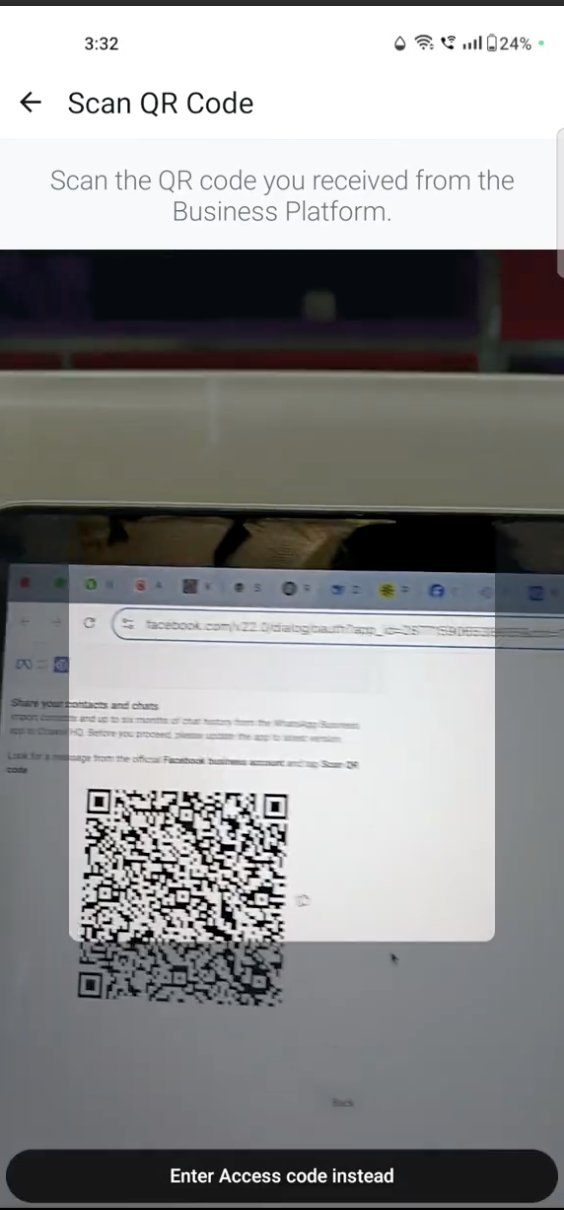
11. Scan QR Code
Scan the QR code in the Chakra Setup (Embedded Sign Up) at step 8, using the business app's Scan QR Code option.
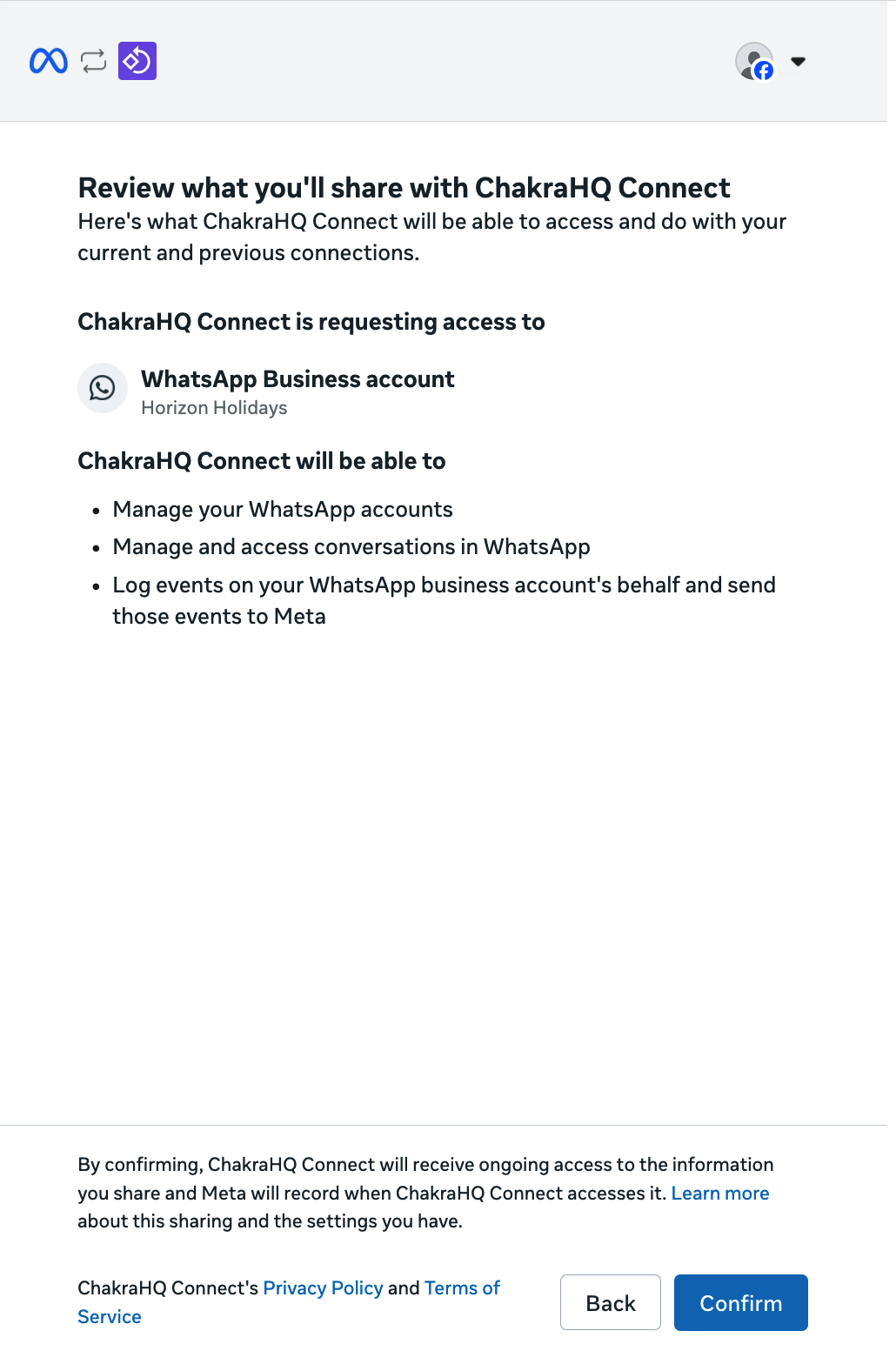
12. Business information confirmation screen
13.Chakra Connection Check
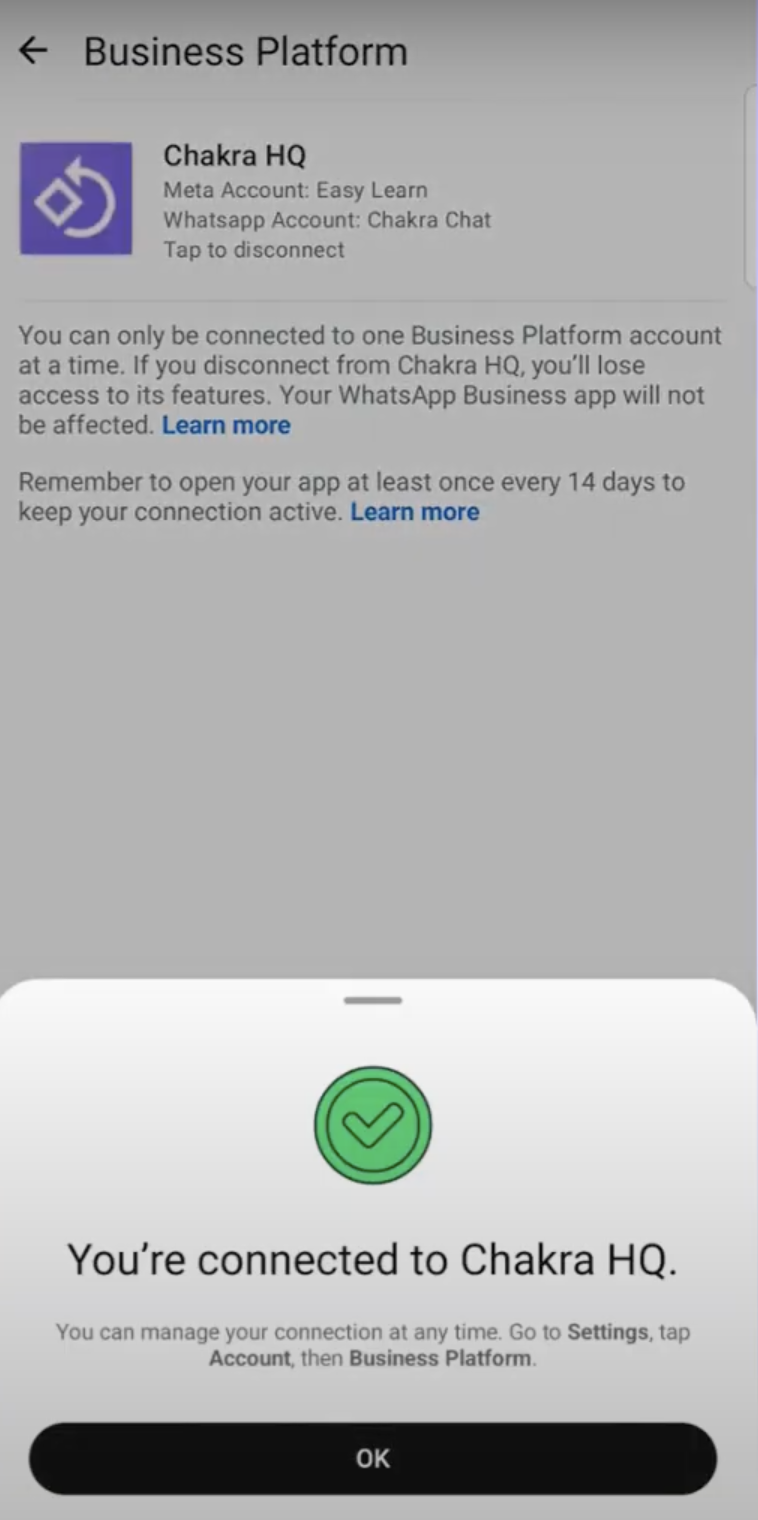
Your WhatsApp Business Number is now connected with Chakra Chat - WhatsApp Business API. Refresh the WhatsApp Setup page to check the connection.
>>> Migrate a WhatsApp API number
Before starting the signup process in Chakra Chat, ensure two-factor authentication (2FA) is disabled in your existing WhatsApp Business Account.
Disable 2-step-authentication
Option 1: Request your current WhatsApp Solution Provider (BSP) to disable this.
Option 2: Disable the Two-factor authentication (2FA) directly in your WhatsApp Business Manager:
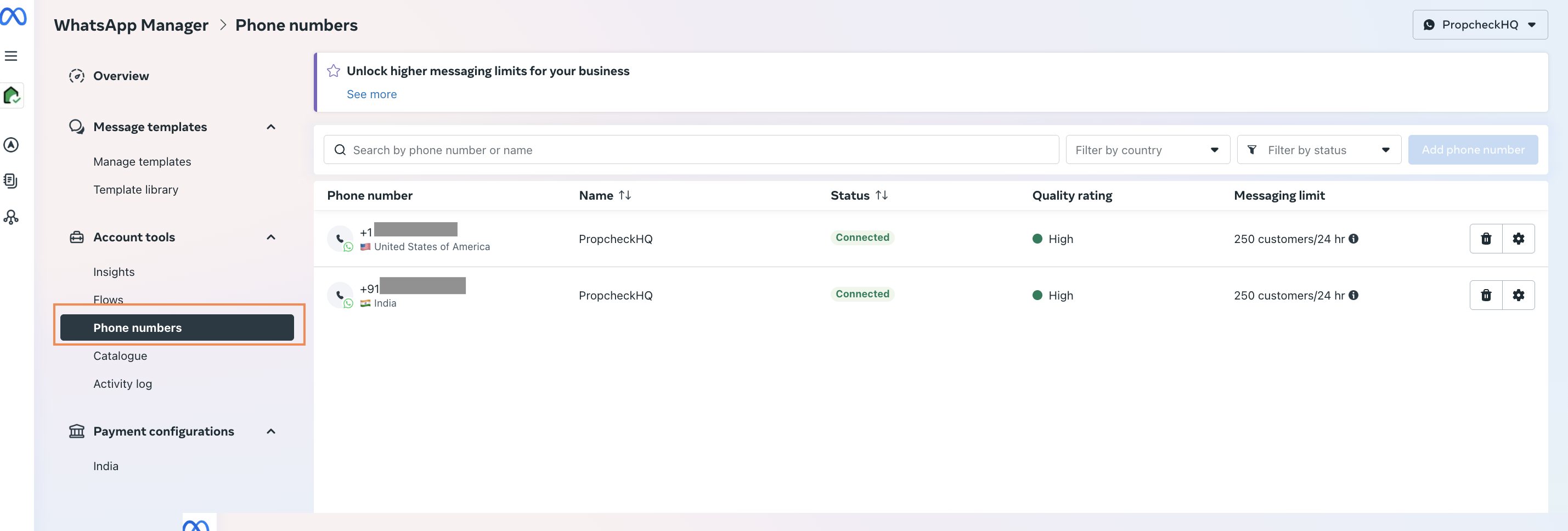
1. Go to WhatsApp Manager
Go to 👉 WhatsApp Manager in Facebook Business
2. 2-Step-Verification
Select the relevant phone number and navigate to the Two-step verification tab
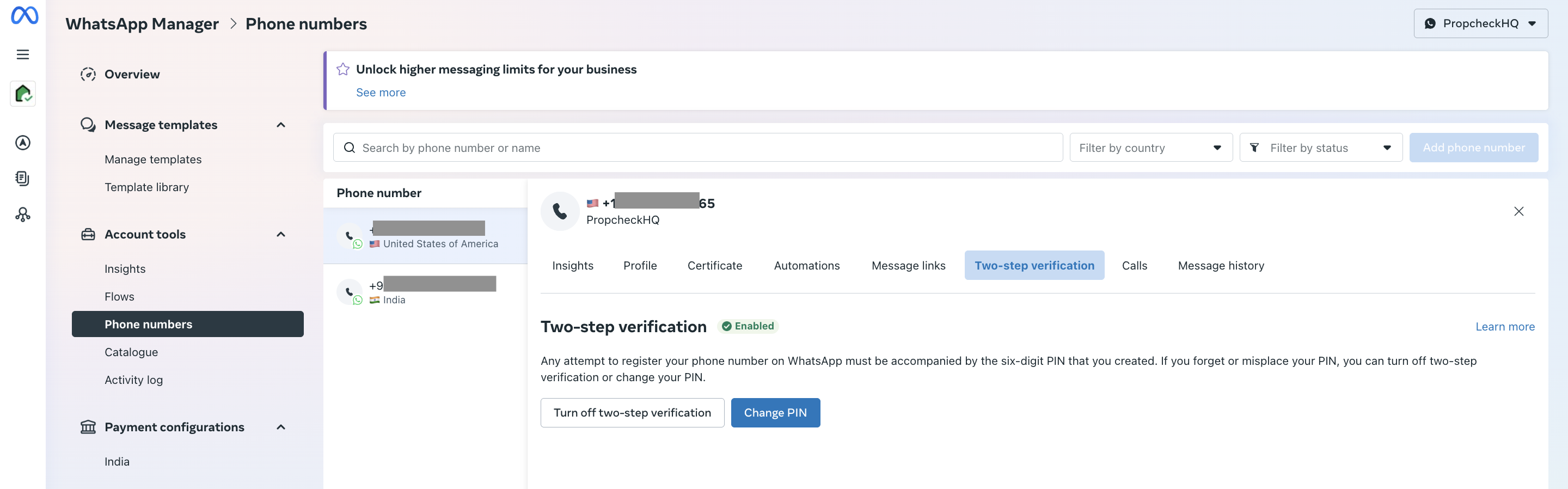
3. Turn-off 2-step-verification
Click on turn-off-two-step verification
4. Continue with WhatsApp API setup
Once the 2FA is disabled in the existing WhatsApp Business Account, continue with the setup process for connecting a NEW WhatsApp Number.
>Migrate a WhatsApp Coexistence Number
A WhatsApp Business number already connected with WhatsApp Business API (using coexistence) with another BSP. The migration steps are as below:
Please follow the steps to disconnect your current Coexistence Setup with another BSP.
1. Disconnect Existing Coexistence
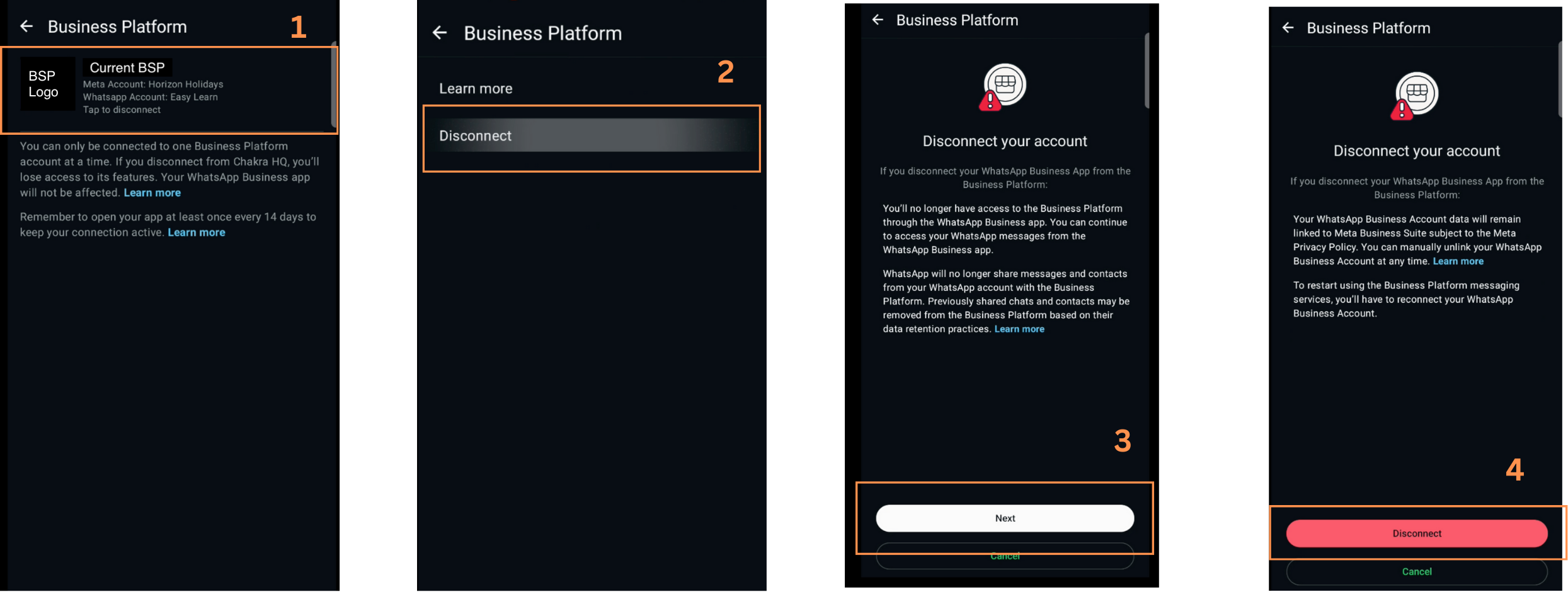
Go to your WhatsApp Business App. If you notice your previous BSP app connected in the WhatsApp business platform, disconnect it.
- Go to the WhatsApp Business App. In Settings -> Account -> Business Platform
- Click on the BSP app -> Disconnect. Complete. the Disconnection process
Disconnect Coexistence Help Guide
2. Connect CoExistence in Chakra
- Wait for 15 minutes after Step #1.
- Next, try connecting your number in Chakra using Coexistence, following this Coexistence setup guide
⚠️⚠️ If an error is encountered at Step #2, that the number with the message:
"The company is already sharing this WhatsApp Business account with a partner. This process doesn't allow you to change partners. Disconnect the current partner in the WhatsApp Business app, and then return to connect a new partner."
ℹ️ Please follow the steps 3 to 5 in this case.
3. Check Meta Business Business
Go to WhatsApp Manager in Meta Business Manager
- Check if the WABA is disconnected from your Meta Business Manager.
- If the number is connected in the WhatsApp Business Manager, follow the below steps.
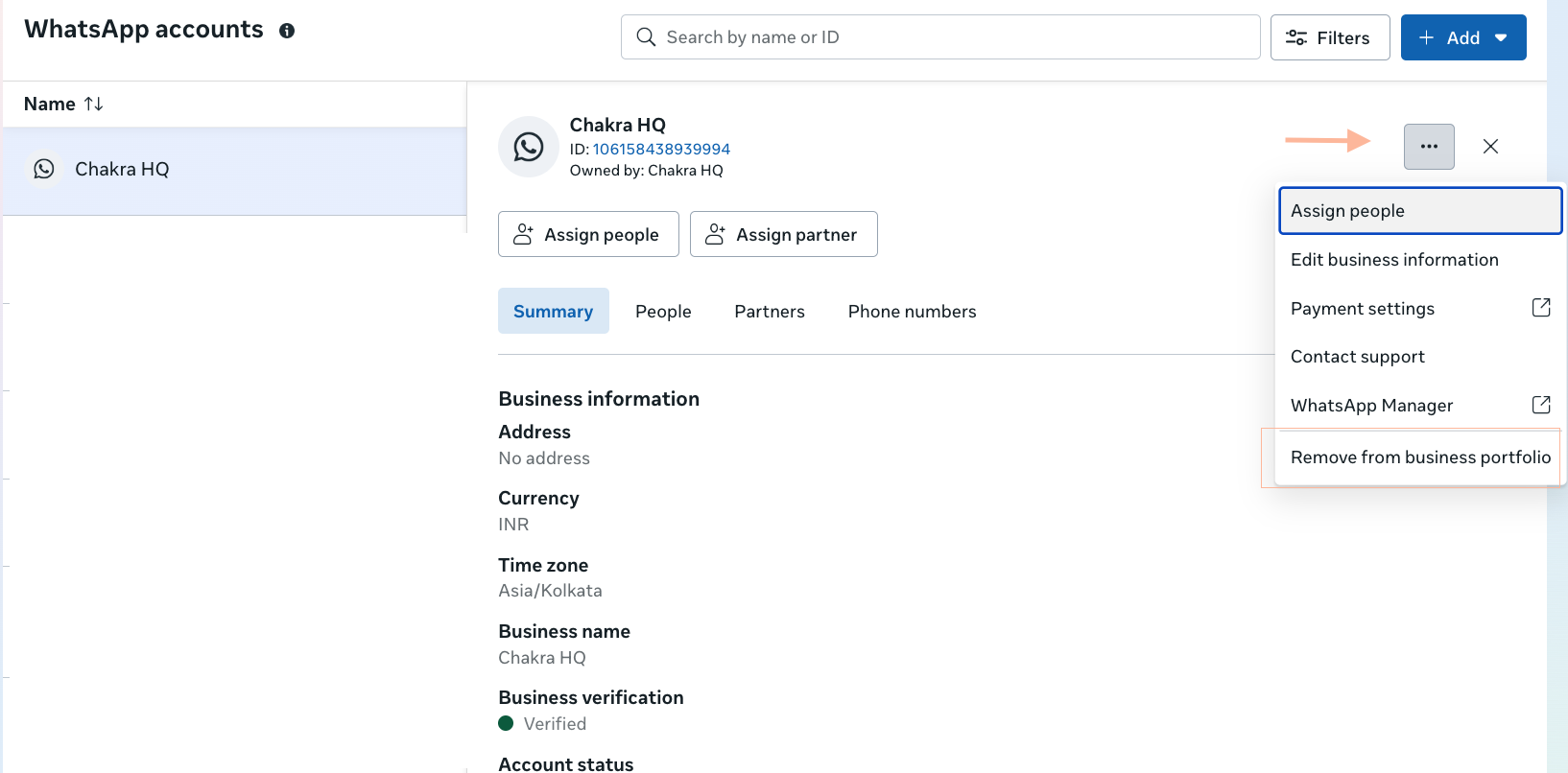
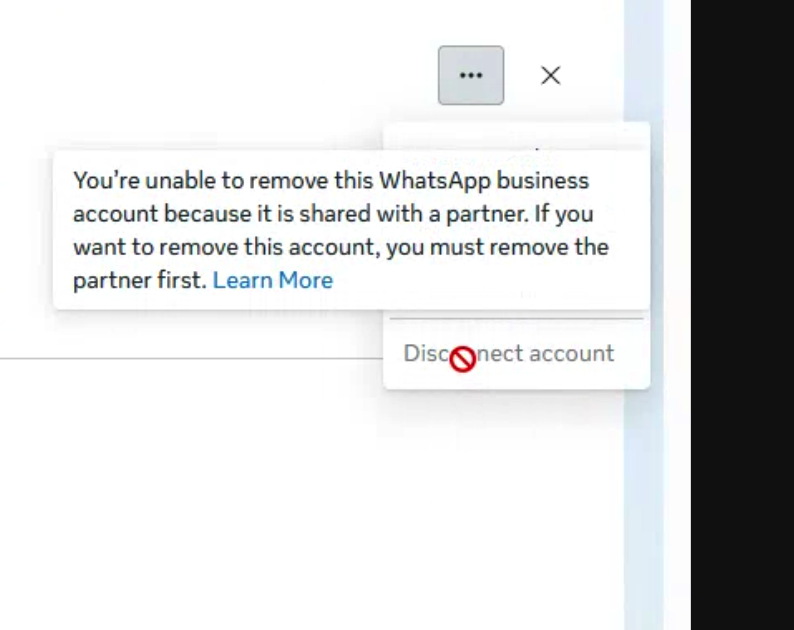
- Try removing the WABA
- Go to
••• - Click on Remove from Business portfolio
- Go to
- If removing the WABA is not allowed due to "You're unable to remove this WhatsApp business account because it is shared with a partner. If you want to remove this account, you must remove the partner first."
4. Stop existing Subscription
If the WABA is linked to your Meta Business Manager and removing the connected WhatsApp number is disabled in point #3.
- Do ensure your subscription is fully cancelled and payments settled with your previous BSP for a smooth migration.
- Reach out to the previous BSP support team to unlink this.
5. Reset WhatsApp Account
If you still get the below error after trying the steps to remove all previous association:
"The business is already sharing this WhatsApp Business account with a partner. Switching partners is not supported in this flow. Disconnect the current partner in the WhatsApp Business app, then return here to connect a new partner"
Reset the WhatsApp Business account is the ideal solution to the issue.
6. Connect Coexistence in Chakra
Once the previous WABA for Coexistence is unlinked completely, follow the steps to connect the number using this guide Coexistence Setup in Chakra
Your WhatsApp Number is now connected with Chakra Chat. You can start receiving Inbound Messages now.