Account SetupOther Setup Settings
Disconnect WhatsApp Numbers /WABA
The article outlines steps to disconnect your connected WhatsApp Business API numbers connected to Chakra currently
Overview
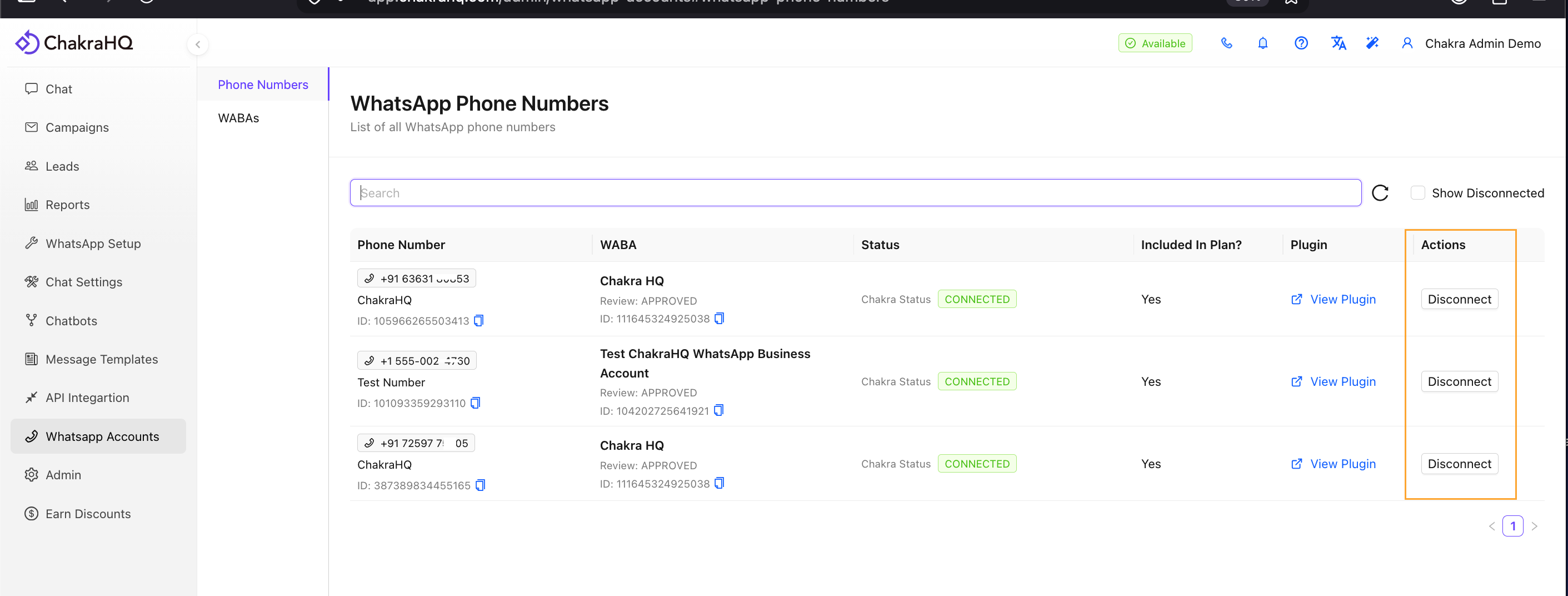
Disconnect Phone Numbers (Cloud API)
For ONLY Cloud API Numbers (This is NOT valid for Coexistence Numbers)
- Go to WhatsApp Accounts (Phone Numbers) in the left side navbar
- In the connected number list, click on
Disconnectagainst the number which needs to be disconnected - The number is disconnected from Chakra WhatsApp Business API connection and Chakra no longer has access to the WABA/Number
Disconnect Connected WABA (Cloud API)
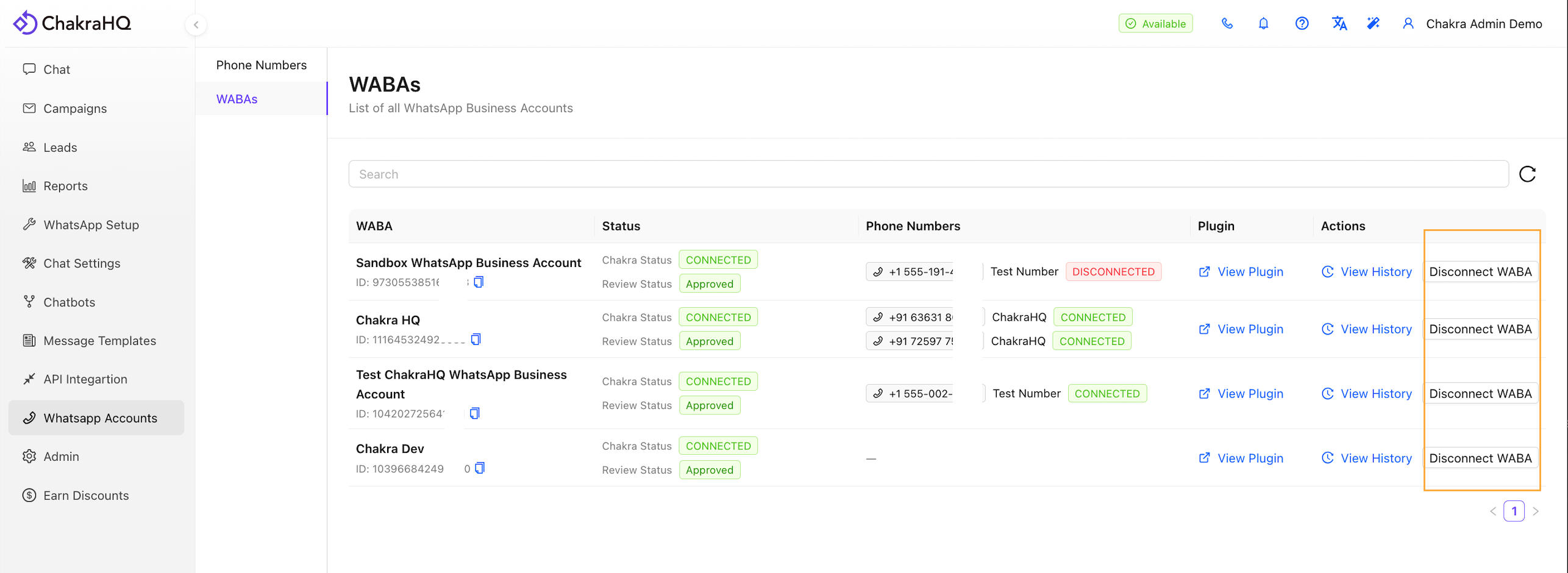
- Go to WhatsApp Accounts (WABA) in the left side navbar
- Click on
Disconnect WhatsAppto complete the disconnection process
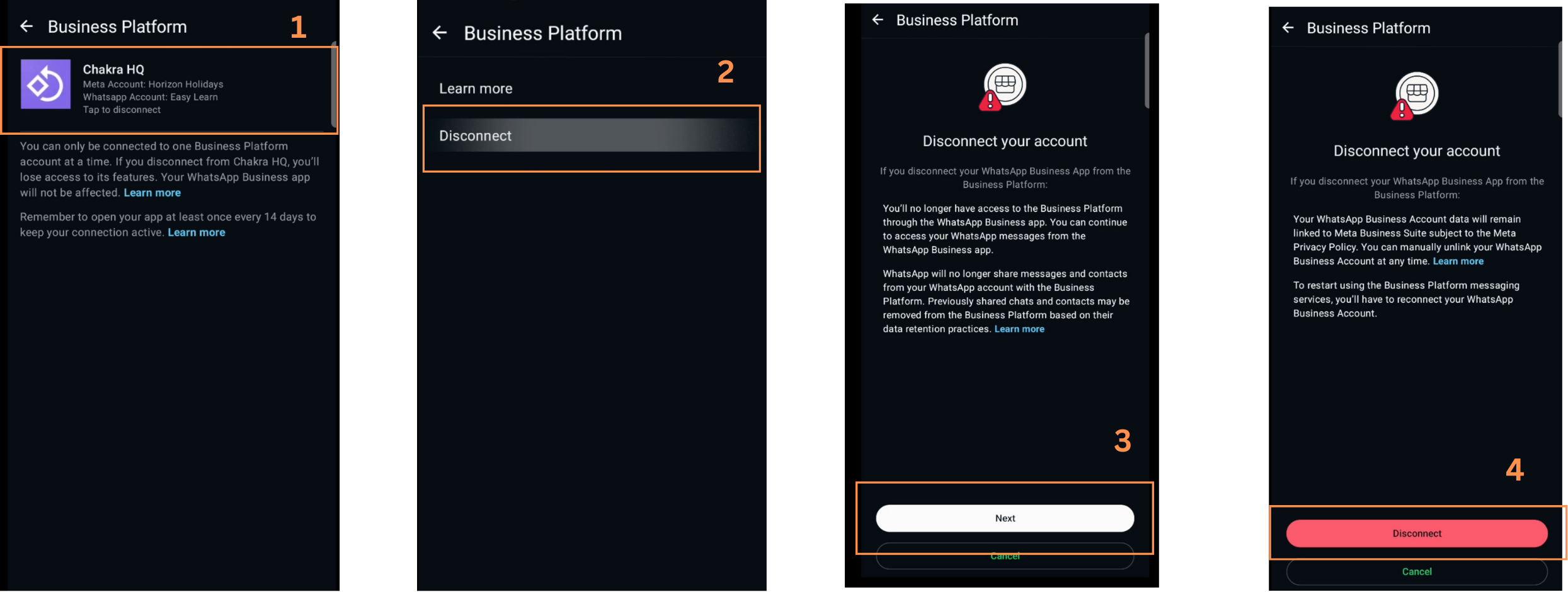
Disconnect Coexistence Number
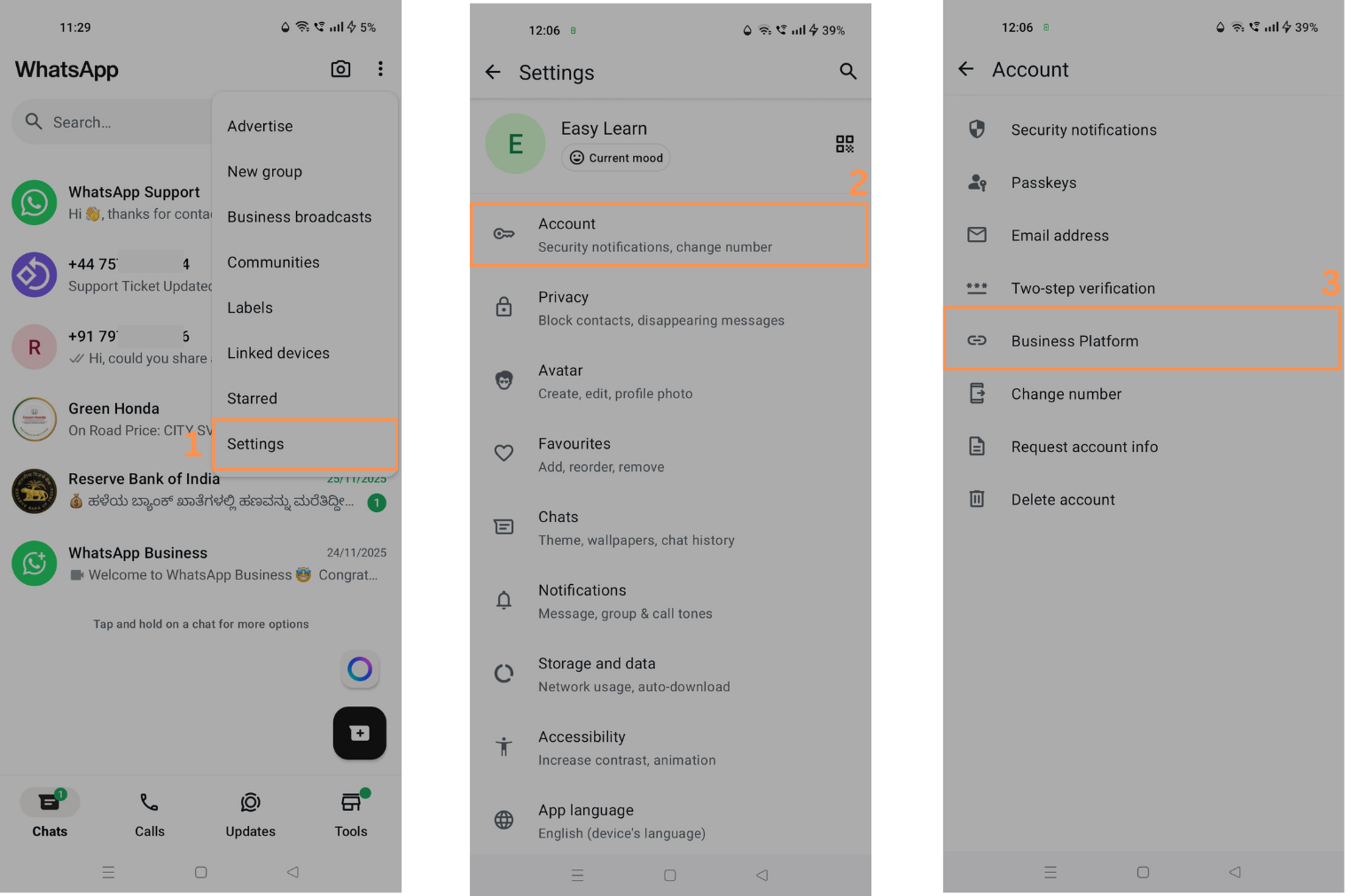
The WhatsApp business platform in Coexistence mode can be disconected from your WhatsApp business app
1. Access Coexistence in Business App
- Go to your WhatsApp Business mobile app. Click on
Settings->Account->Business Platform
2.Disconnect WhatsApp Business Platform
- You'll find ChakraHQ connected. Click on
Disconnect. Review it and complete the disconnection steps
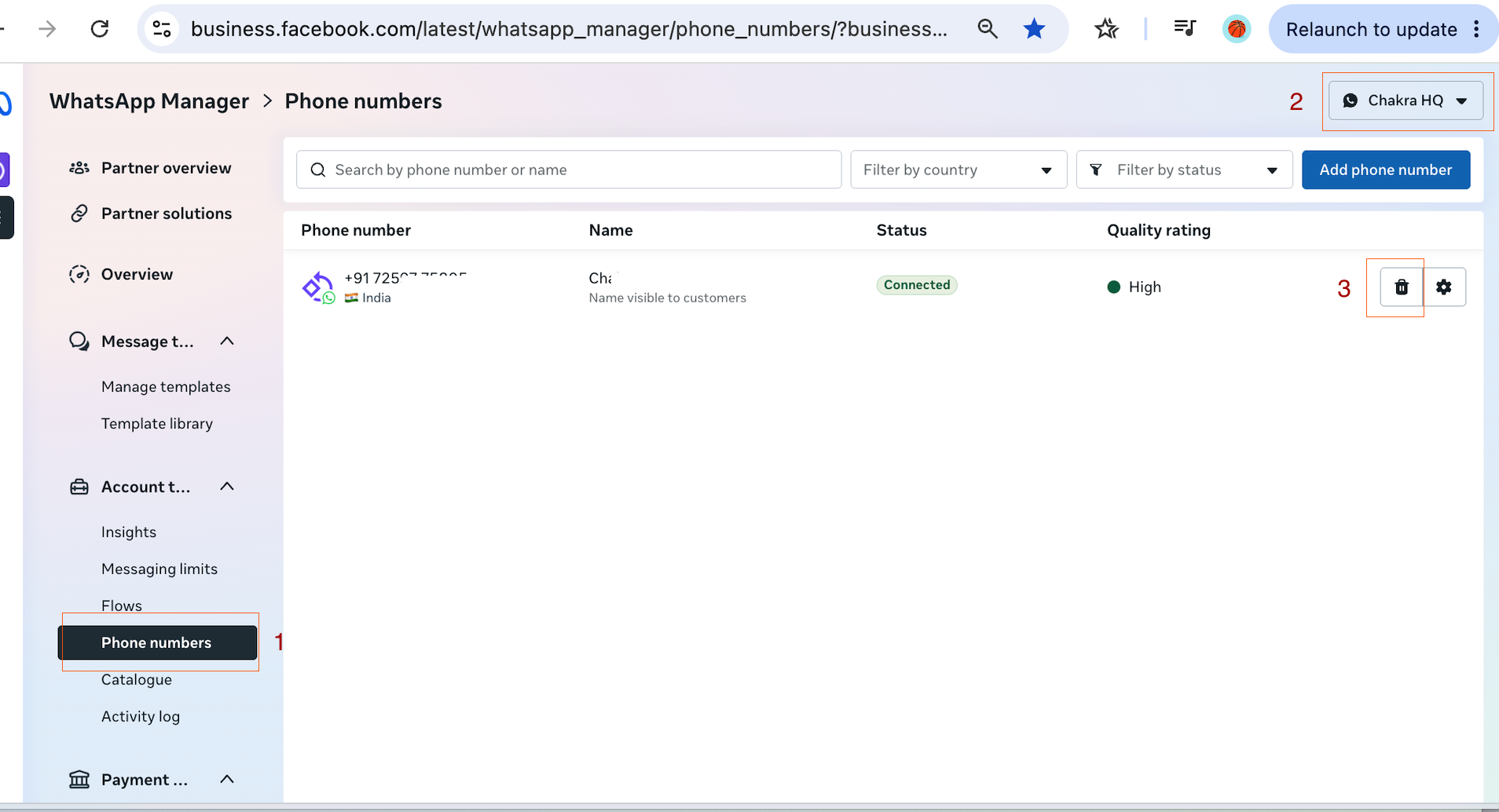
Disconnect WhatsApp Number (via WhatsApp BM)
To disconnect only a particular number in a WABA connected to Chakra Chat. Follow the below steps:
- Go to Meta Business Manager Phone Numbers
- Choose the appropriate WABA account
- Click on 🗑️ delete icon and confirm the deletion.
- The number is deleted from your WABA and disconnected with Chakra Chat WhatsApp Business API