

Marketing Status Management: Opt In / Out
Guide to customer opt in and opt out management in Chakra Chat
Marketing Status Management in Chakra Chat
Marketing Status is a system-level field on every Lead in Chakra that governs whether a contact can receive marketing messages. This guide walks through what it is, how to automate it, how to use it for targeted campaigns, and how it affects message delivery.
In this guide:
- What is Marketing Status?
- Automating Marketing Status with Chat Triggers
- Filtering and Campaigns by Marketing Status
- How Campaigns Screen Contacts Automatically
- How Marketing Status Updates Over Time
1. What is Marketing Status?
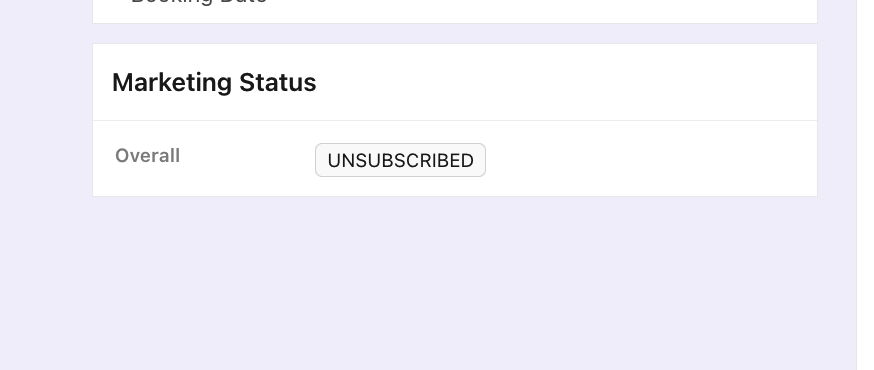
Marketing Status tracks a customer's intent to receive communications from your business. It directly determines whether future campaign messages can be delivered to that customer. Every Lead in Chakra carries this as a system field, which can take one of four values:
Status | Meaning |
|---|---|
SUBSCRIBED | The customer intends to receive your business's notifications on WhatsApp |
UNSUBSCRIBED | The customer has explicitly asked to be removed from a marketing list |
UNDELIVERABLE | Recent messages to the customer have failed to deliver, for any reason — this is applied automatically by Chakra |
DNC (Do Not Contact) | The customer must not be contacted through any messaging |
Default behavior: A Lead with no Marketing Status set is treated as SUBSCRIBED by default, until a trigger or manual action changes it.
2. Automating Marketing Status with Chat Triggers
Rather than updating status manually, Chakra lets you automate this using Chat Triggers — a chatbot configuration that listens for specific keywords in customer messages and updates the Lead's Marketing Status in response.
Location: Chatbots → Chat Triggers
2.1 Setting up a subscription-management trigger
- Navigate to Chatbots → Chat Triggers.
- In the Keywords field, click + Add Another to add each keyword you want the trigger to listen for
- Enter keywords relevant to your use case. For an opt-out flow, this might include:
Opt OutStopUnsubscribeStop Promotions
- Select a Matching Strategy to define how incoming messages are compared against your keywords.
- Configure the Action to specify which Marketing Status the Lead should be updated to.
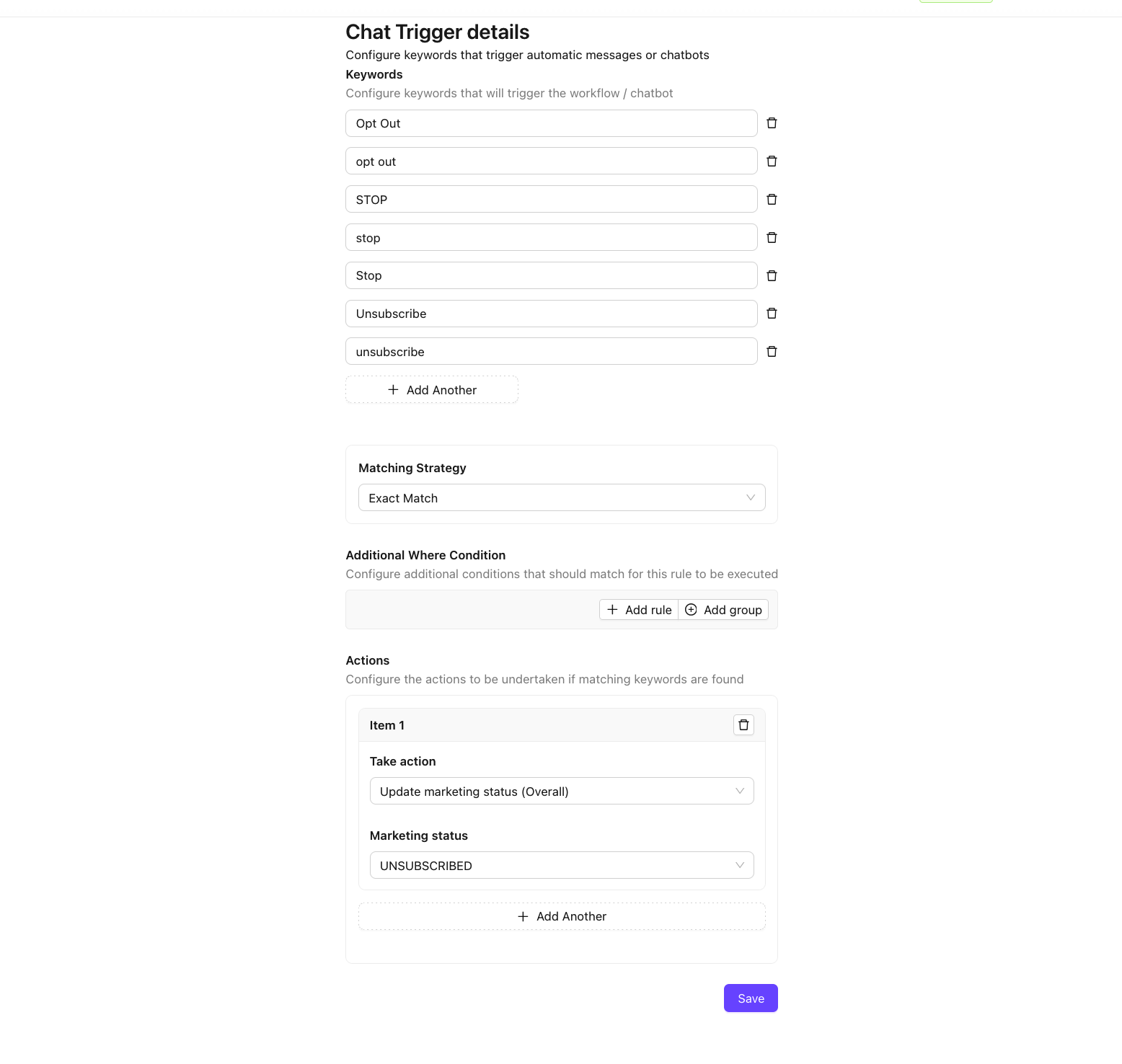
Note: Once saved, the trigger runs automatically — whenever a customer's message matches a configured keyword, their Marketing Status updates in real time, no manual intervention required.
Best practice: Include your opt-out keywords as interactive quick-reply buttons on marketing template messages. This gives customers a clear, one-tap way to express intent, rather than relying on them to type an exact phrase.
Note that the trigger isn't limited to button replies — it fires just as reliably if a customer types the same keyword as a plain text message, at any point in the conversation.
2.2 Matching Strategy
Determines how an incoming message is evaluated against your configured keywords. All comparisons are case-insensitive.
Strategy | Behavior |
|---|---|
Exact Match | Triggers only when the message exactly matches the keyword |
Starts With | Triggers when the message begins with the keyword |
Contains | Triggers when the keyword appears anywhere within the message |
2.3 Actions
Field | Description |
|---|---|
Take Action | Set to Update Marketing Status (Overall) |
Marketing Status | Choose the target status: |
Once this is configured and saved, subscription management for opt-out and opt-in use cases will trigger automatically as customers respond.
3. Filtering and Campaigning by Marketing Status
3.1 Filtering Leads by status
- Open the Leads dashboard.
- In the search bar, type
marketingand select the Marketing Status field. - Set the operator to
==. - Enter the status you want to filter by:
SUBSCRIBED,UNSUBSCRIBED,UNDELIVERABLE, orDNC. - Press Enter.
The Leads list will update to show only contacts matching that status.
3.2 Adding filtered Leads to a Campaign
For example, to build a campaign targeting only your SUBSCRIBED contacts:
- Select the Leads you want — use the checkbox to select all Leads on the current page, or choose the select all across filtered pages option to capture the entire filtered list.
- Open the Bulk Action menu (pencil icon).
- Click Add to Campaign.
- In the Add to Campaign dialog:
- Choose the campaign name.
- Click Add.
- The selected Leads are added to the campaign.
4. How Campaigns Screen Contacts Automatically
Chakra applies Marketing Status as a delivery safeguard, automatically screening outbound marketing messages so unsubscribed or restricted contacts aren't messaged.
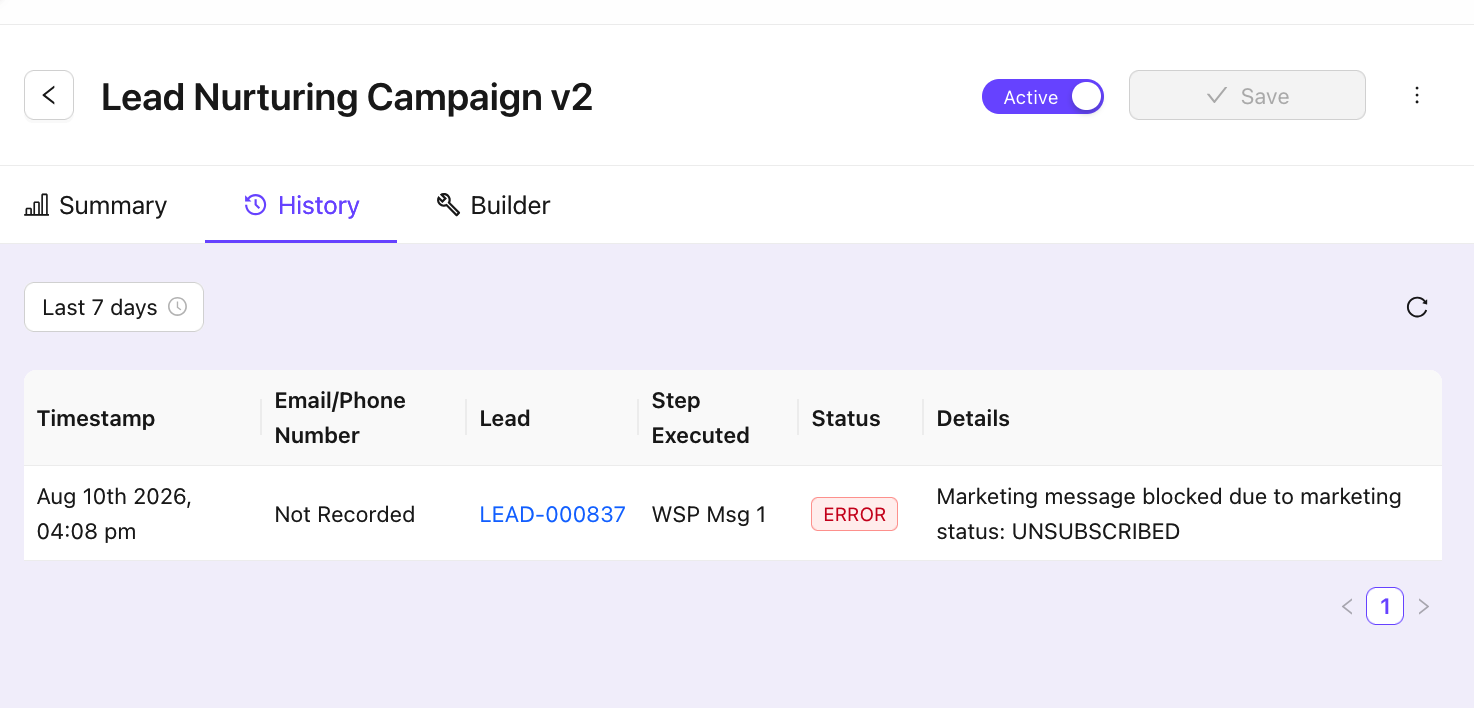
- Once a Lead's status is set to UNSUBSCRIBED, Chakra automatically blocks any Marketing-category template message sent to them.
- Blocked sends are logged in Campaign Reports with the message:
Marketing message blocked due to marketing status: UNSUBSCRIBED
4.1 Message delivery by status
Marketing Status | Template Message Behavior |
|---|---|
SUBSCRIBED | Receives all template messages, including Marketing category |
UNSUBSCRIBED | Marketing-category templates are blocked by Chakra; other categories are unaffected |
UNDELIVERABLE | Template messages are still attempted |
DNC | All template messages are blocked by Chakra |
5. How Marketing Status Updates Over Time
Marketing Status isn't a fixed, one-time value — it reflects the customer's most recent signal or system determination, and updates continuously through three pathways:
- Automated (Chat Trigger) — keyword-based updates from customer messages, as configured in Section 2.
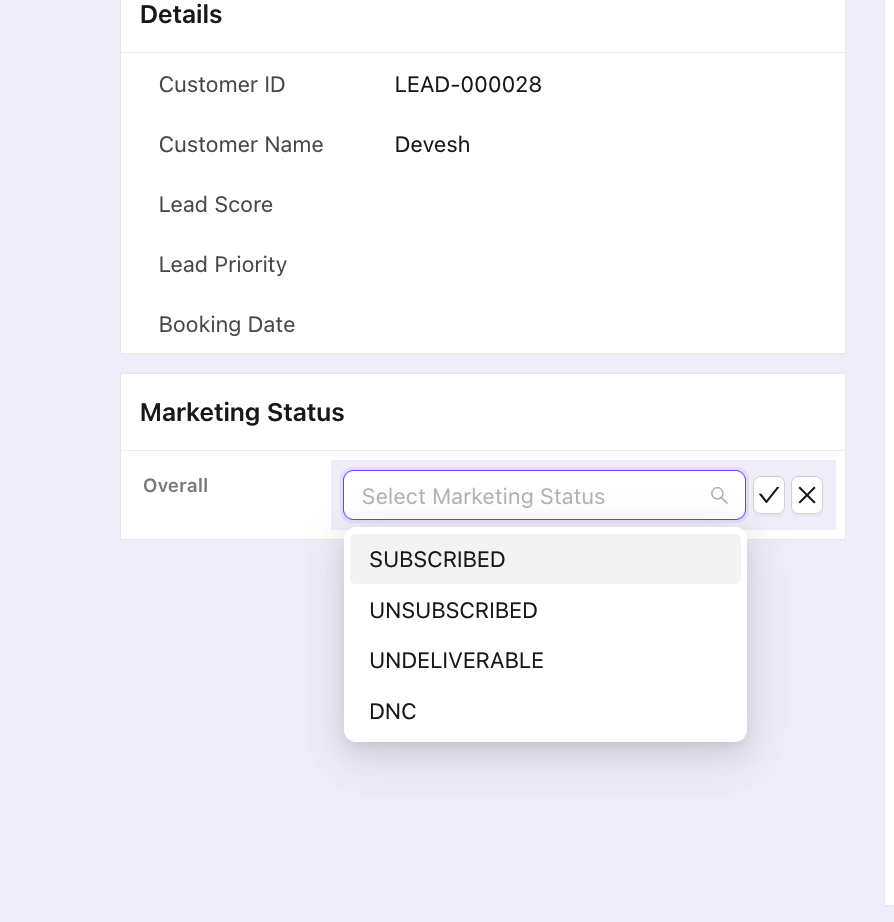
- Manual — a status change applied directly by a user or agent. The marketing status field can be found in the lead details page.
- Automated (system-driven) — Chakra automatically marks a Lead as UNDELIVERABLE when recent message delivery attempts fail.
Because any of these can occur at any time, a Lead's Marketing Status always represents its current, latest state — not a permanent or hardcoded label.