

Create Broadcast Campaign
Step-by-Step Guide to Creating a WhatsApp Broadcast Campaign in Chakra Chat.
Overview
This guide provides step-by-step instructions for creating and launching a WhatsApp broadcast campaign using Chakra Chat. It covers audience selection, message template selection with personalization, and scheduling options. Users will also learn key compliance requirements, such as opt-in consent and template approval, to ensure successful message delivery.
Create Broadcast Campaign
- Go to
CampaignsTab. ClickNew Broadcast
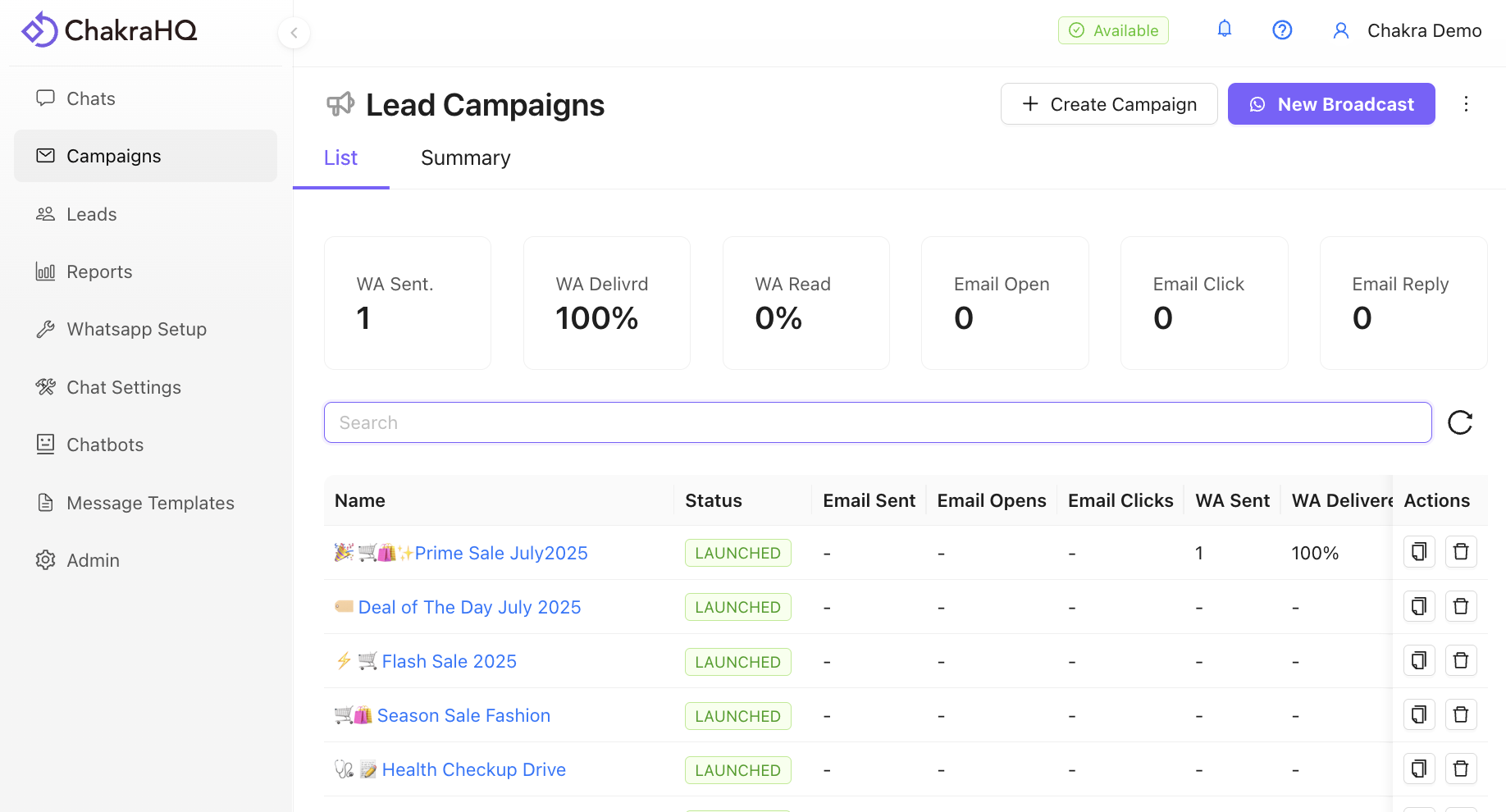
Step 1: Add OR Select Leads
Note: Ensure the lead has a phone number in the first column always.
1a) Add Leads:
- Upload CSV file
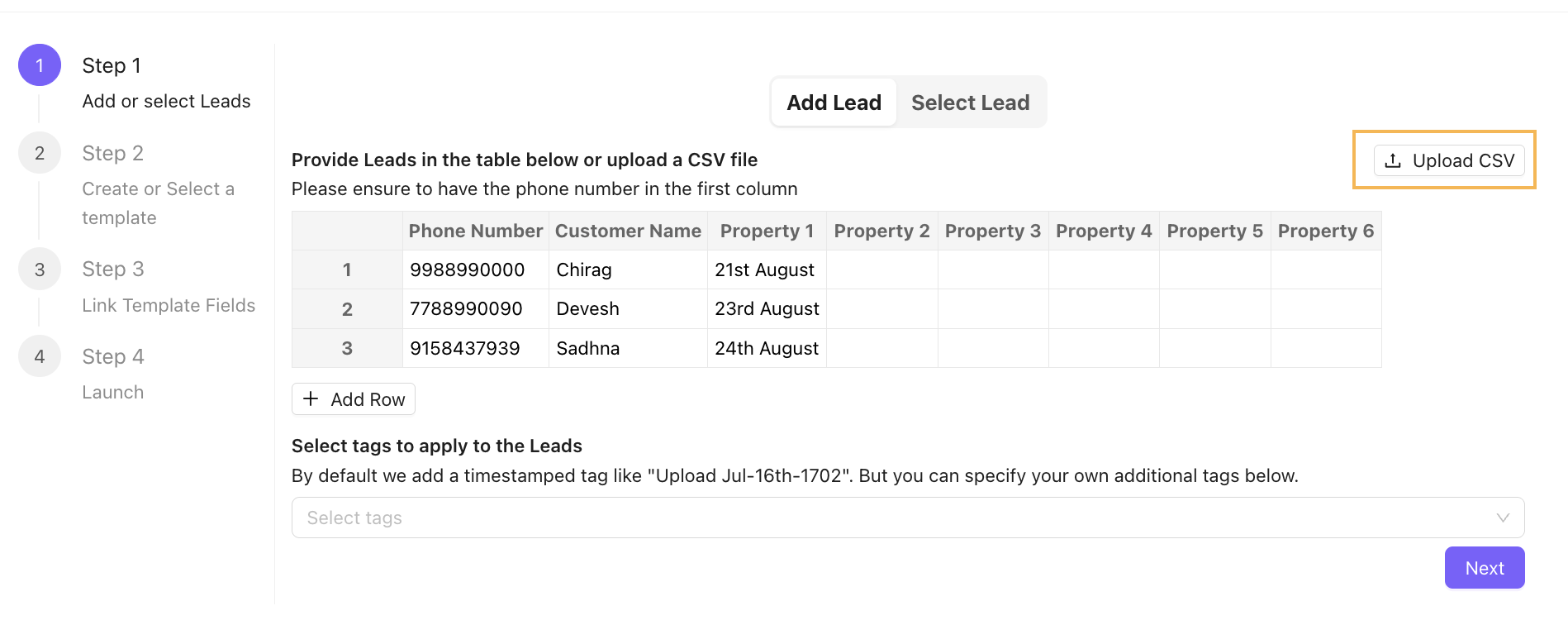
- Manually Enter leads in the table OR Copy from a file and paste in the add lead table:
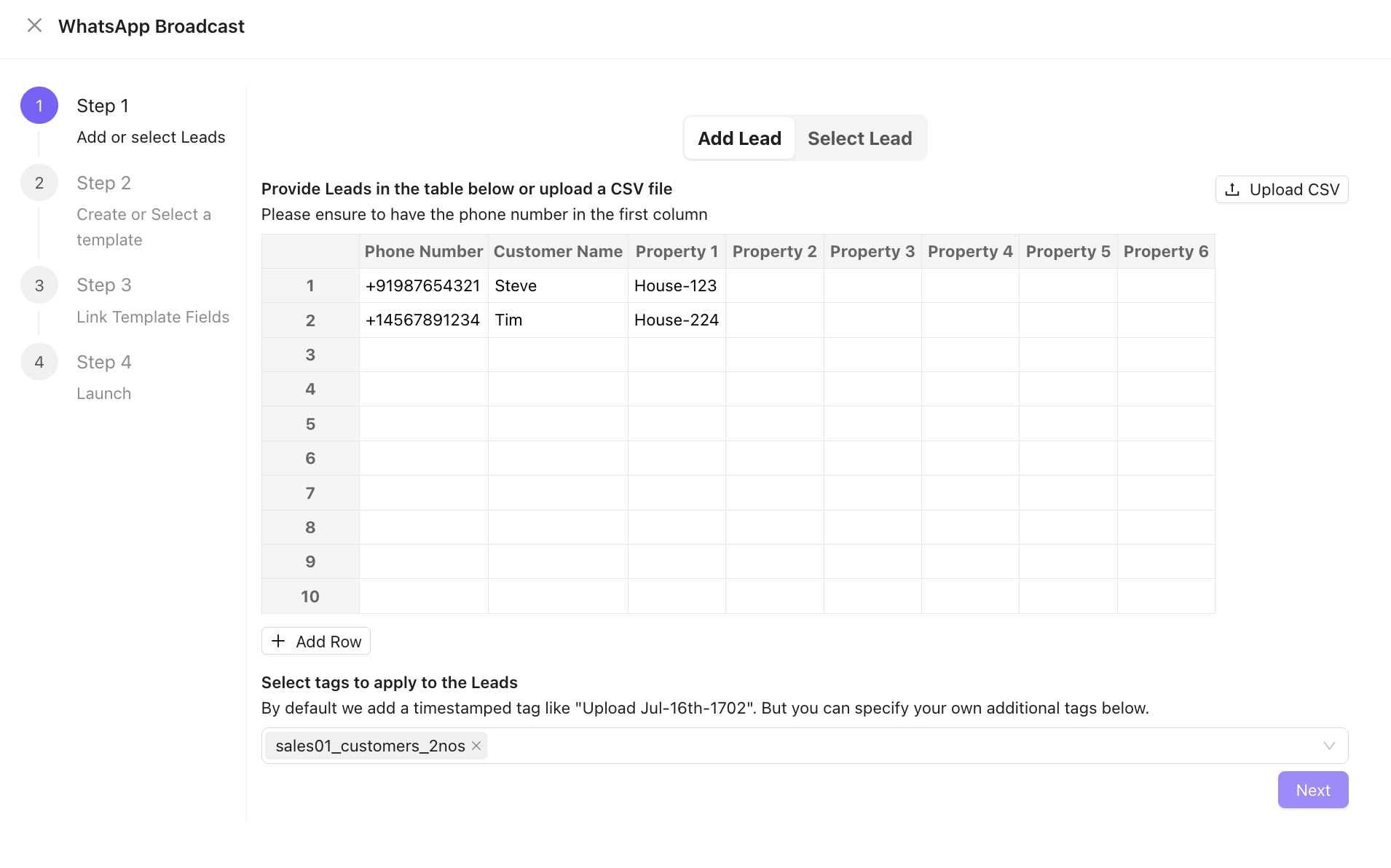
(Optional): Apply Tags: By default, Chakra Chat assigns a timestamped tag (e.g., "Upload Jul-16th-1702"). Add custom tags as needed to save leads with these tags.
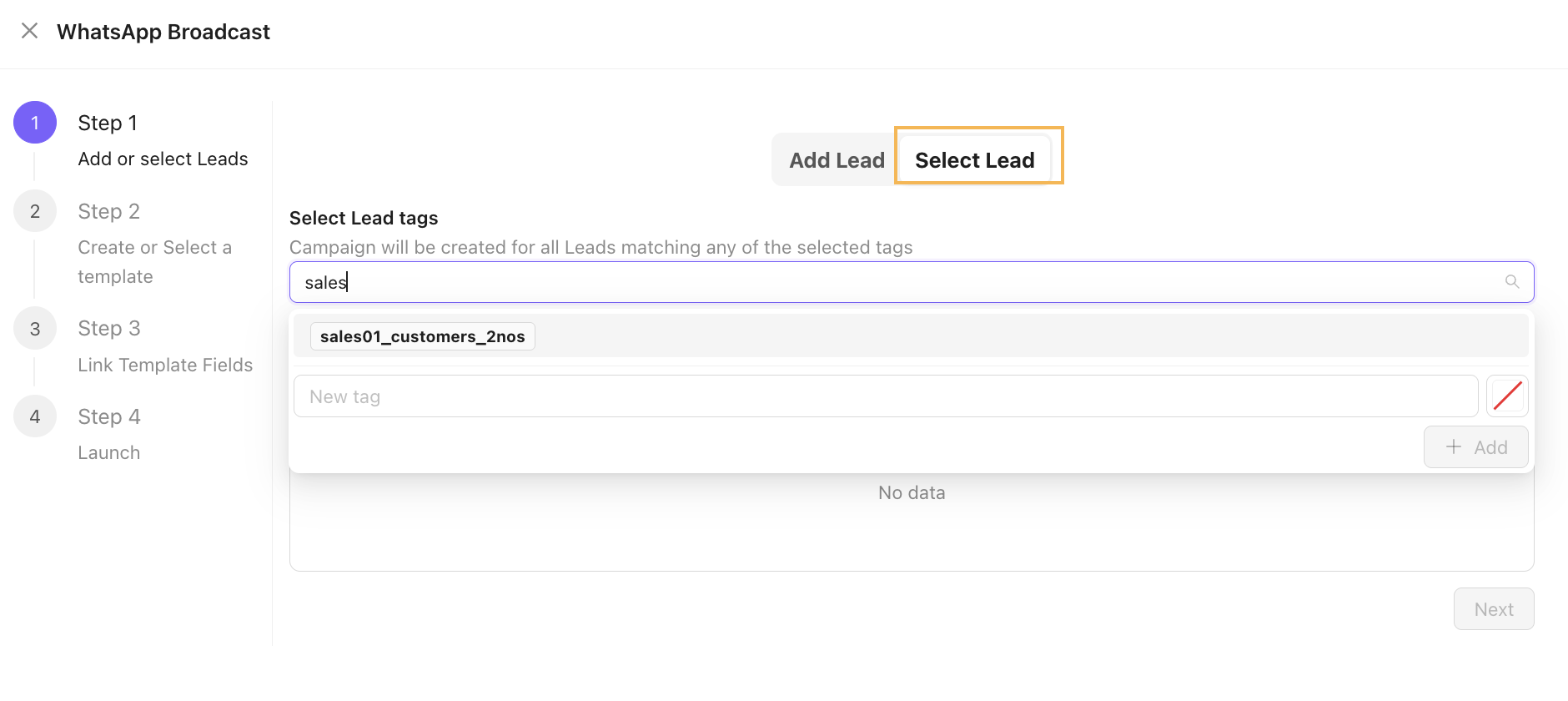
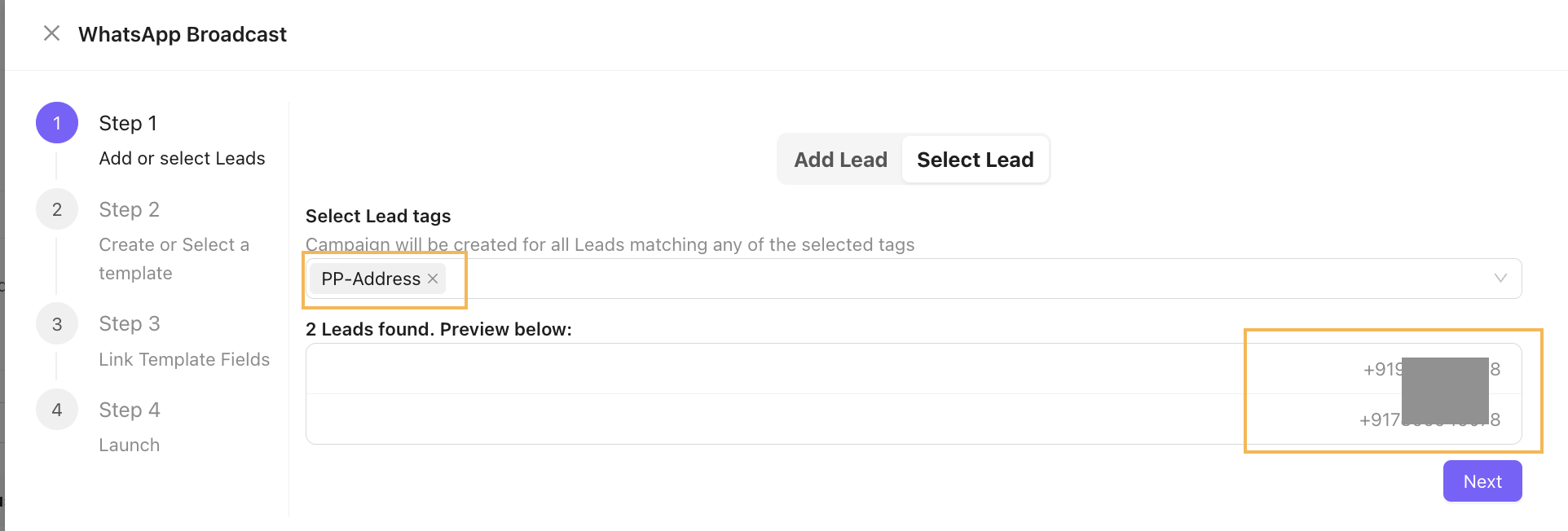
1b) Select Leads:
- In the Select Lead section, go to Select Tags.
- Search for and apply existing tags as needed.
- Preview the selected leads and phone numbers in the Preview section.Click Next.
Step 2: Select Template
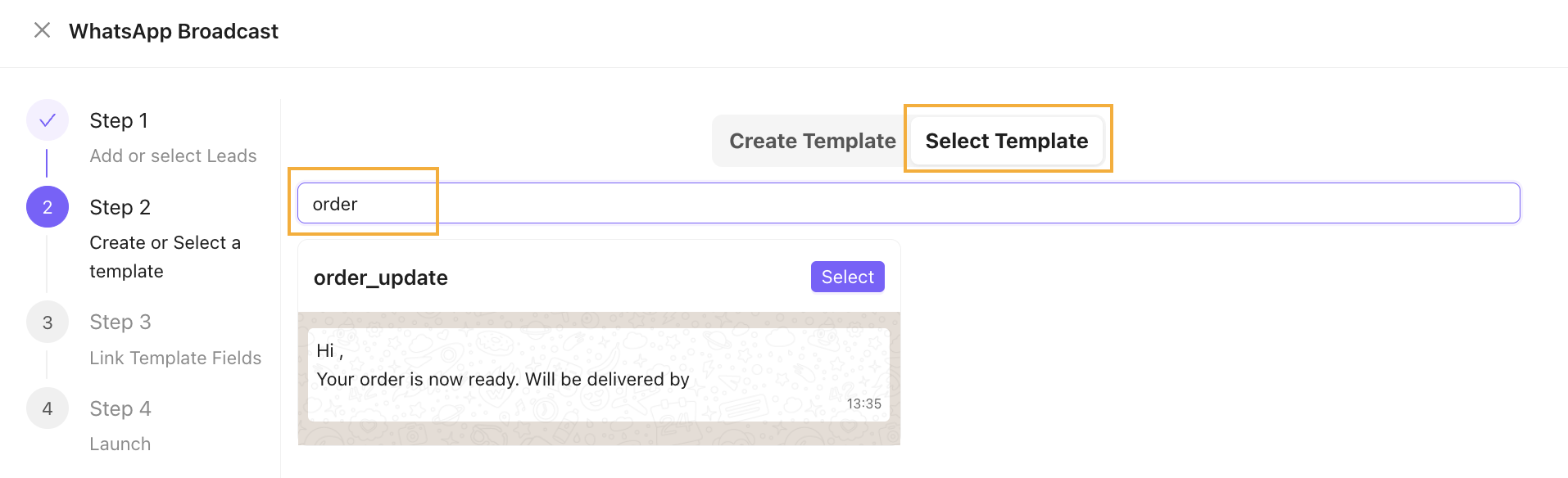
2a) Select a Template:
- Click the Select Template tab.
- Scroll or search for a template by name.
- Click Select to choose the desired template.
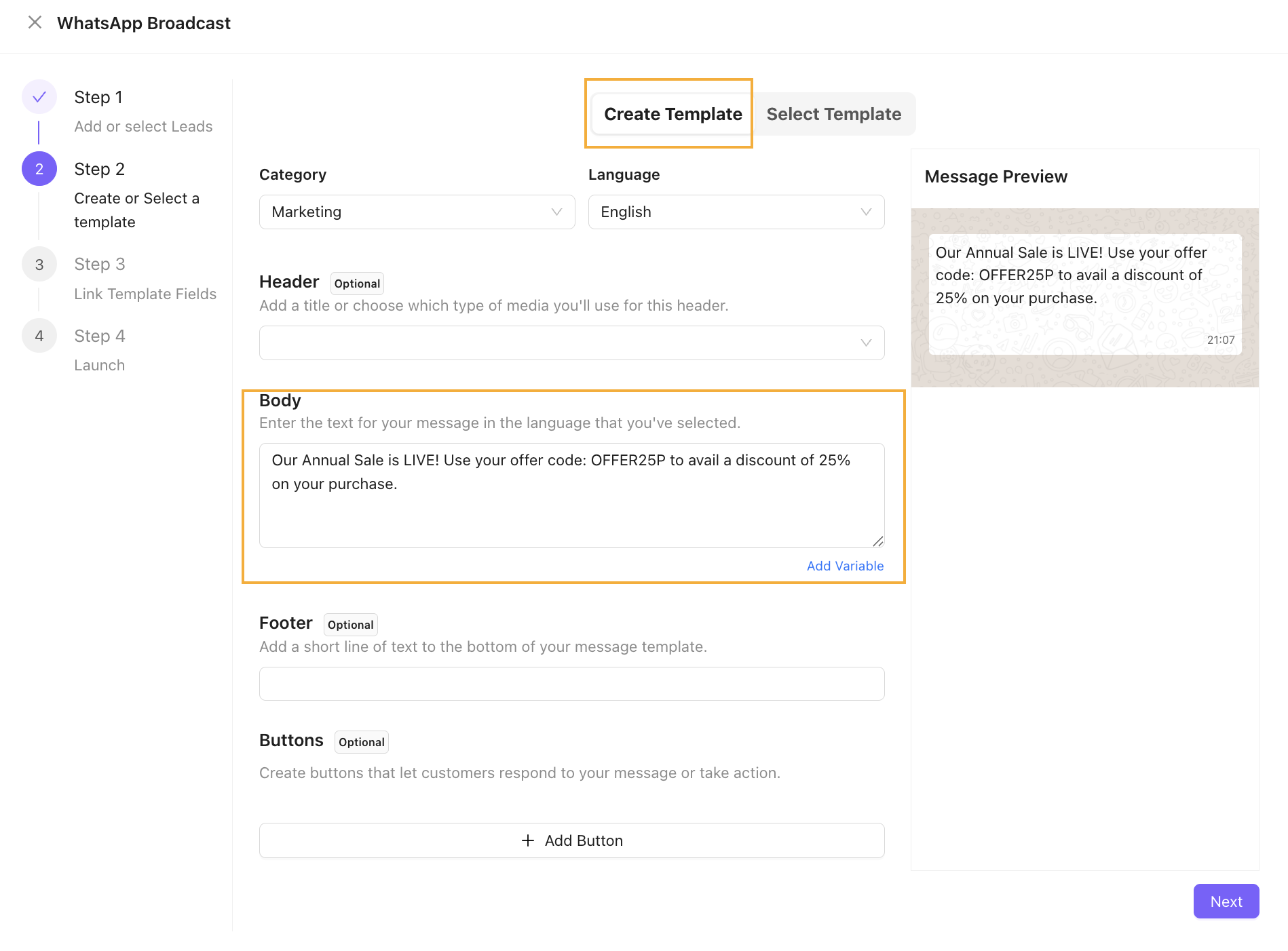
2b) Create a Template:
- To create a new template, follow the template creation guide here (#).
Step 3: Link Template Fields
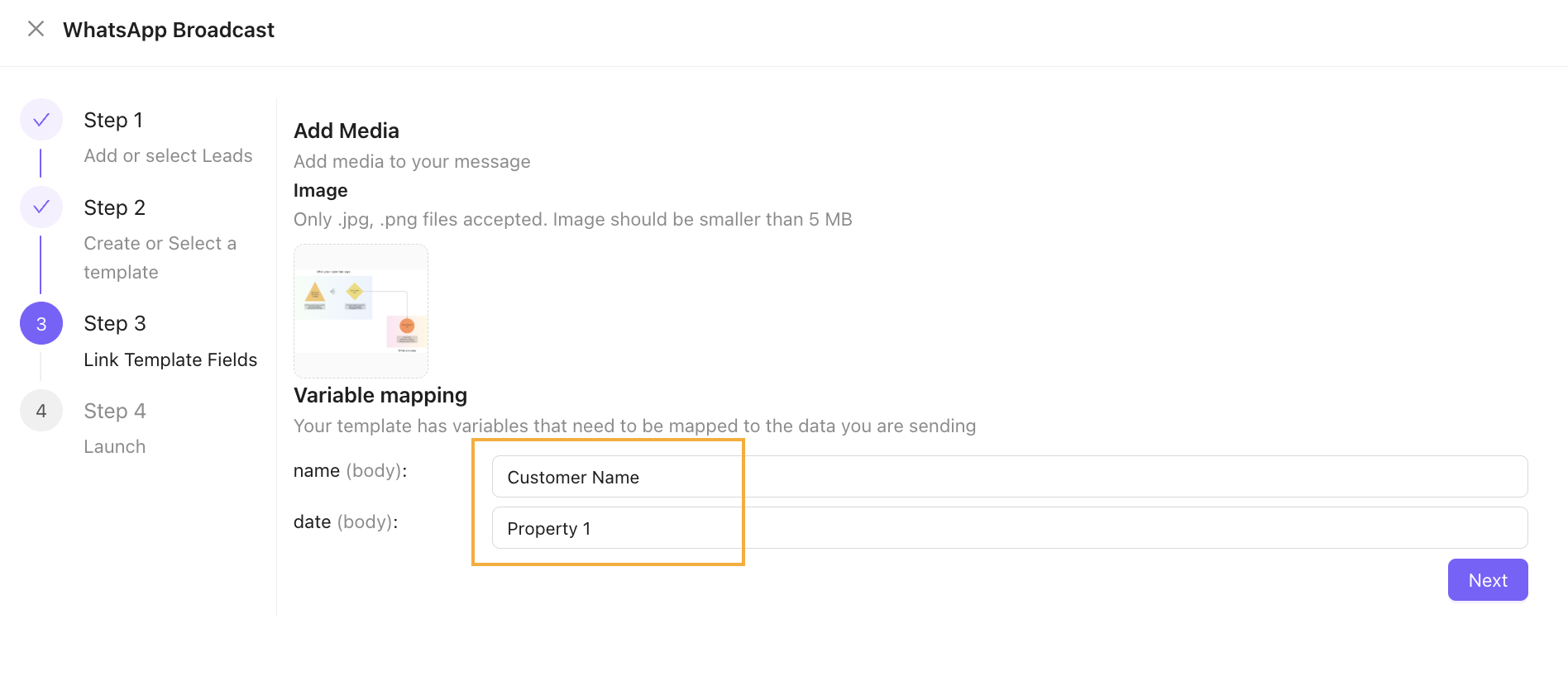
- Map the template variable body variables and add media files:
- Media: Upload any required media files.
- Variable Mapping: Map template variables to the corresponding fields in your lead data.\\
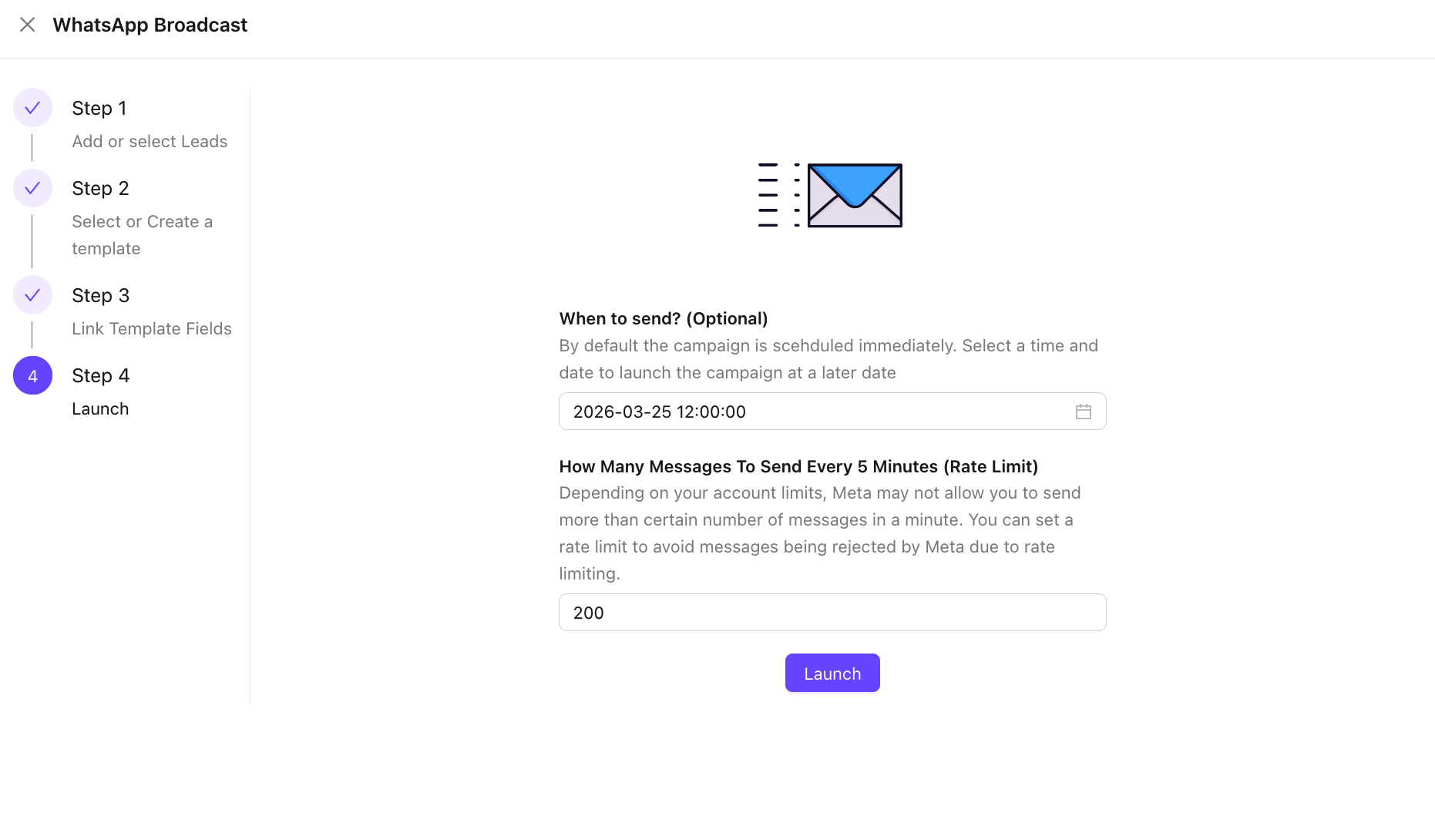
Step 4: Launch Campaign
- Click Launch to start the campaign instantly.
- [Optional] Select WABA Number: If using multiple WhatsApp Business API (WABA) numbers.
- [Optional] Schedule the campaign.
- Rate Limit : how many messages to send every 5 Minutes
The campaign has been successfully launched
Other Notes
Campaign Schedule Time
Please note that once a broadcast campaign has been created with a schedule time, all the phone numbers supplied are immediately scheduled for the provided time.
Changing the schedule of the campaign from the builder interface after launching the campaign does not affect the schedule of the contacts/leads which have already been added to the campaign. You can see the schedule of the scheduled contacts/leads by clicking the "Scheduled" metric under the builder interface.
If a change is made to the campaign shcedule. Any contacts/leads are added to the campaign after the change follow the updated schedule.