
Por Amy Baker
Publicado em 18 de jun. de 2025
Steps to connect Your WhatsApp Coexistence Account in Chakra
Step-by-step process to set up WhatsApp Coexistence mode in Chakra Chat by connecting an existing WhatsApp Business app number to WhatsApp Business Platform (API)
Introduction
WhatsApp Coexistence is changing the way SMB businesses operate. Scores of businesses have lately faces the issue of account restriction due to outbound messaging, higher volume messaging, messaging in small or high volume to non contacts. The Dual usage Coexistence feature a boon for all such businesses where they can connect to the WhatsApp Business Platform (API) and seamlessly operate without facing restrictions (should follow WhatsApp Business messaging policy) and reaping benefits of the robust WhatsApp Business API platform to scale their WhatsApp Engagement. Read more about WhatsApp Coexistence feature in this detailed WhatsApp Coexistence guide.
Setup Coexistence Steps
Setting up your account with Chakra Chat (WhatsApp API) is super simple. You can connect your existing WhatsApp Business number to Chakra Chat and register for the WhatsApp Business Platform (API) to use both the solution simultaneously.
💡Follow the Chakra Setup Help Guide for Connecting a Number for WhatsApp Business API. This includes details about Coeixstence Setup, Setup of Coeixstence with migration from an existing BSP partner.
WhatsApp Coexistence Setup Checklist / Perquisites
- Updated version of the WhatsApp Business App
- Business Phone registered in a supported country (Update: all countries are supported now)
- A verified Meta Business account linked to the WhatsApp Business app
- The WhatsApp Business app has been in active use for more than a week
Steps to register your Business (API) account in Chakra Chat
Set up your Chakra Chat account
i) Once your account is set up and you are logged in to Chakra Chat. ii) Navigate to the WhatsApp Setup of the navigation bar (left). iii) Click on the Continue with Facebook.
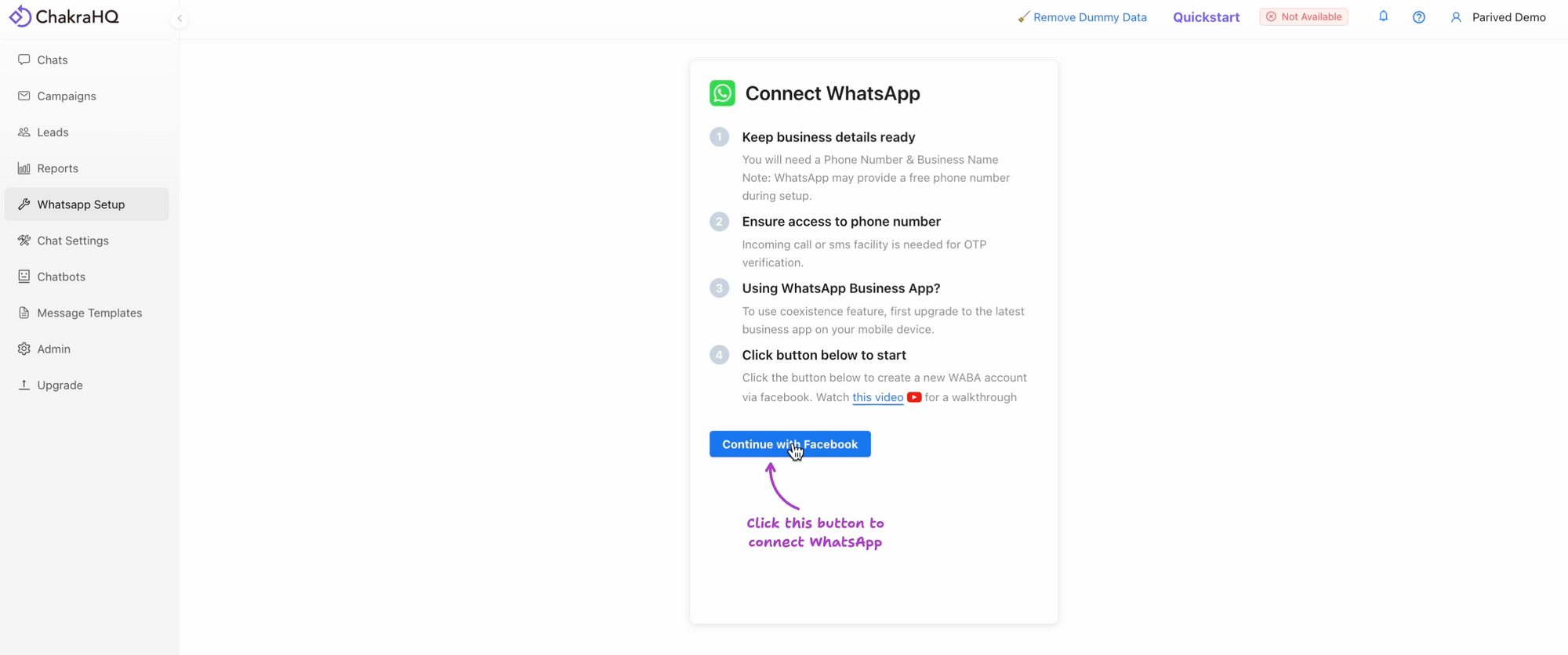
Chakra Chat Embedded Signup Form
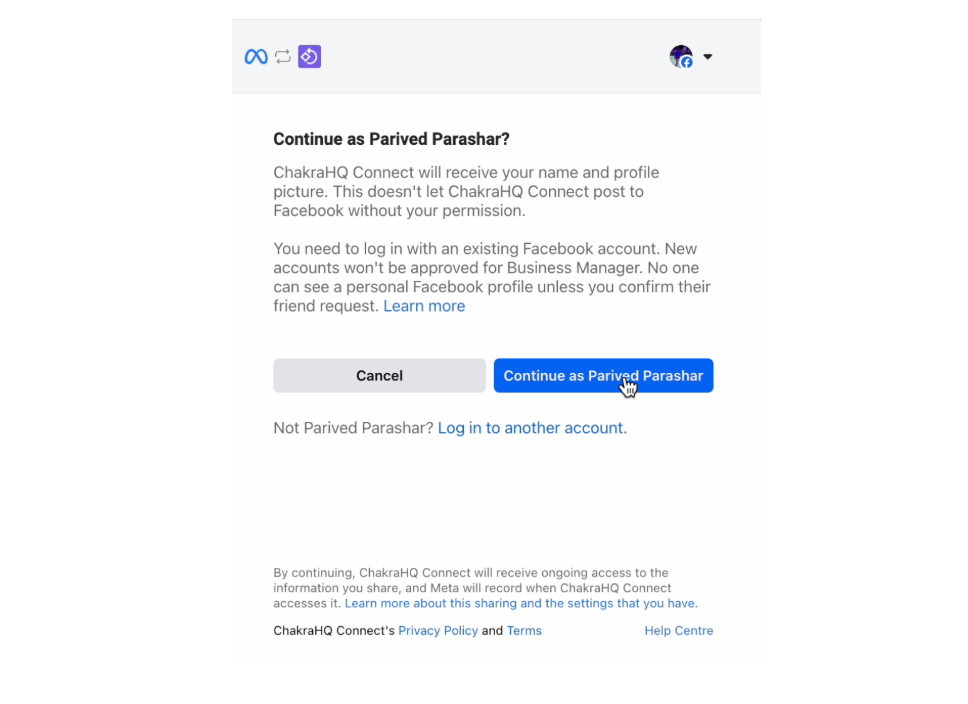
i) If you are not logged in to your Facebook account in the browser, log in to Facebook

ii) Once logged in, or if you are already logged in, the Embedded Signup window. iii) Click on the Continue as <Facebook Name>
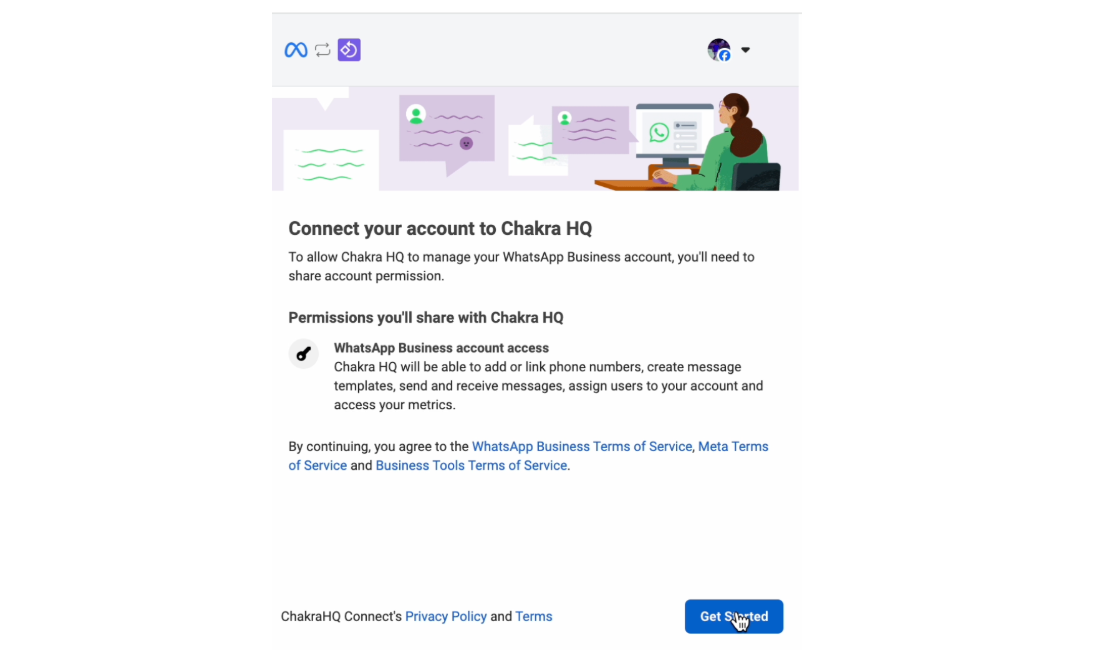
iii) Connect your account to Chakra HQ (Chakra Chat) - Provide necessary permissions to Chakra Chat to manage your WhatsApp business account
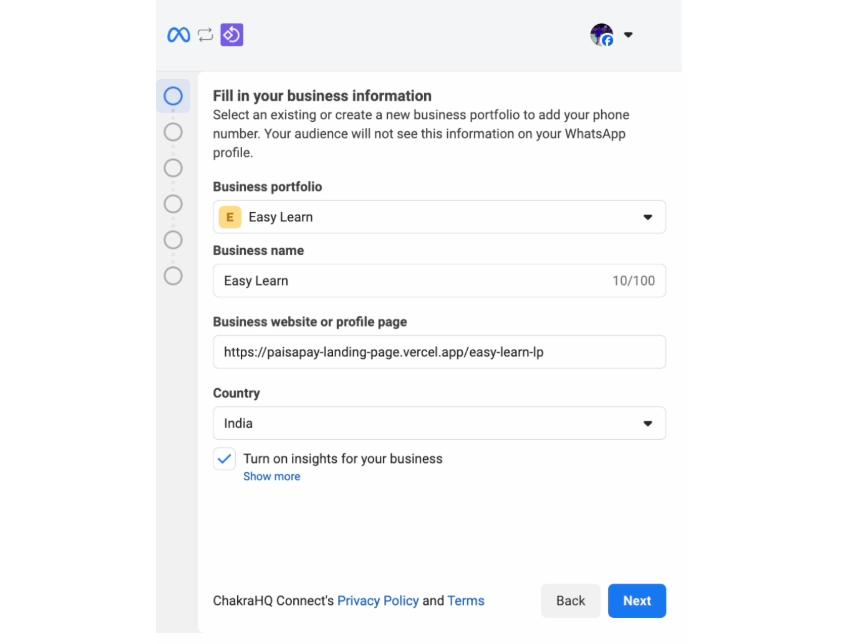
Fill in your Business Information
i) Choose a Business Portfolio associated with your WhatsApp Business app number or create a new business portfolio. ii) Enter a Business name. iii) Add the Business website or profile page URL iv) Choose the country as relevant, and click on NEXT
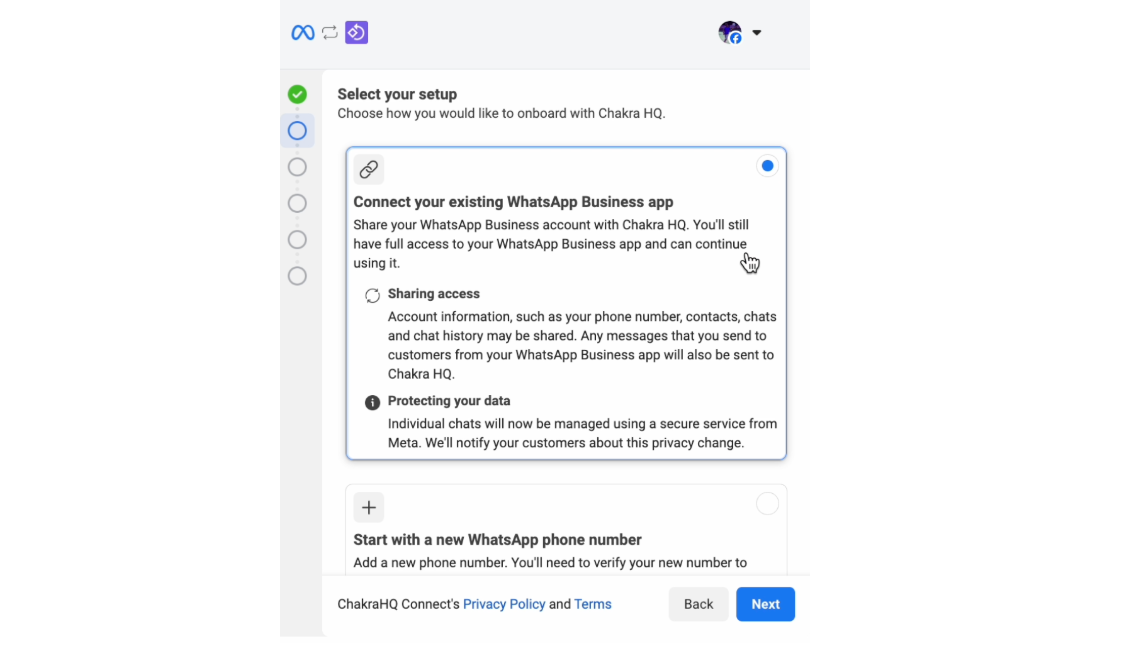
Select your Setup
i) Choose the option - Connect your existing WhatsApp Business app and click NEXT
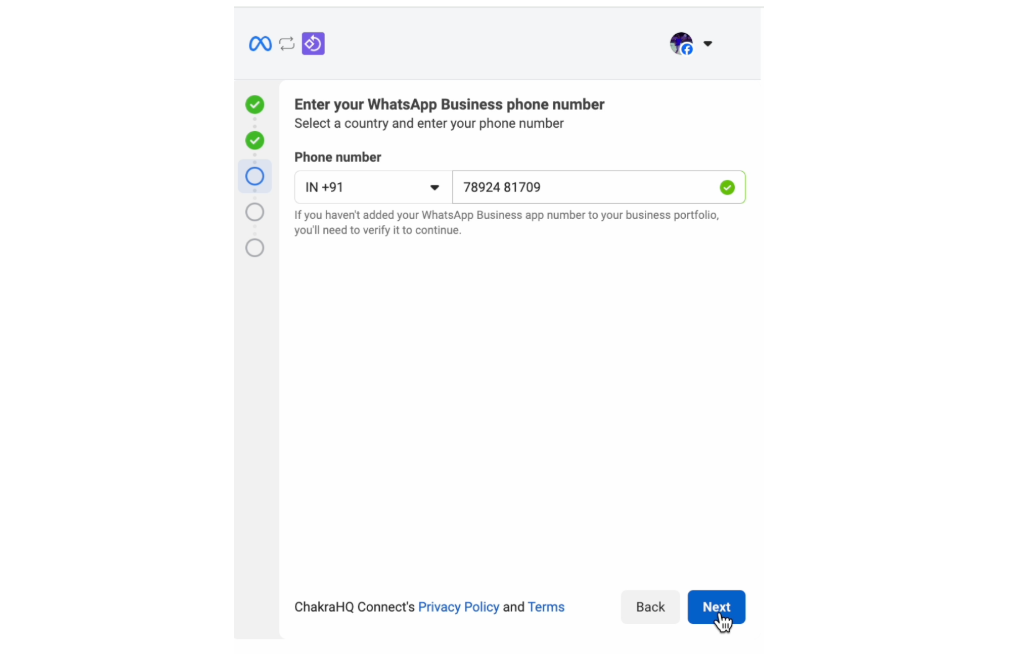
Enter your WhatsApp Business app number
i) Enter the relevant country code and the WhatsApp business app number, and click NEXT. Ensure that your WhatsApp business app number is added to your business portfolio
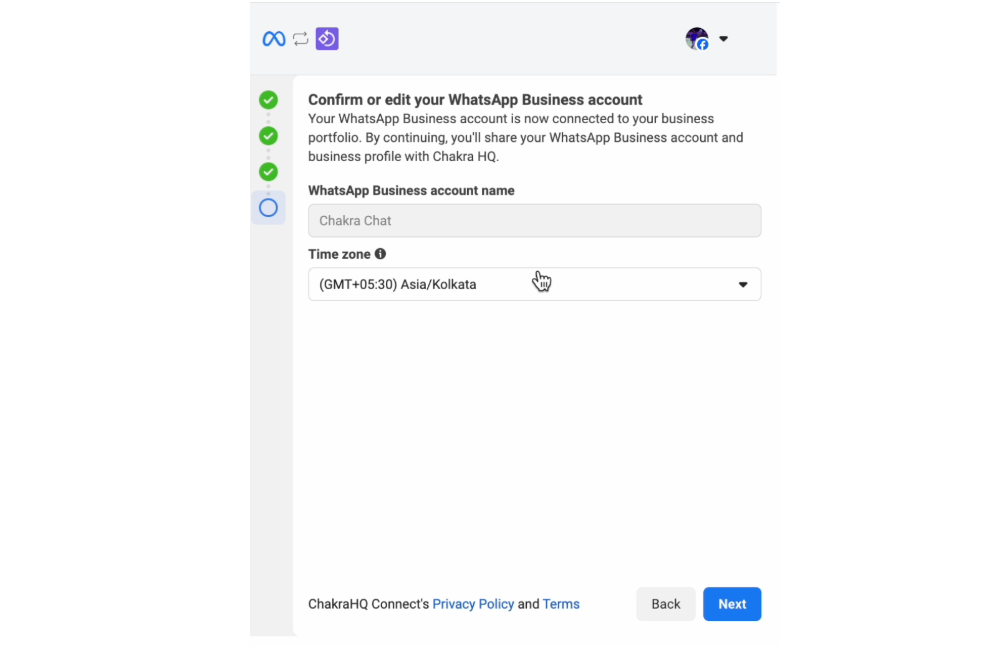
Confirm or edit your WhatsApp Business account
i) Check the WhatsApp Business account name. ii) Check the default Time zone or change it, then click NEXT.
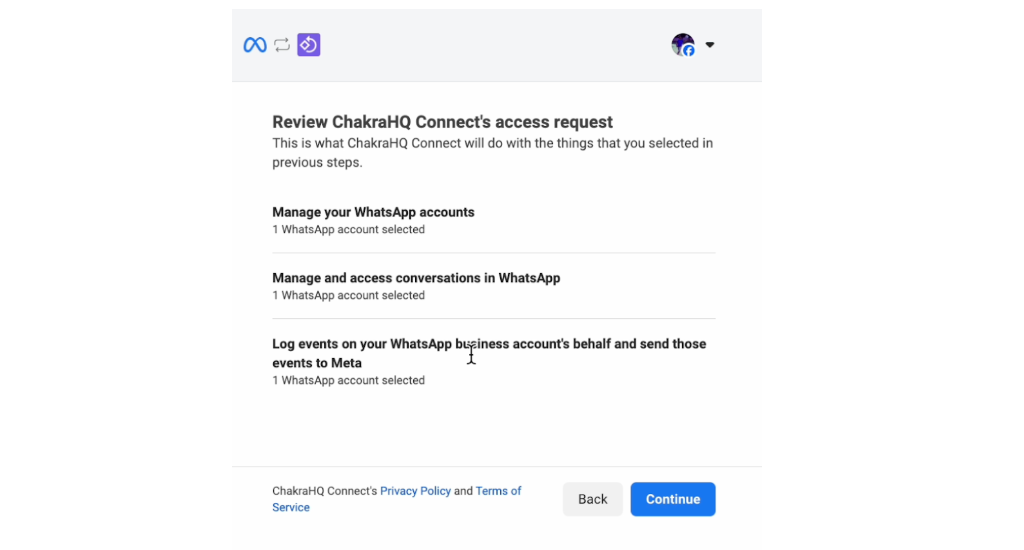
Review Chakra Chat Connect's access request
Review the details and click NEXT.
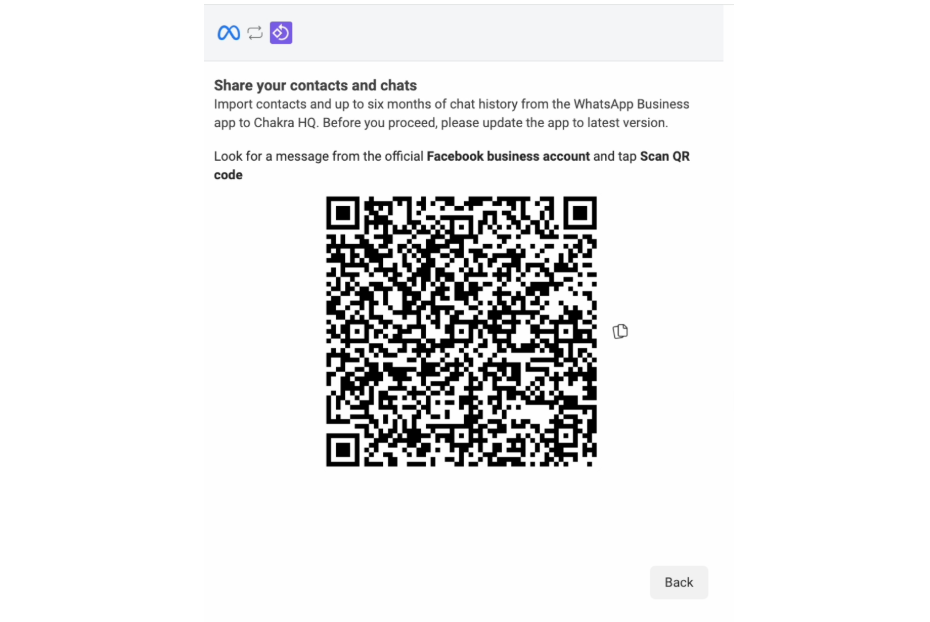
Share your contact and chats
The next step is to import your contacts from the WhatsApp Business app to Chakra Chat. A QR Code is flashed, and this needs to be scanned from the QR Scanner link shared on your WhatsApp Business app phone
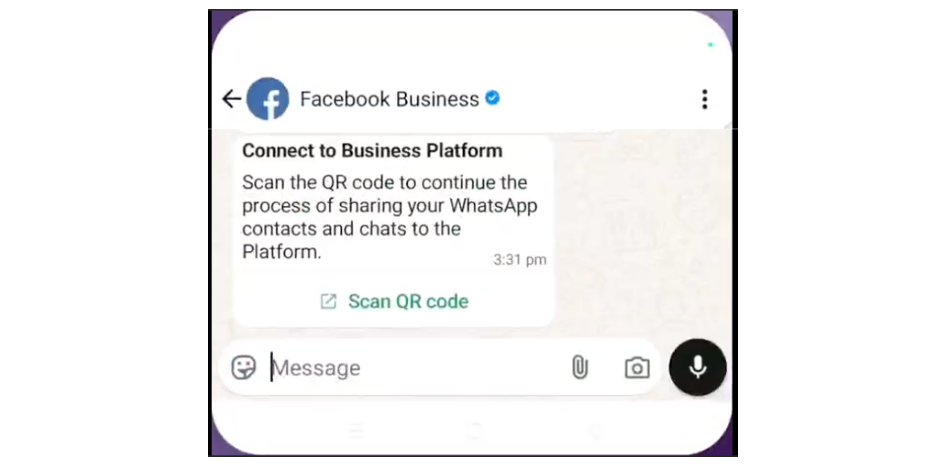
Facebook Business sends a verification QR code link to your business app number (Mobile Device)
Click on the Scan QR code link.
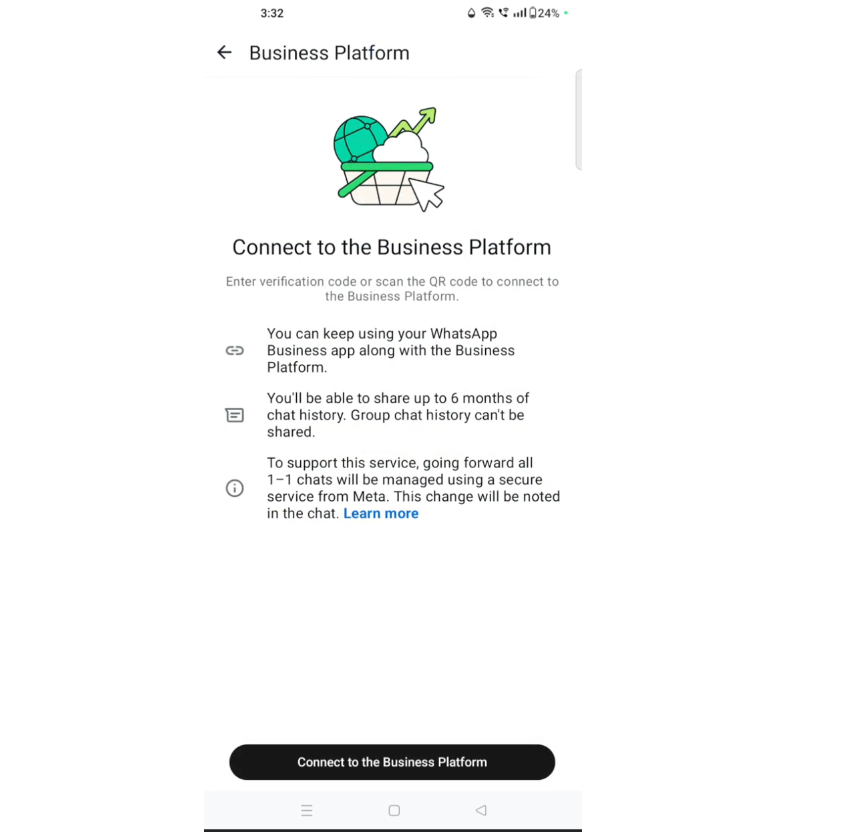
Connect to the Business Platform in the WhatsApp Business app (Mobile Device)
Click on the Connect to Business platform link.
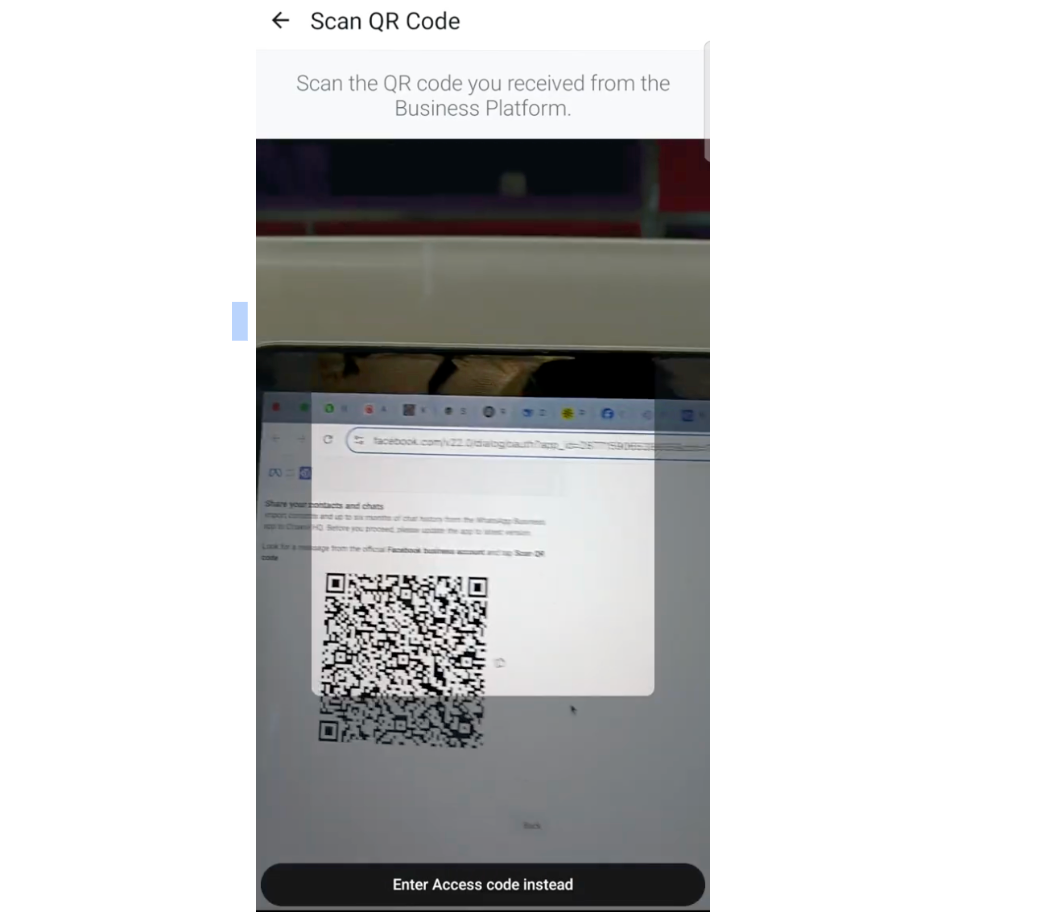
Scan QR Code (Mobile Device)
i) Scan the QR code generated in the Chaka Chat embedded signup flow using the Scanner on your mobile device. ii) Alternatively, you can enter the access code copied from the QR code in the Chakra embedded signup flow.
Your WhatsApp Business app is now Connected to Chakra Chat
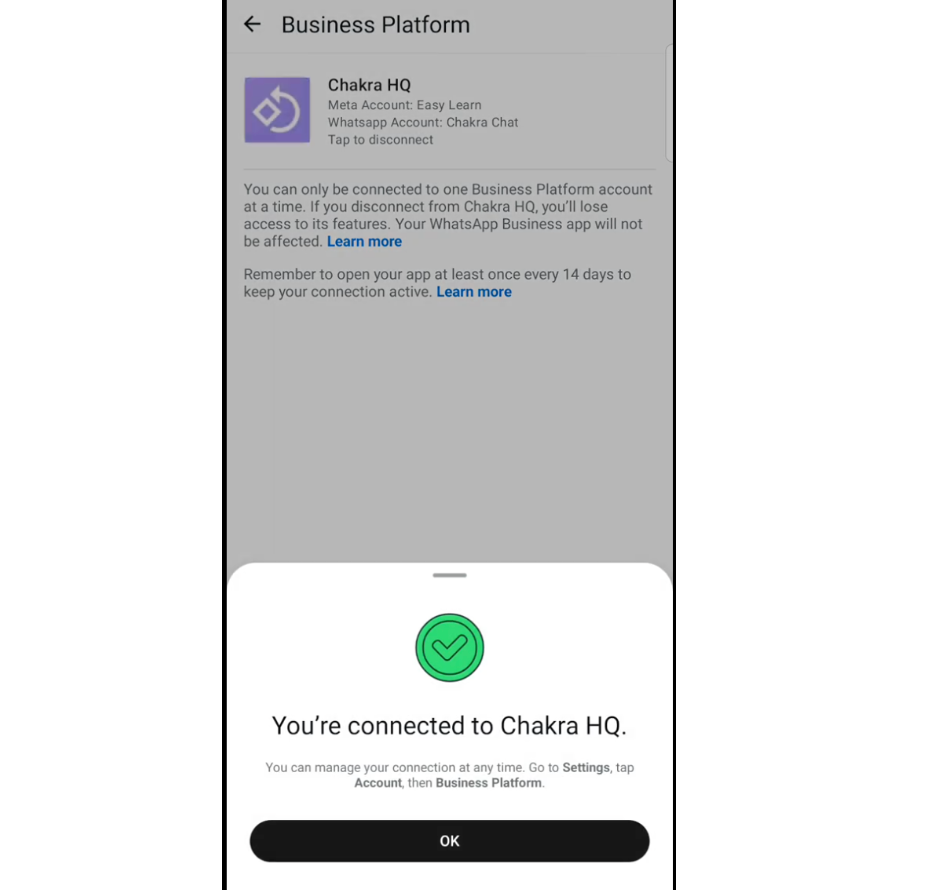
Your account is connected to Chakra Chat now (Chakra Chat embedded signup)
i) Your WhatsApp Business account is now connected to Chakra Chat. ii) Click on Add payment method next
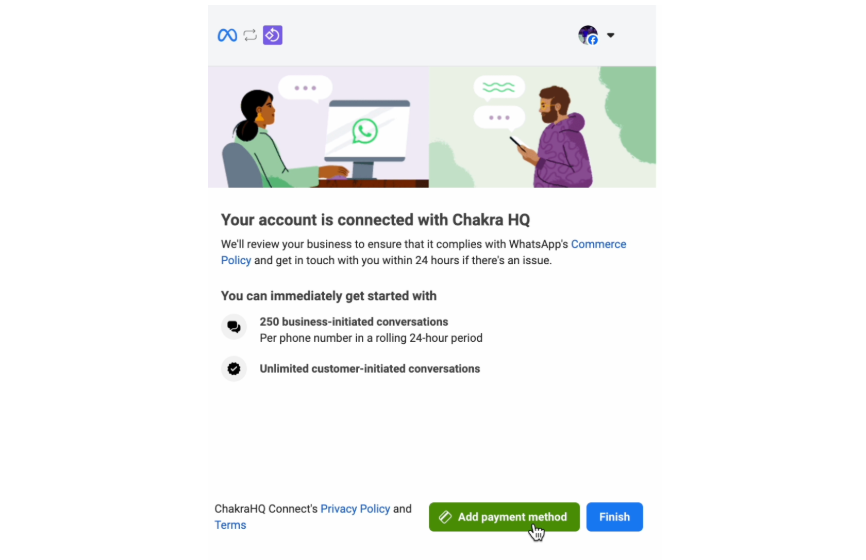
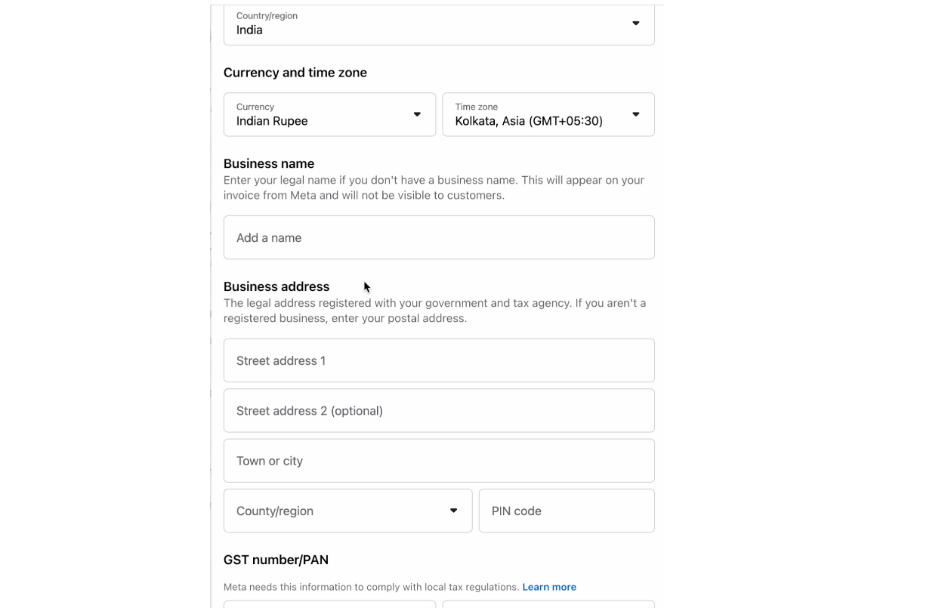
Add Payment Method and Business Info (Facebook Business)
In Chakra Chat, your WhatsApp messaging charges are directly billed by Meta without any markups to be paid by you. Most other WhatsApp Solution Partners charge as much as a 25% markup on Meta's standard Conversation rates for the WhatsApp Business Platform. - Click on Add Payment Method
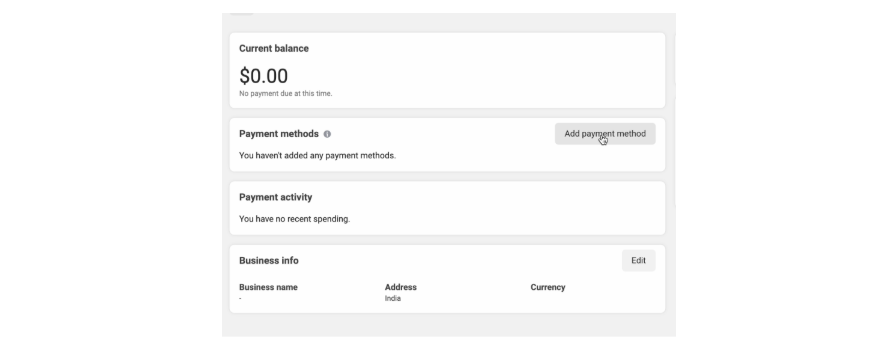
Add the payment details.
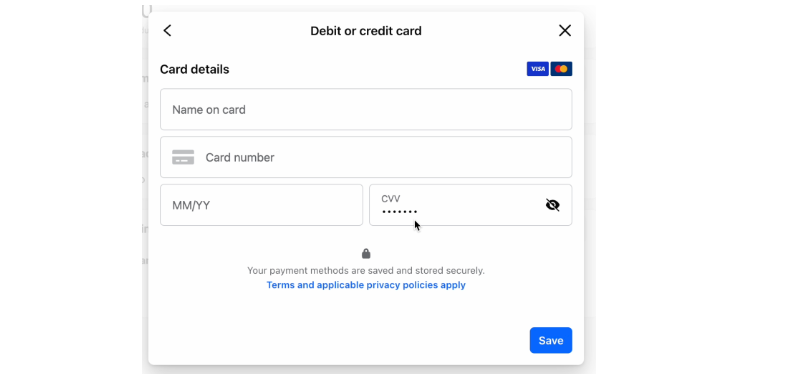
Edit the business info to add business details for the payment verification.
Your WhatsApp Coexistence Setup is now Complete in Chakra Chat. You can now start using the solution on both the WhatsApp Business app and the WhatsApp Business (API) Platform using Chakra Chat.
Last Updated: May 2026