

Chat Automation Workflows
Chat automation workflow to drive action based on chat triggers
A. Chat Keyword Trigger Automation
Configure keywords that trigger automatic messages or chatbots
Steps to create chat trigger automation
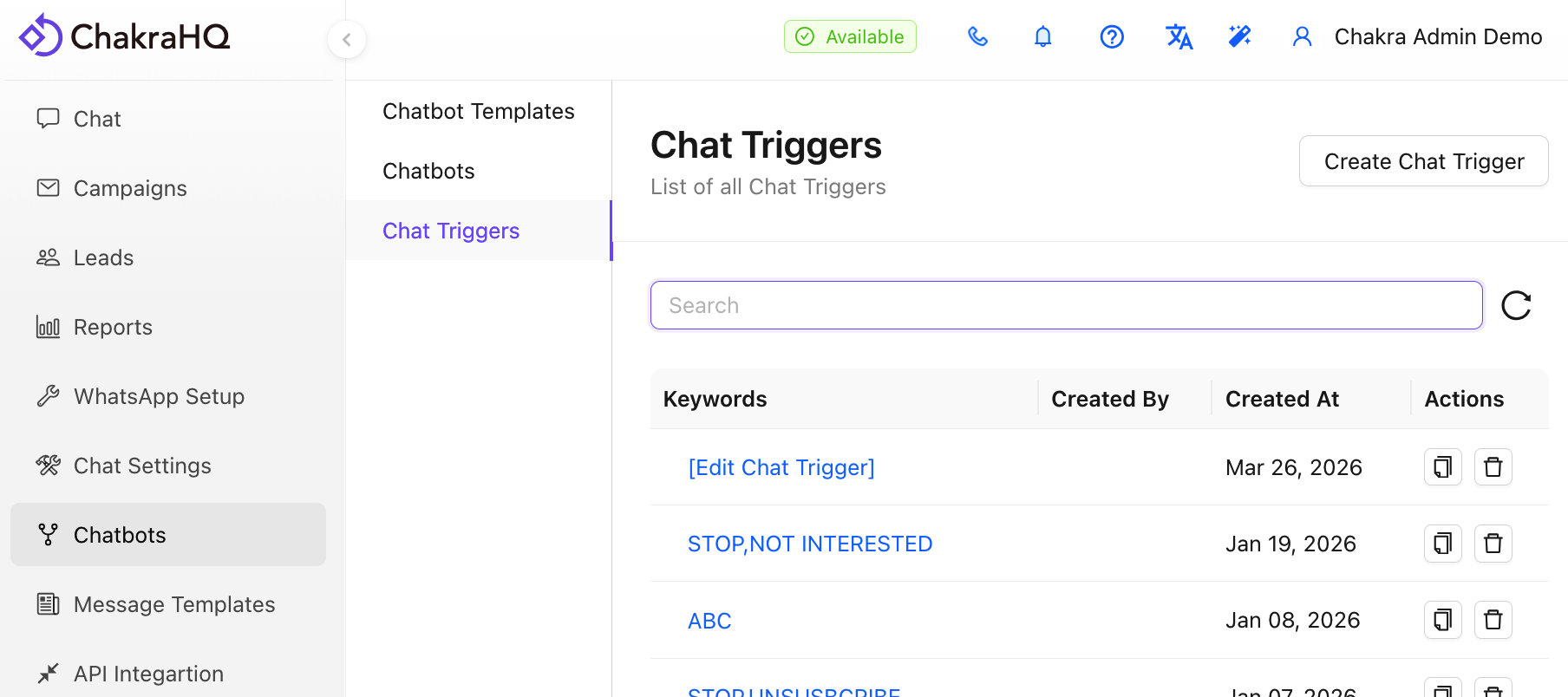
- Go to
Chat Trigger Settings - Click on
Create Trigger
- Add Keyword(s)
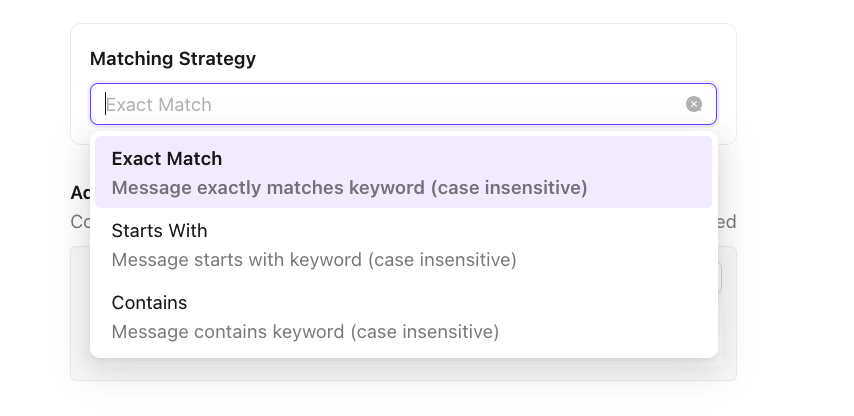
Add relevant keyword or multiple keywords to trigger a particular action - Select the Matching Strategy
- Exact Match (Message exactly matches keyword - case insensitive)
- Starts With (Message starts with keyword - case insensitive)
- Contains (Message contains keyword - case insensitive)
- [Optional] Additional Where Condition
Configure additional conditions that should match for this rule to be executed
- Add Action(s)
Configure the actions to be undertaken if matching keywords are found
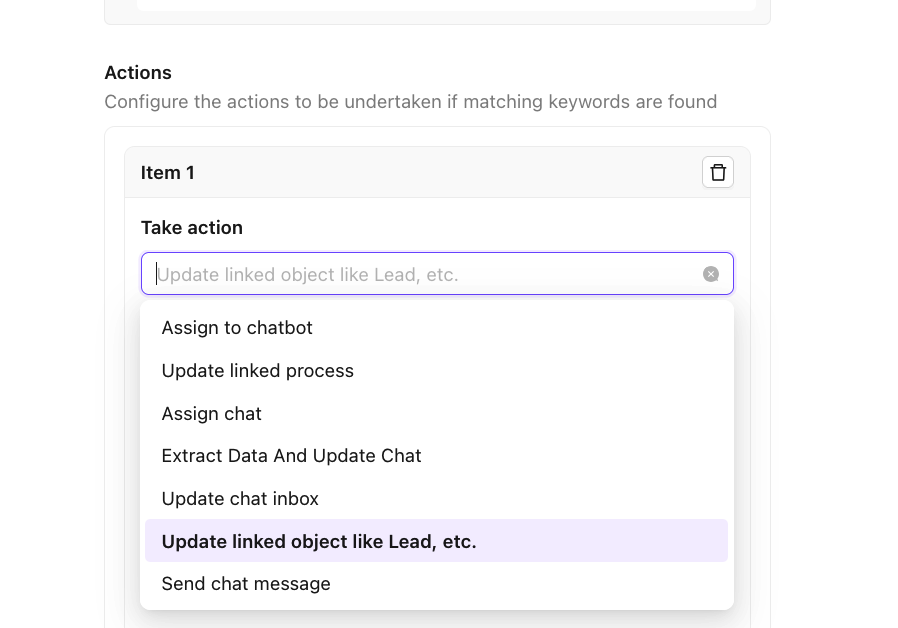
- Take Action List
- Assign to chatbot (to assign a chatbot)
- Update linked process (to update a lead field using regex)
- Assign chat (to assign a chat to a user)
- Extract Data And Update Chat (to extract data using regex and update chat field)
- Update chat inbox (update the chat inbox for the chat )
- Update linked object like Lead, etc. (to update lead fields)
- Send chat message (to send a chat message)
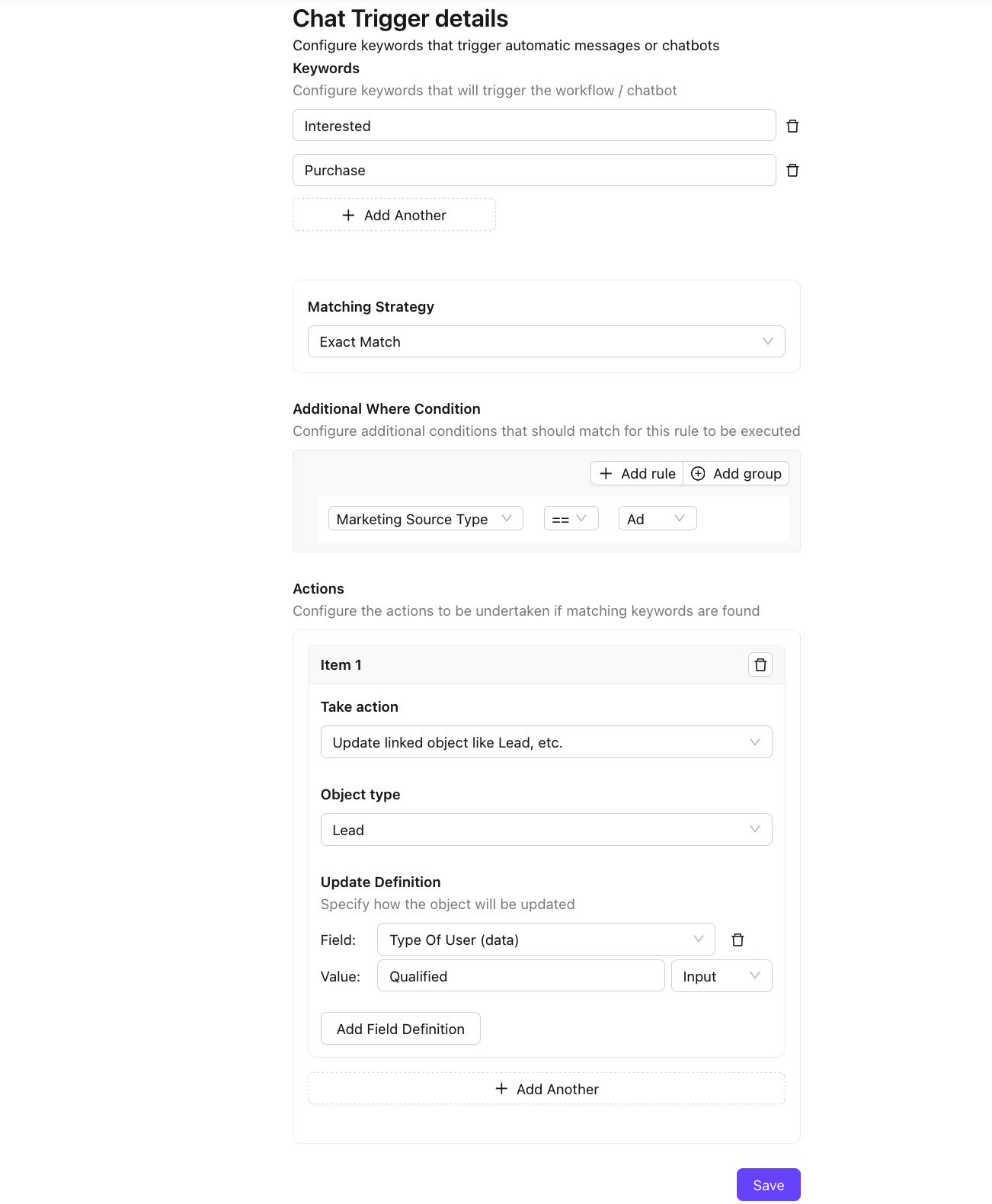
The Chat Trigger is complete. The configuration may look something like this.
B. Advanced Chat Automation
Configure advanced settings for chats:
Use Cases:
- To Customize Open Chat, Closed Chats and Chat Re-Open actions
- To Create a New Chat for every template message sent
How to Configure?
- Go to Advanced Setting in Chat Settings
- Configure below settings to enable Advanced Chat Settings
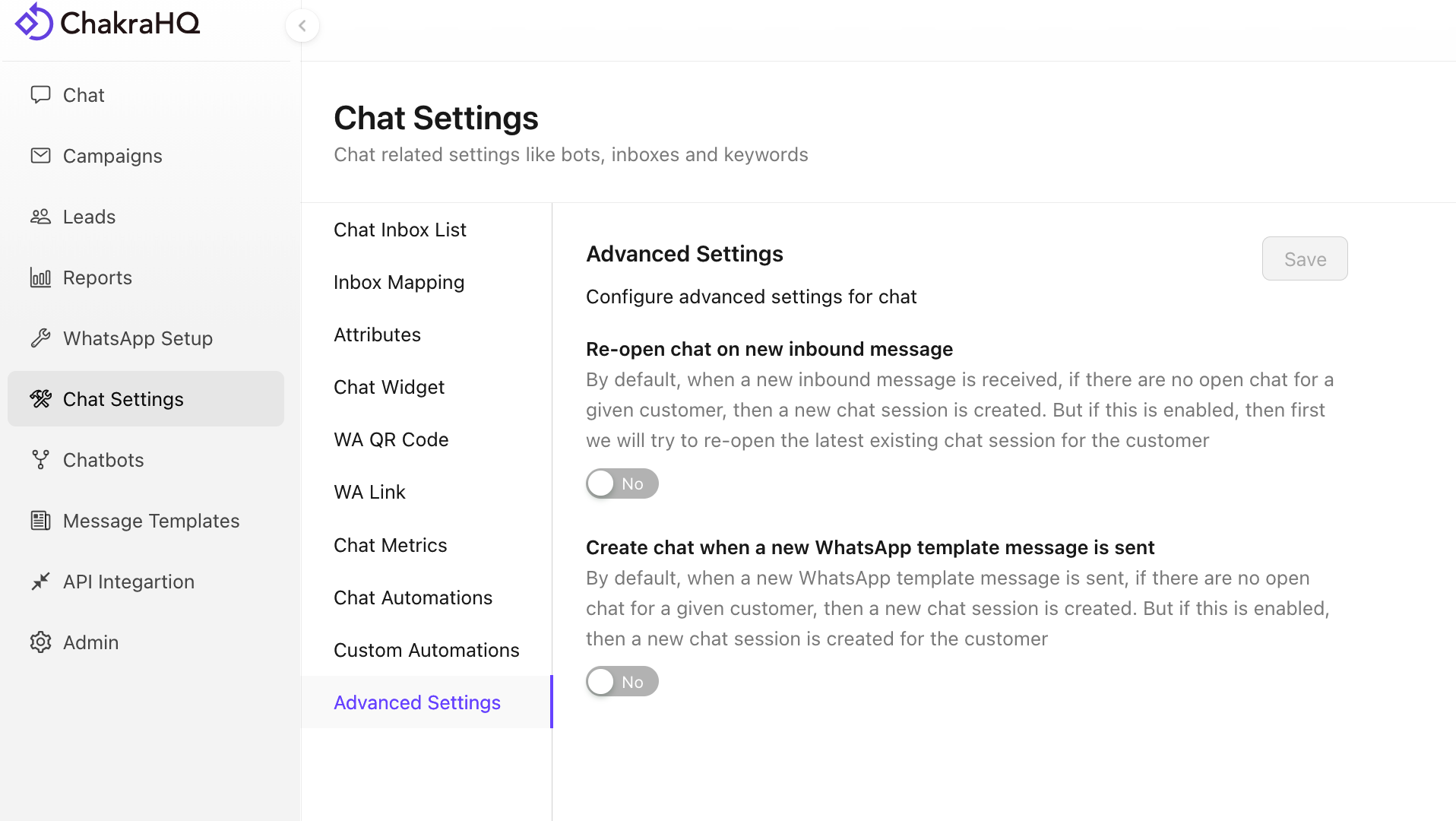
Re-open chat on new inbound message
By default, when a new inbound message is received, if there are no open chat for a given customer, then a new chat session is created. But if this is enabled, then first we will try to re-open the latest existing chat session for the customer
Create chat when a new WhatsApp template message is sent
By default, when a new WhatsApp template message is sent, if there are no open chat for a given customer, then a new chat session is created. But if this is enabled, then a new chat session is created for the customer
C. Custom Chat Automation
Configure custom automations for chat
Steps to configure custom chat automation:
- Go to
Chat Settings - > Custom Automations - Click on
+ New Automation Rule
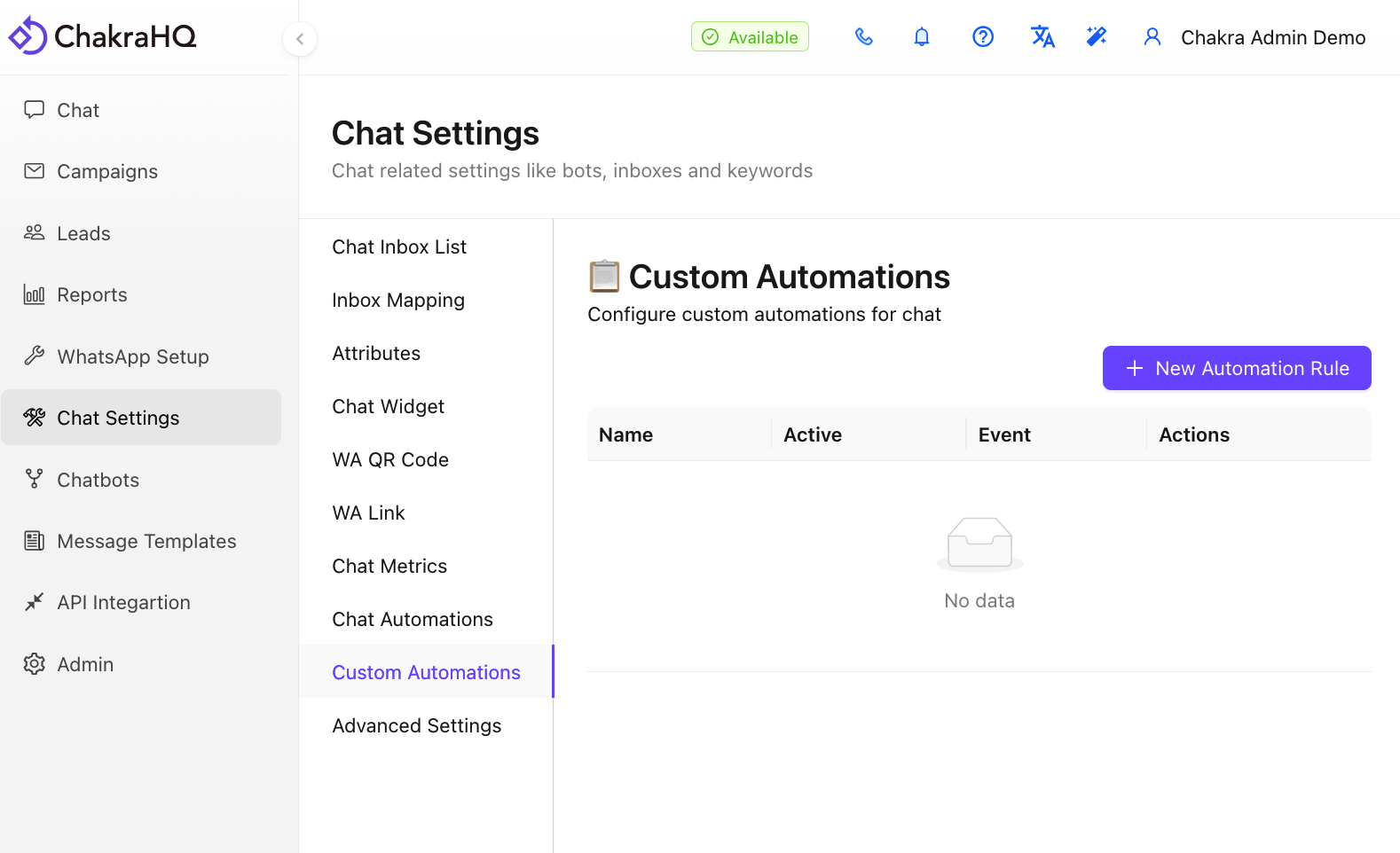
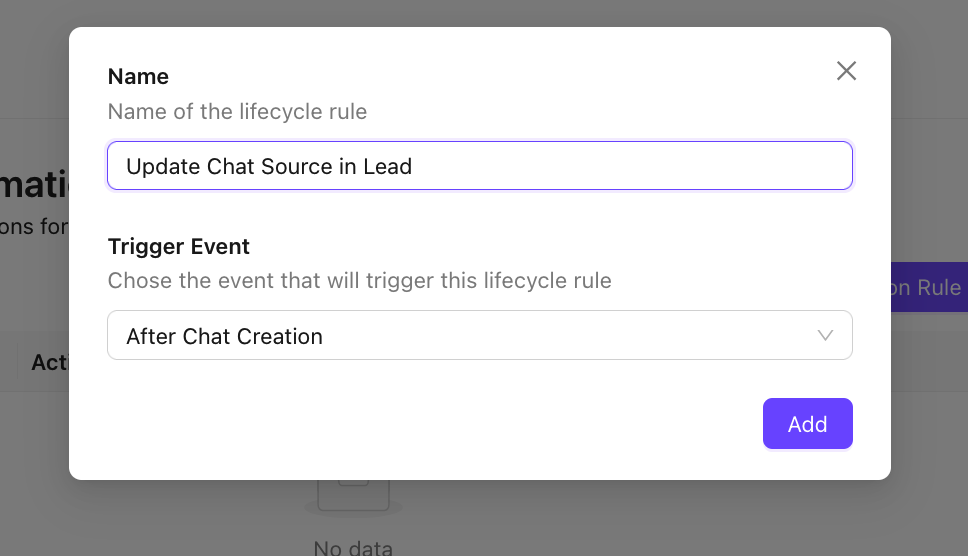
- Add a Name and choose the Trigger Event Type. Chose the event that will trigger this lifecycle rule
- After Chat Creation
- After Chat Updation
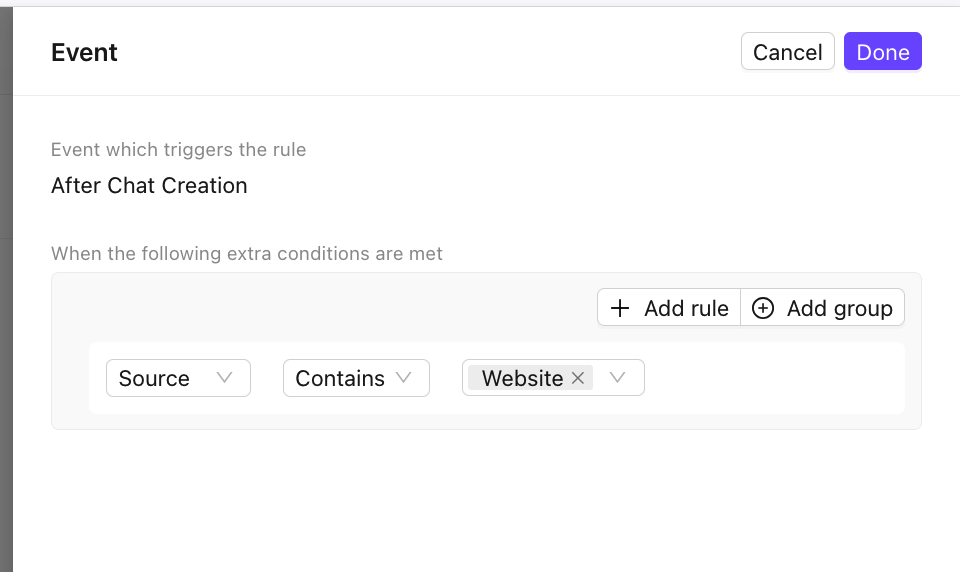
- In the
Triggering Eventnode, click on Edit _ 🖊_ on the right top - The Default Trigger is Chat Updation. To Add additional filter rules configure the Event
- Next, click on
+ Add Action - In the
Take Actionnode, click on Edit _ 🖊_ on the right top
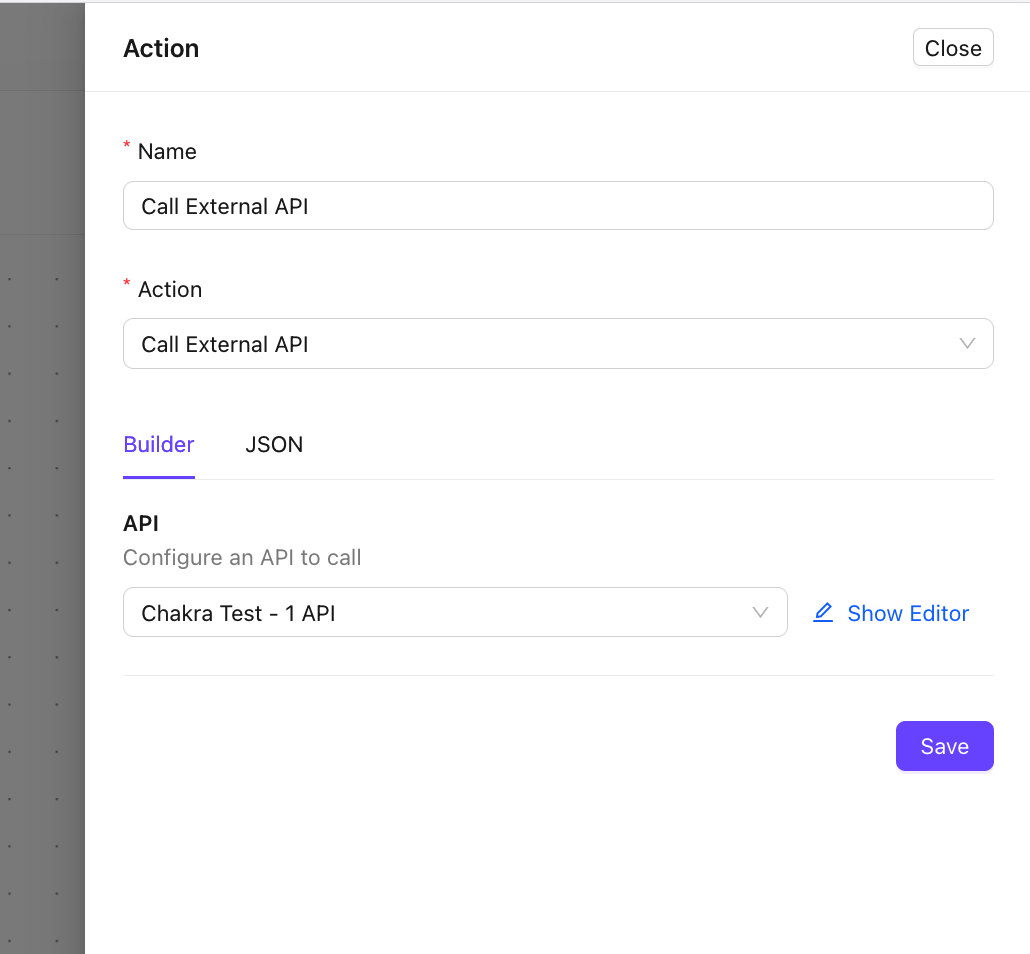
- Choose the appropriate action
Savethe Chat automation configuration and make the automationActive
The Customer Chatbot Automation is Active now.
D. Auto Reply Chatbot
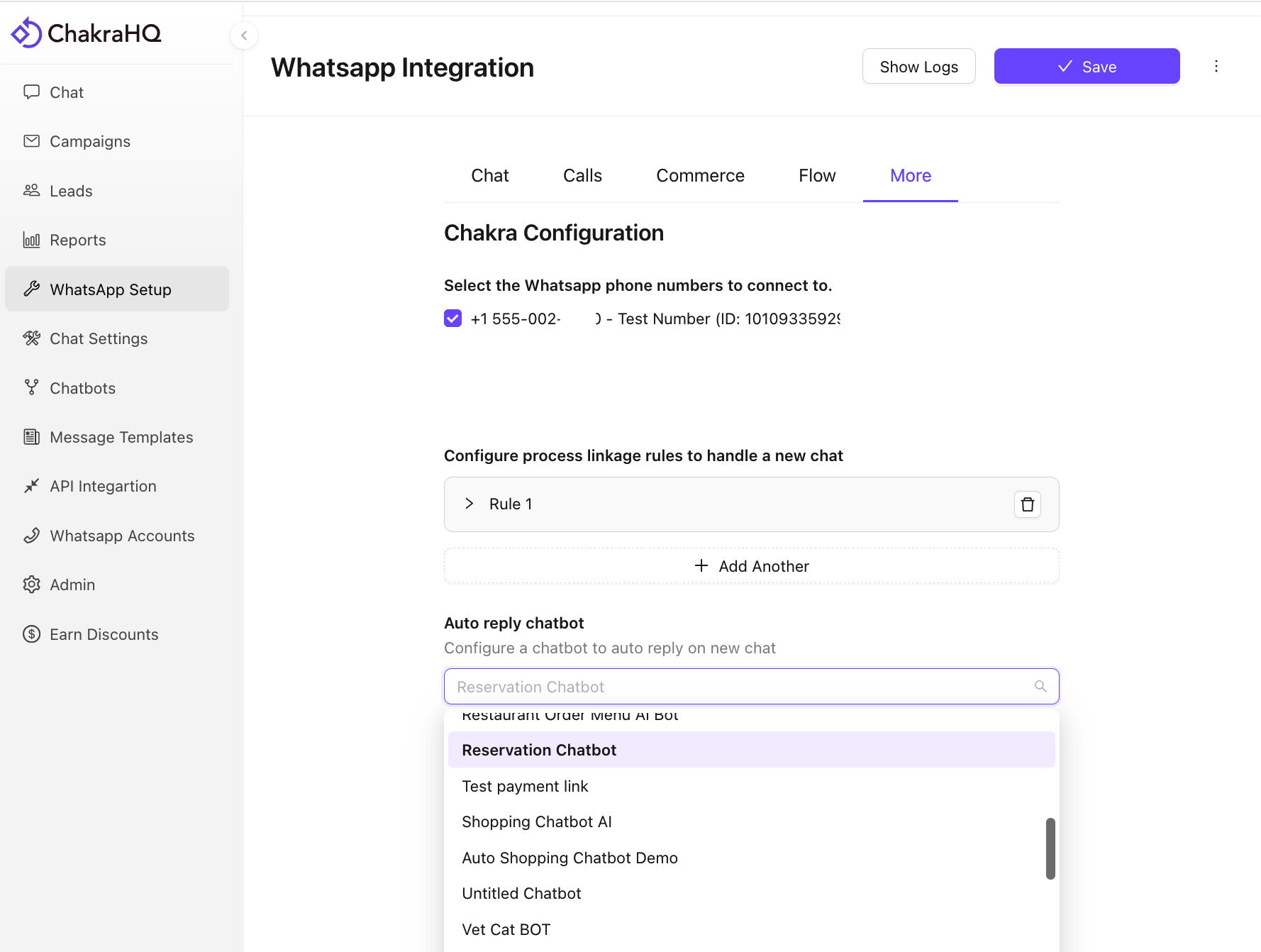
Use the Auto reply chatbot configuration to automatically trigger a chatbot for a NEW chat creation
How to configure auto reply chatbot?
- Go to WhatsApp Setup > More
- In the Auto reply chatbot field, choose a chatbot to trigger on new chat creation
- Save the configuration
E. Chat Automation Triggers
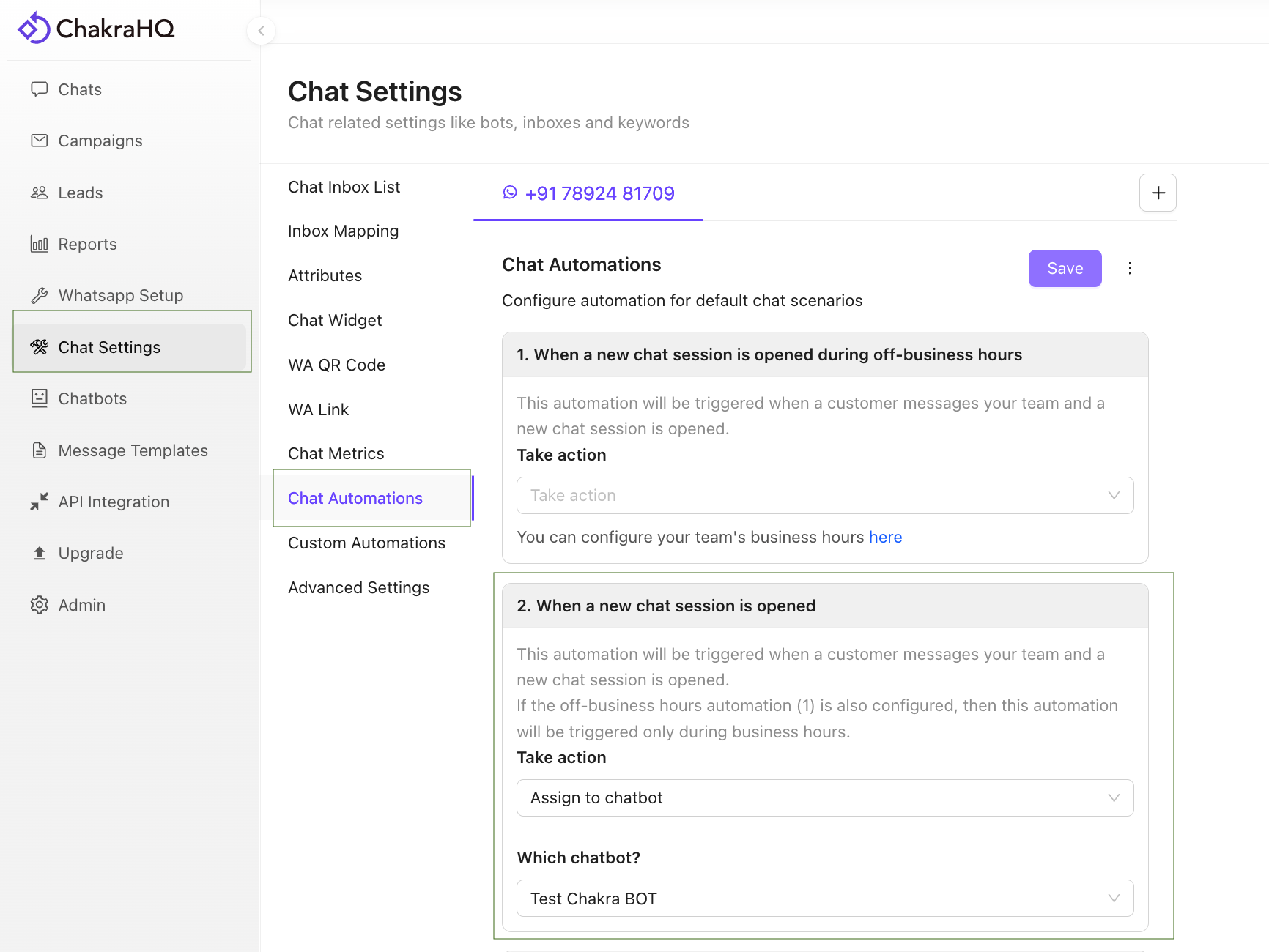
- Go to Chat Automation
- Choose an appropriate Chat Automation Rule. Configure automation for default chat scenarios.
- When a new chat session is opened during off-business hours:
> This automation will be triggered when a customer messages your business number
> During off-business hours (as configured in Business Hour Settings)
> & a new chat session is opened. - When a new chat session is opened:
> This automation will be triggered when a customer messages your business number and a new chat session is opened.
> If the off-business hours configuration (1) is also added, then this automation will be triggered only during business hours. - When customer sends a message during off-business hours and no keyword based chat trigger is invoked:
> Triggered during Off-Business hours only
> NO Keyword-based trigger invoked
> This automation is useful to setup an automated chatbot like a ticket booking bot. - When customer sends a message and no keyword based chat trigger is invoked:
> Triggered during business hours
> NO Keyword-based trigger is invoked
> This automation is useful to setup an automated chatbot like a ticket booking bot. > If the off-business hours automation (3) is also configured, then this automation will be triggered only during business hours.
Next,
- Click on
Take Actionand choose Assign to Chatbot
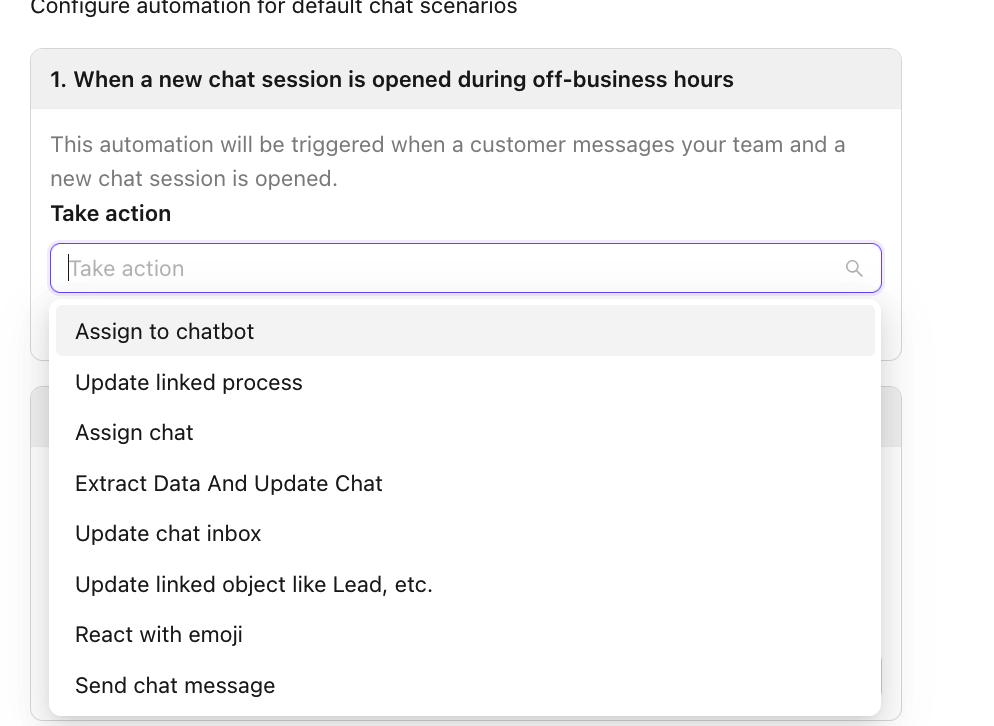
- Choose the desired Chatbot/User/Inbox to be assiged