Resource Access Management Rules
Guide to Resource Access Management in Chakra Sales
Overview
Chakra source access rules governs the scope of system resources (Leads, Tickets, Customer records, Chat, Calls, etc) available to an Administrator for access and management. Serving as a complement to role- and permission-based access control, it enables Administrators to perform their responsibilities efficiently while preventing exposure to unrelated system resources.
Resource Types
- Procedure: The refers to the one/multiple business process configured in Chakra like Lead, Tickets, Supports, Onboarding etc
- Entity: This refers to the records in Chakra like Customers, Contacts, etc
- Call: The refers to the integrated Telephony/Calling feature as part of integrated communications to manage calls
- Chat: This refer to the native Chat feature in Chakra Sales to manage chat conversations
Resource
Resource refer to the sub-selection options for certain Resource Type field like Procedure and Entity. Based on the resource type selection, the resource field provided a list of procedures/entity created for your account. Choose the specific resource to apply resource access rules for that specific resource.
Sub Resource Type
Sub Resource type refer to the selection for specific resource type selections like Procedure & entity where further granular selection is required to apply resource access rules.
For e.g.:
Resource Type = Procedure
Resource = Lead
Sub Resource = Attribute
Sub Resource
Sub Resource is the specific type of Sub Resource Type which is populated for relevant fields. For e.g. For a sub resource type selection Attribute, the Sub resource will provide an option of all the attributes to choose from. Administrators can configure resource access rules for a specific attribute. For e.g. If you as an administrator, wish not to provide any access to a customer attribute like Phone Number to your User agent types it can be configured using the Attribute = Phone Number in sub resource.
Procedure Sub Resource Types:
assignedTostatusstateattributederivedAttribute
Entity Sub Resource
attributederivedAttribute
Scope Type
- Team: This selection is used to apply the resource access rule scope to the entire team
- Role Type: This selection applies the scope to a particular role type (Admin, Manager, User)
- Role: This selection is used to apply the scope to one of the custom created roles in your Chakra account
- User: This selection is used to apply the to a specific user
- End User: This selection will apply the rules to the end customer (for use cases like customer portal)
Scope
Scope is a sub-selection field based on the Scope Type field selection. Choose the scope to define the resource access rules for a specific scope.
For e.g. If the Scope Type = Role Type
The Scope field will have the below options to choose from:
>> Admin
>> Manager
>> User
Access Mode Types:
- All: To provide complete access of a resource to any user/roles
- View Only: Choose this option to provide only view access to any user
- None: Choose this option to completely restrict access of a resource to any user
- Match Pod: To Provide access only if Pod match the resource details
- Match Skills: To Provide access only if skills configured matches the resource details
- Match Assigned To: To Provide access to only assigned resources
- Match Skills Or Assigned To Own & Reportees: Provide resource access by matching skills or assigned to self or reportees
- Created By: Provide access to resources which are Created By the User
How to Configure Resource Access Rules?
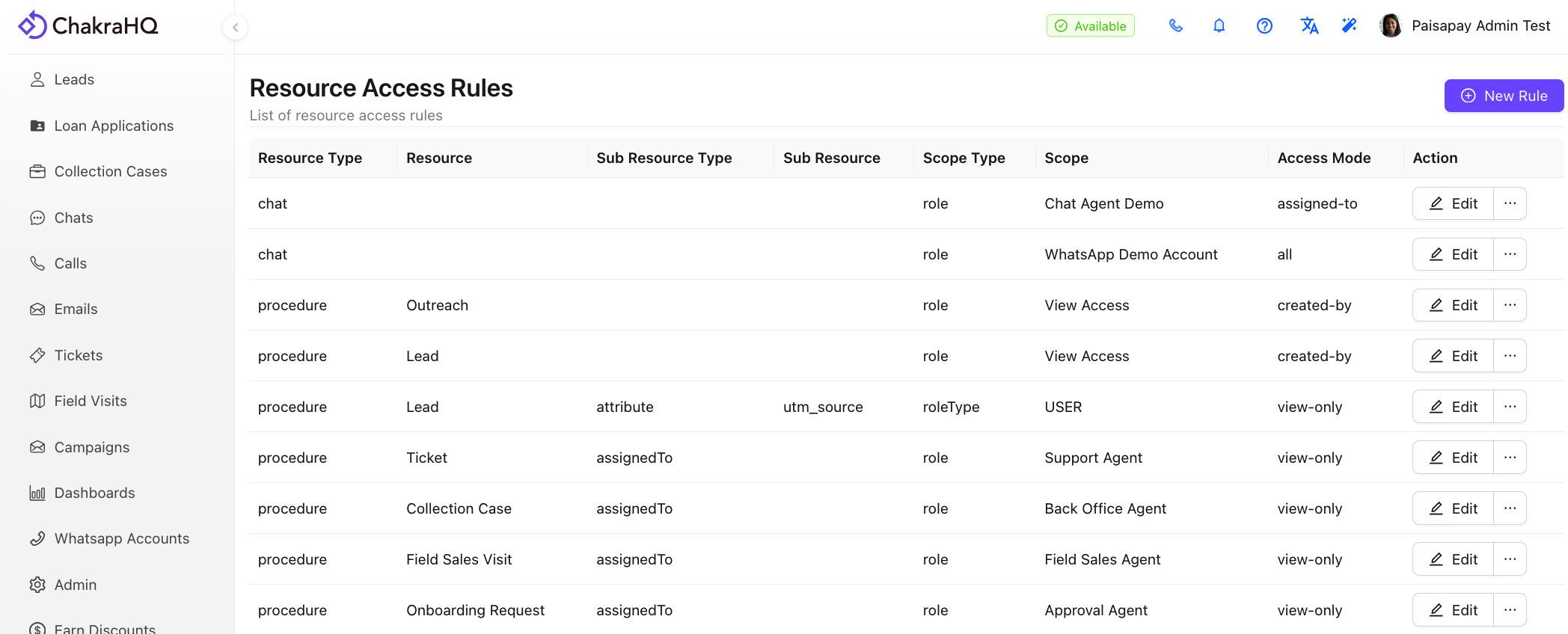
- Go to Resource Access Rules in Admin
- Click on
⊕ Add Rule - Add the follow selections in the configuration window
- Resource Type
- Resource (for procedure/entity only)
- Sub Resource Type (for procedure/entity only)
- Sub Resource (for procedure/entity only)
- Scope Type
- Scope (For User, Role Type & Role selections)
- Access Mode
- Once the configuration is completed, click Save
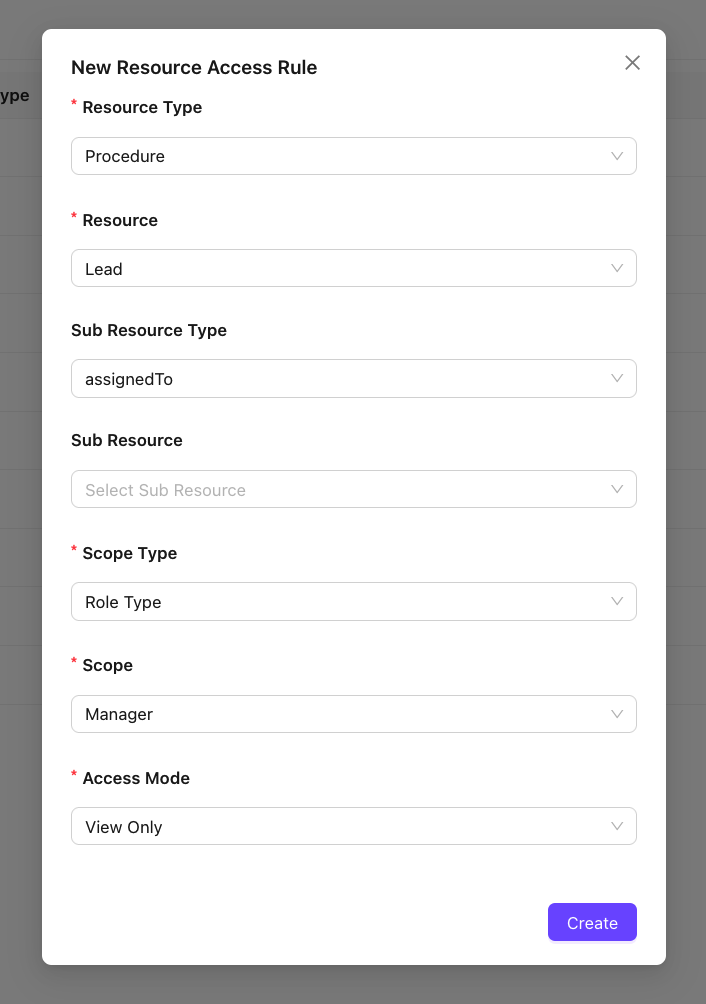
Sample 1: To provide manager role users only the view access of the Leads AssignedTo system field (No Edit Access), use the below configuration
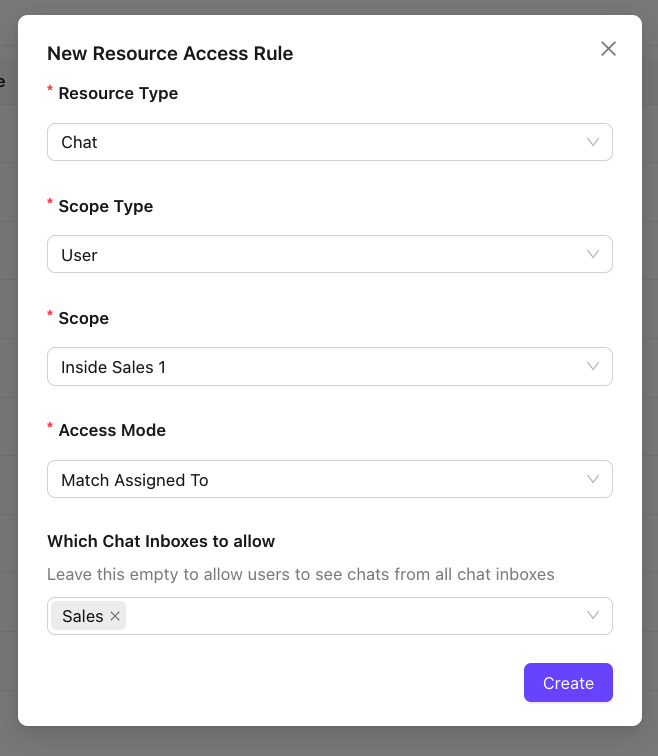
Sample 2: An administrator plans to provide a specific User (Inside Sales 1) access to only Chats assigned to them use the below configuration
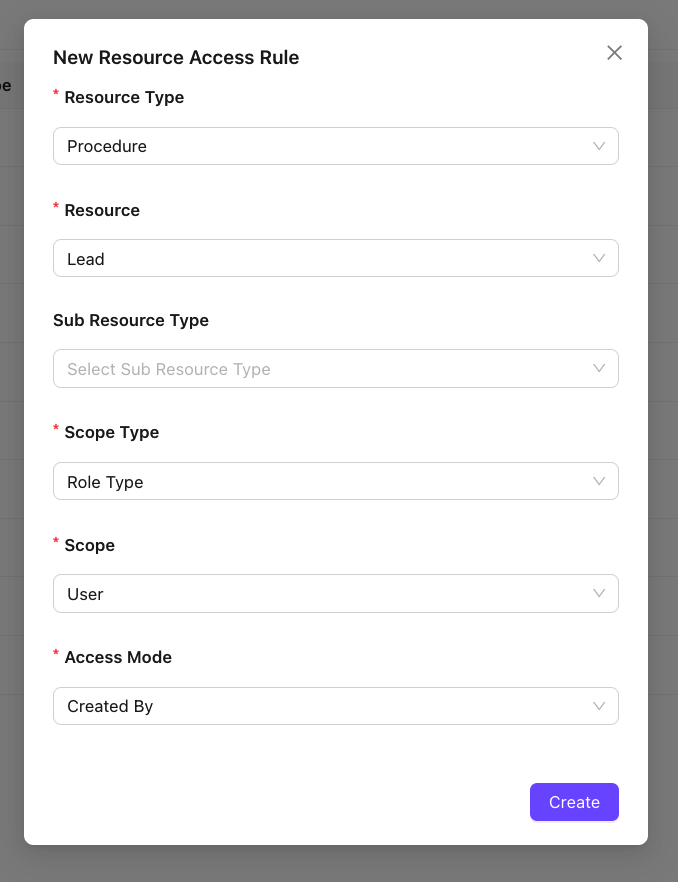
Sample 3: An administrator plan to limit access to USER role types to only those leads which are created by them. Use the below configuration.
How to Edit existing Resource Access Rule?
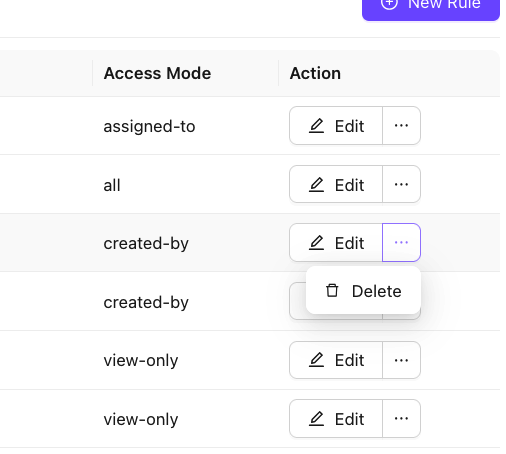
- Use the Edit button to modify an existing resource access rule
- To delete the rule use the … button and click on delete